Perfect Screen Sharing for Ultrawide Monitors
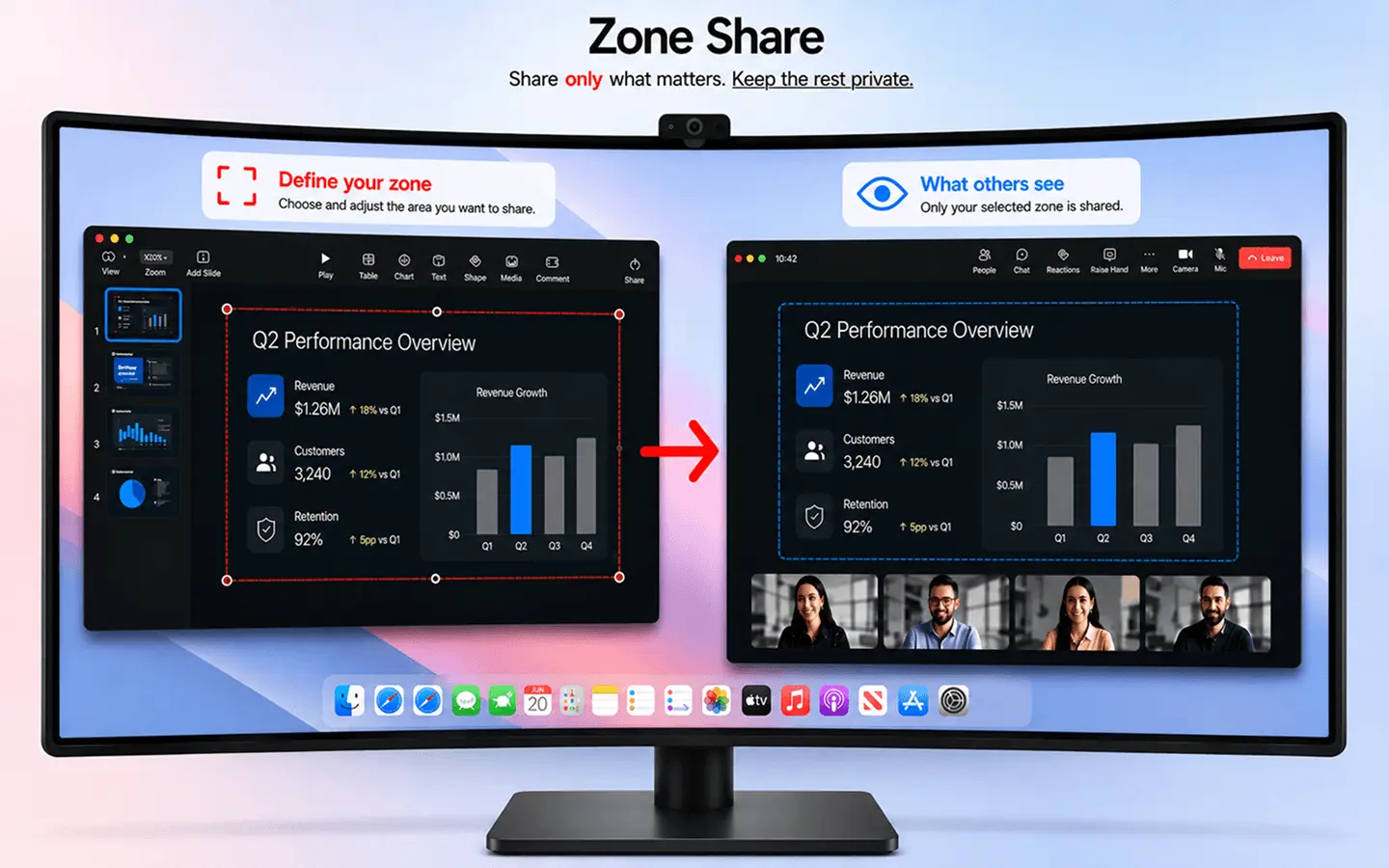
Share a specific screen area and draw, highlight, or annotate directly on it. Built for ultrawide displays, presentations, and lectures.
Everything You Need
Powerful tools for professional screen sharing on your ultrawide monitor
Pre-defined Ratios
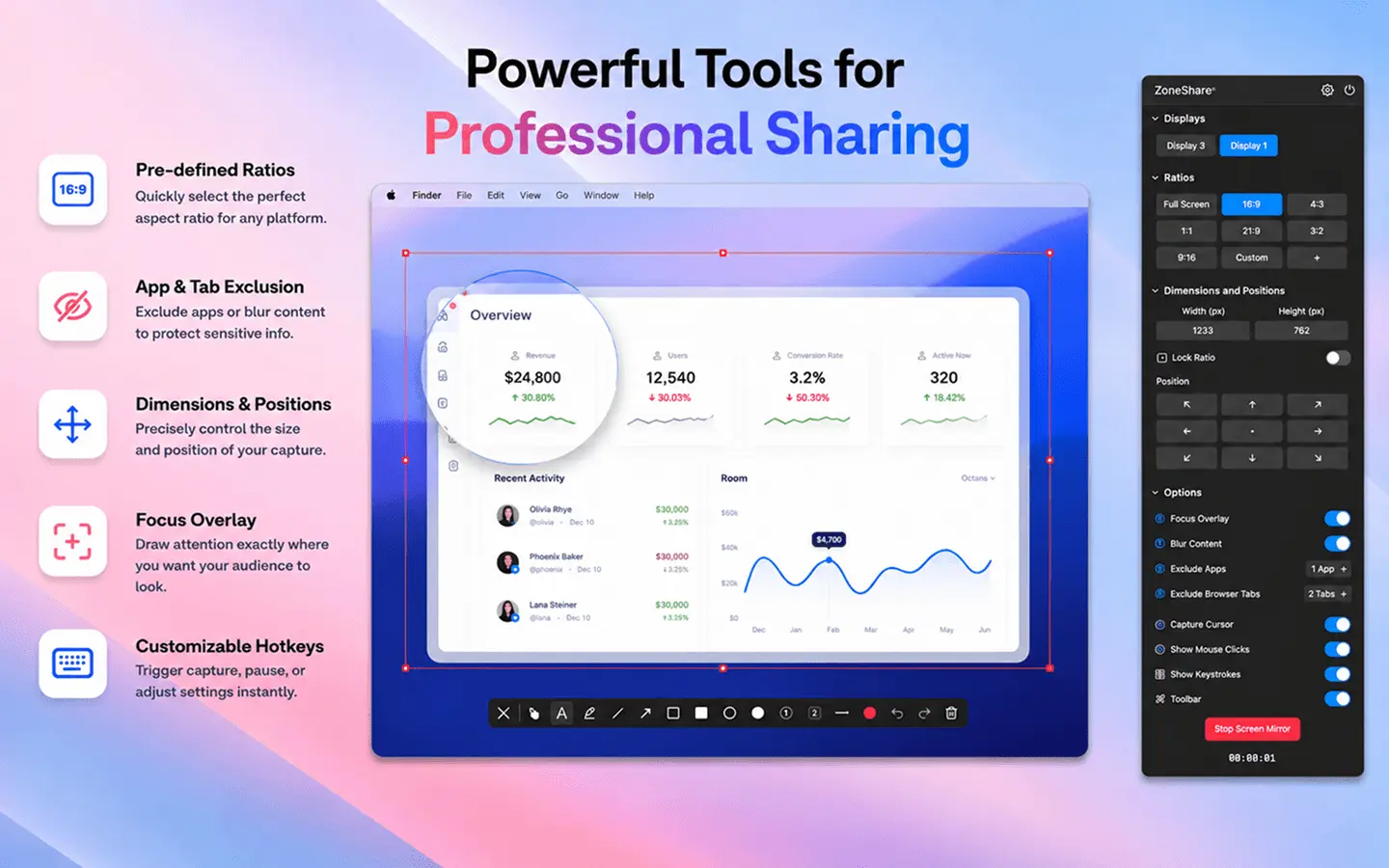
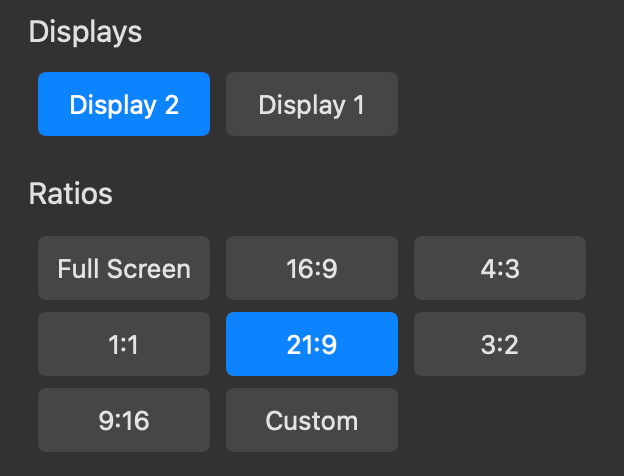
Choose from standard aspect ratios like 16:9, 4:3, 3:2 and more to ensure your audience sees exactly what you want them to see.
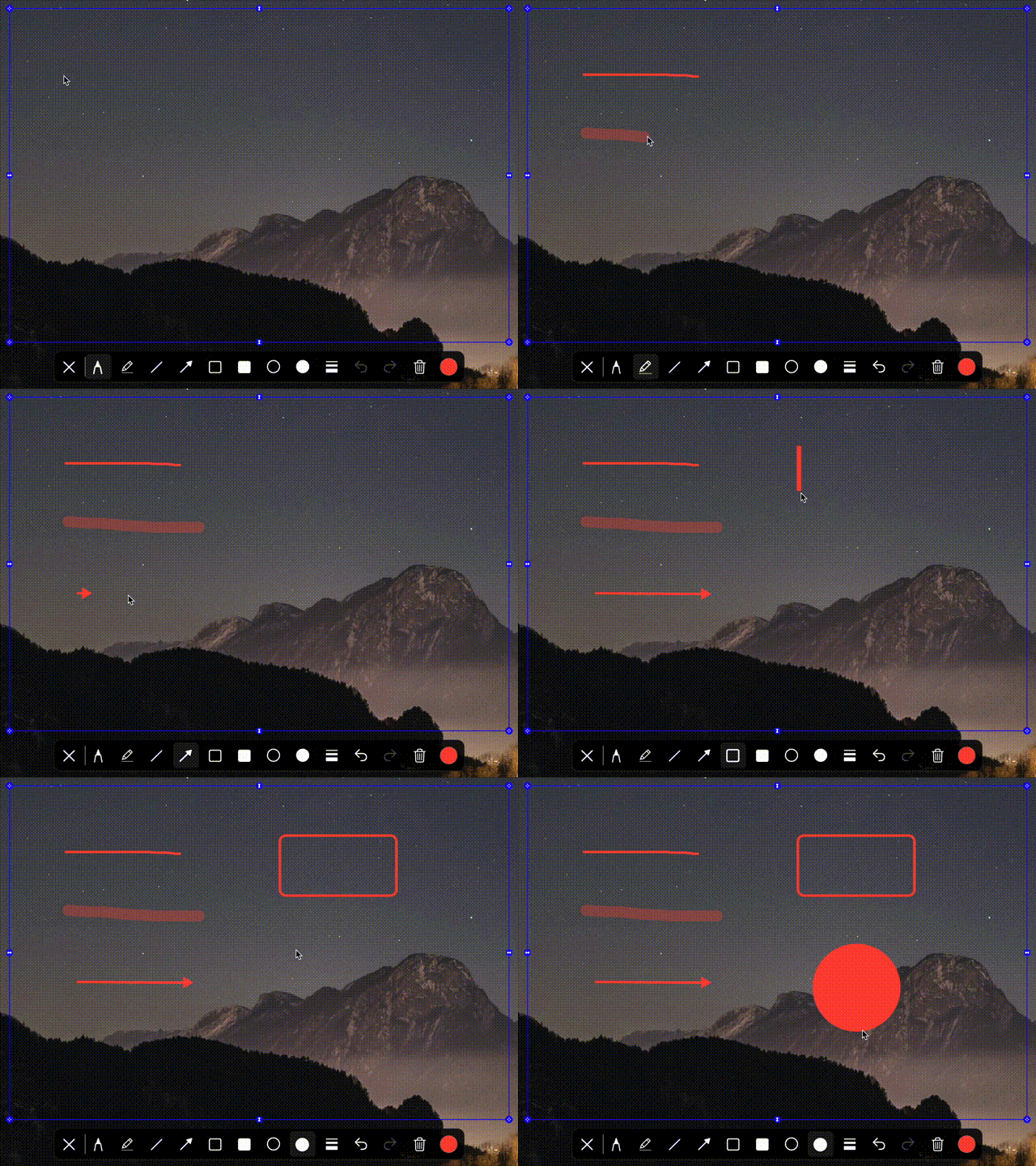
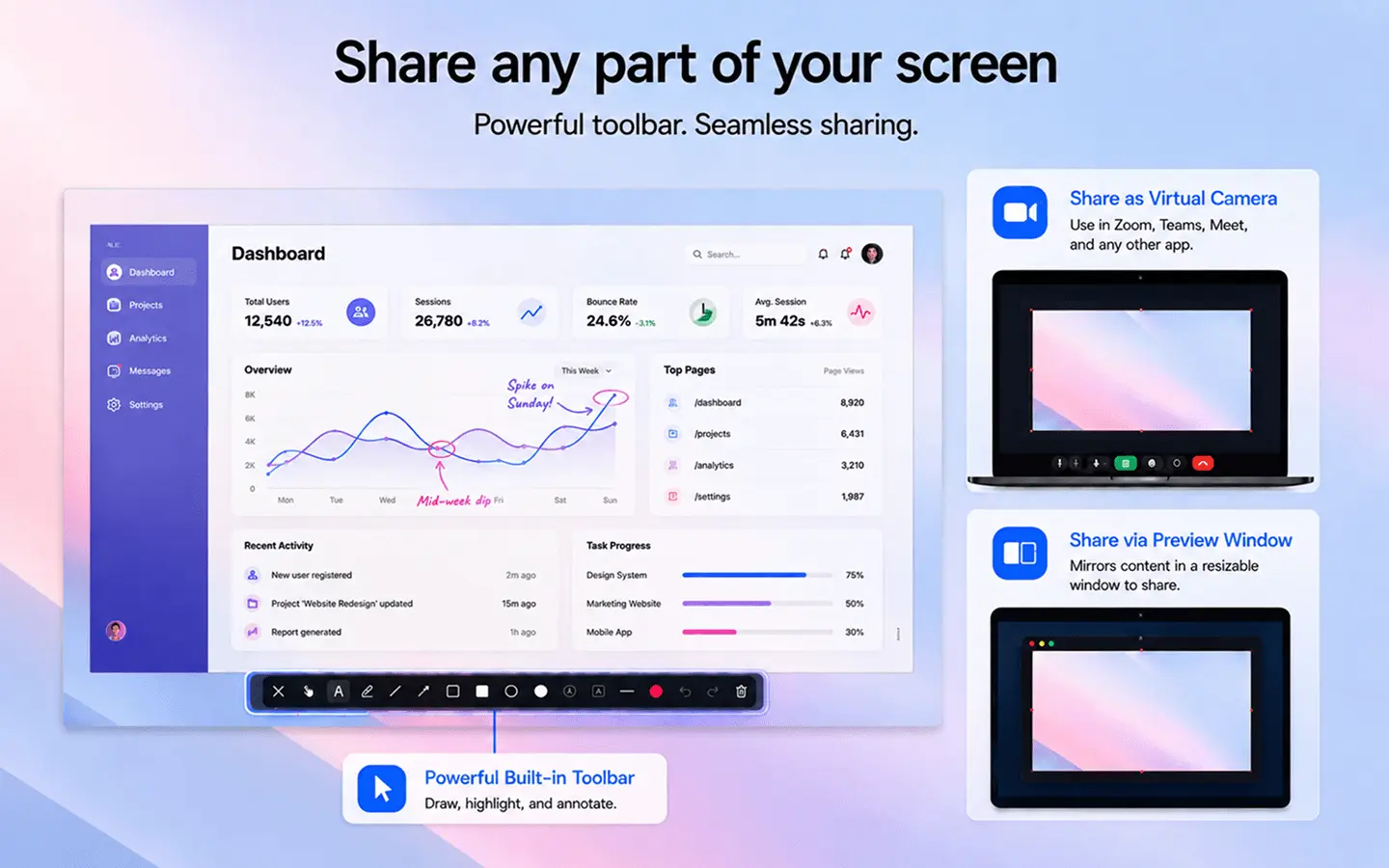
Drawing Toolbar
Draw, highlight, or annotate directly on the shared screen region using the built-in toolbar.
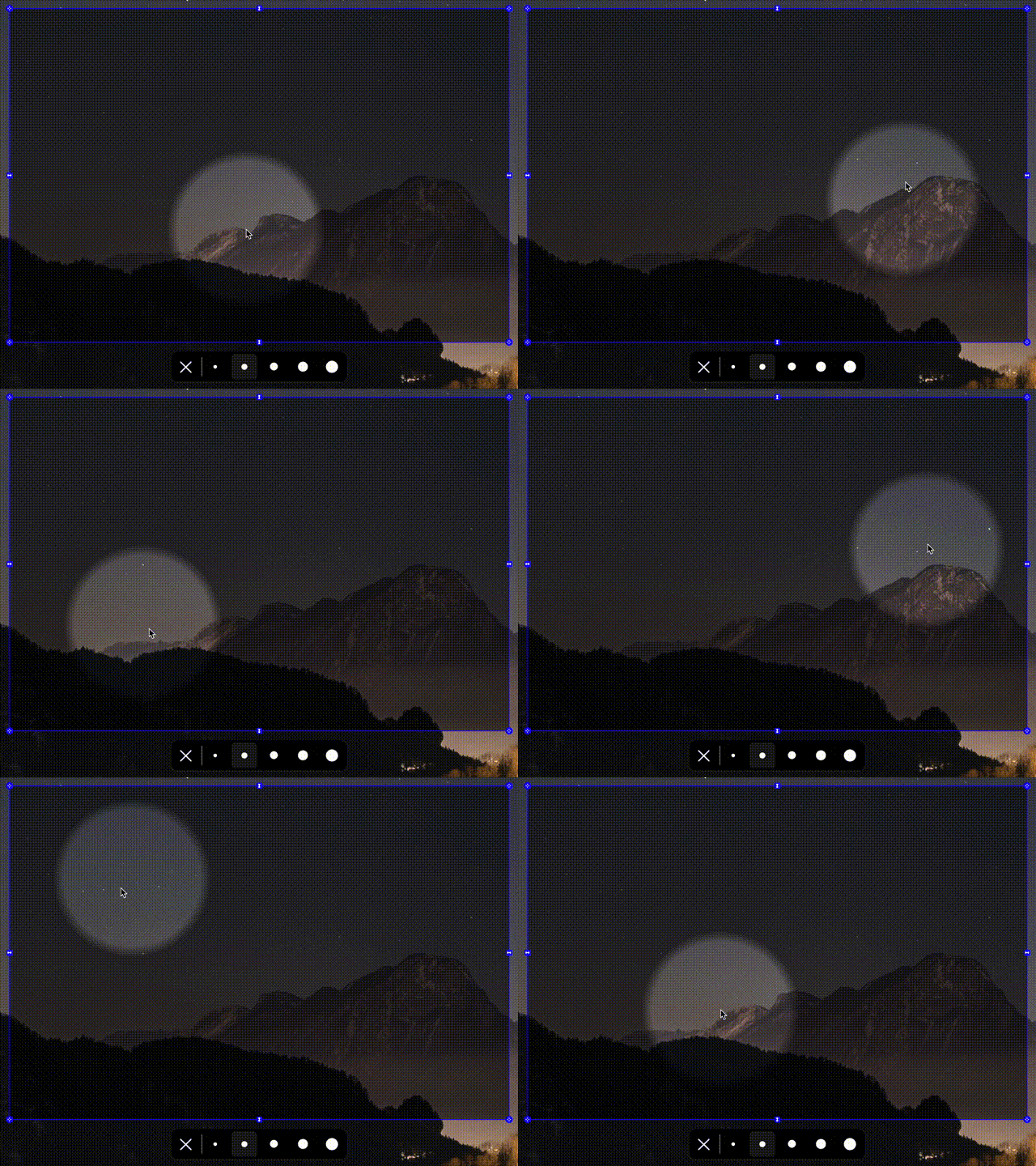
Spotlight
Draw attention to specific areas of your screen with an interactive spotlight tool that dims surrounding content.
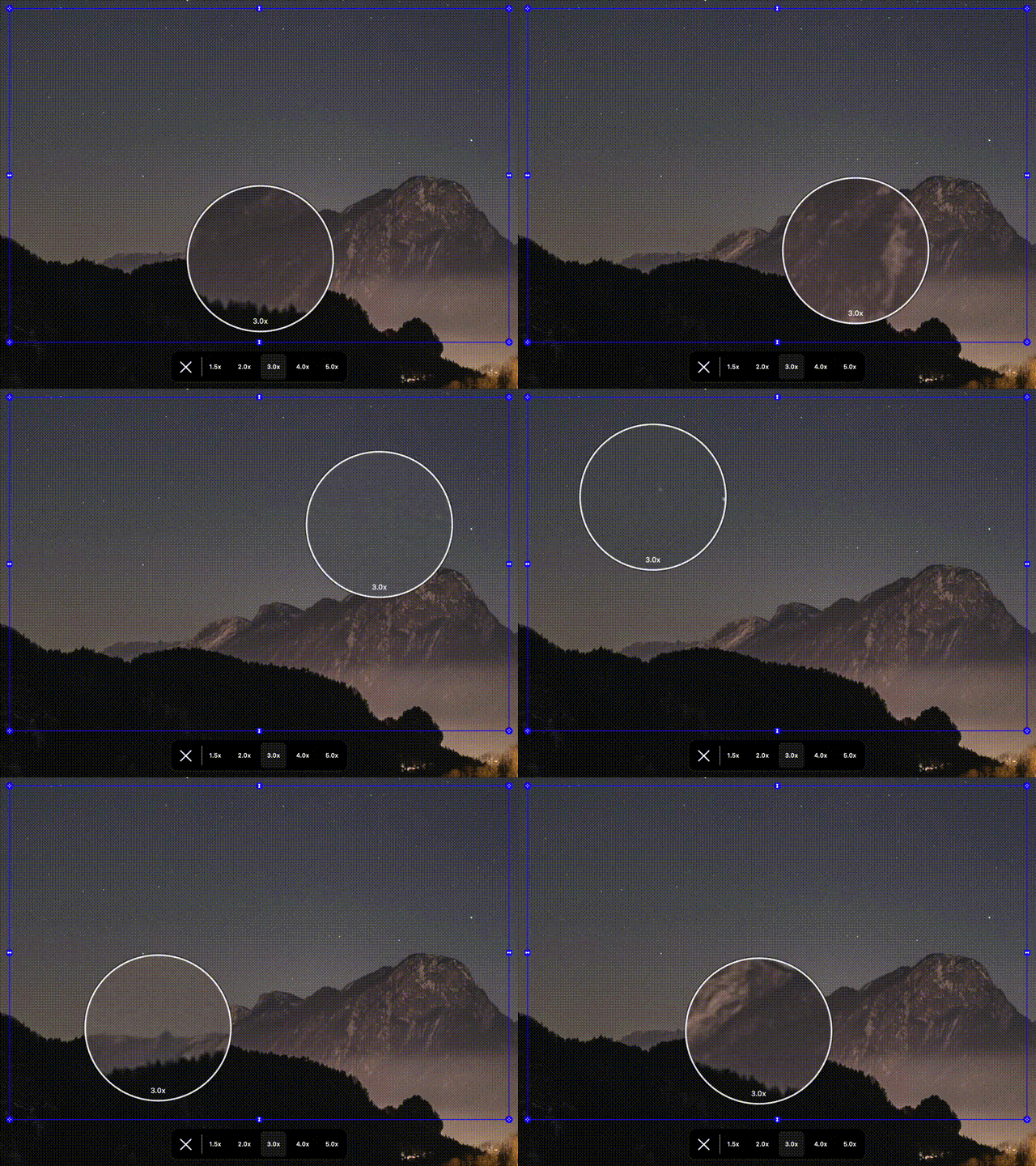
Zoom Controls
Magnify your shared region with a zoom effect to highlight finer details.
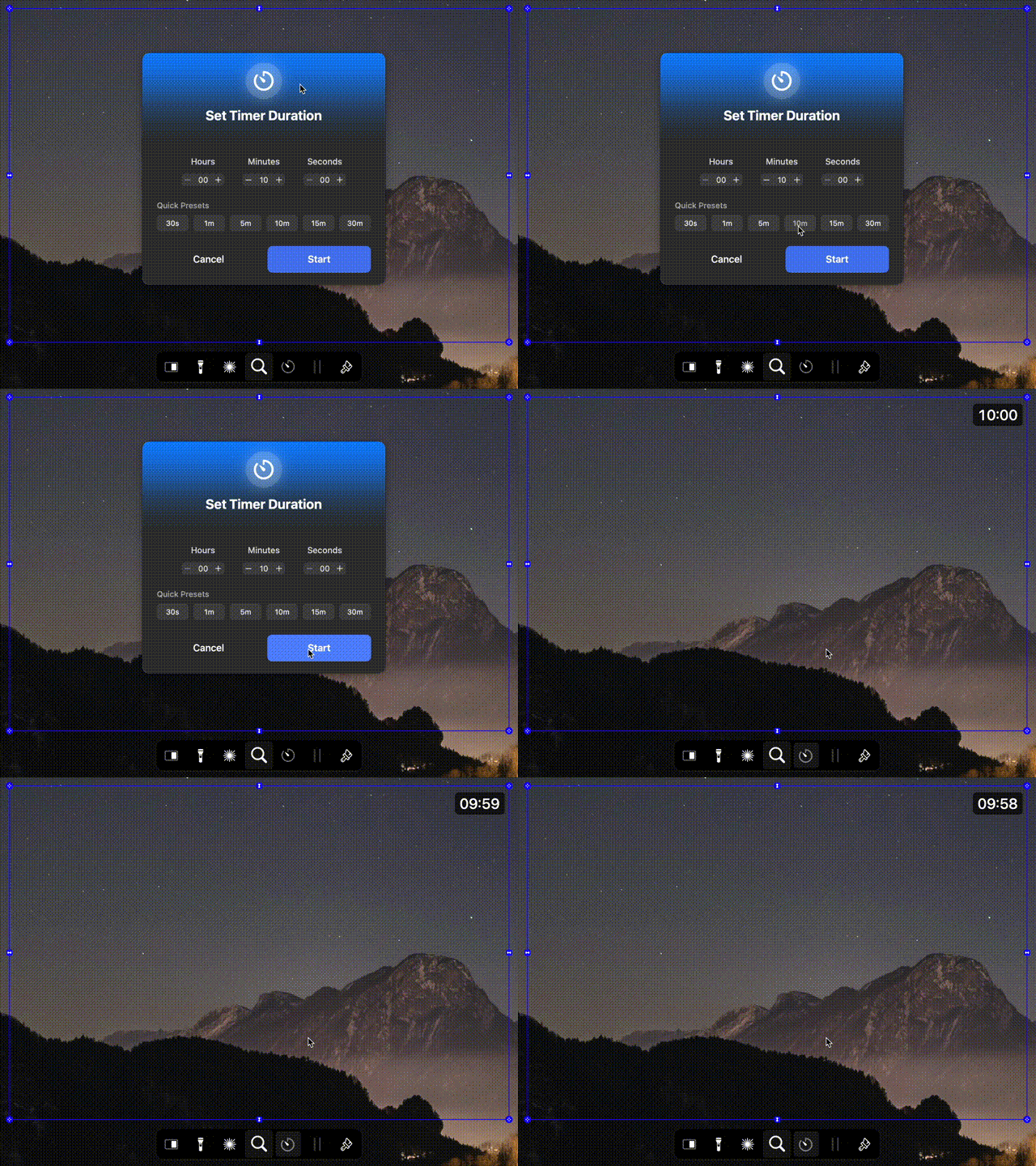
Timer
Keep track of presentation time with a built-in timer that displays directly in the shared region.

Keystroke Visualization
Display every key press and shortcut live on the shared region, so viewers can follow along.
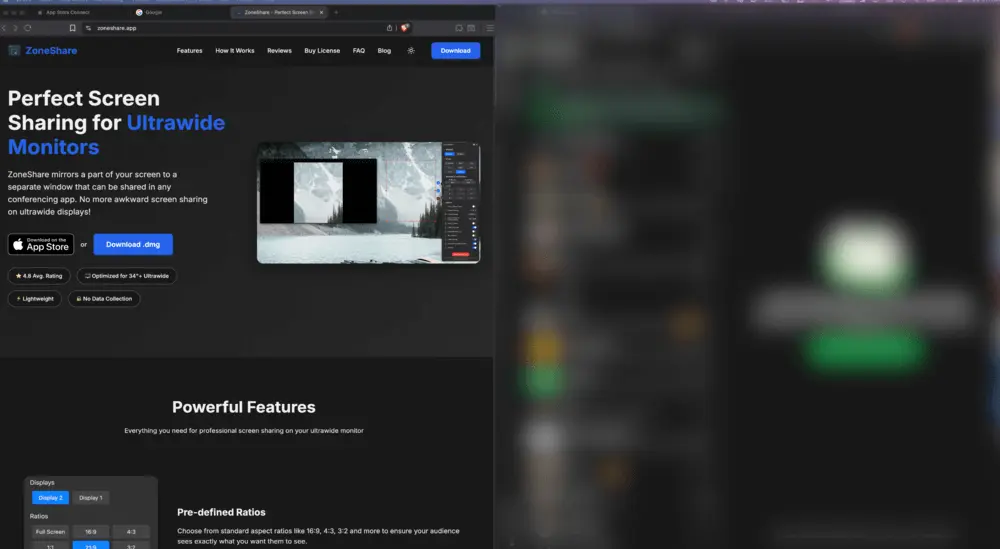
Smart Exclusion & Blur
Exclude or blur selected apps & browser tabs once they appear in the shared portion to maintain privacy.
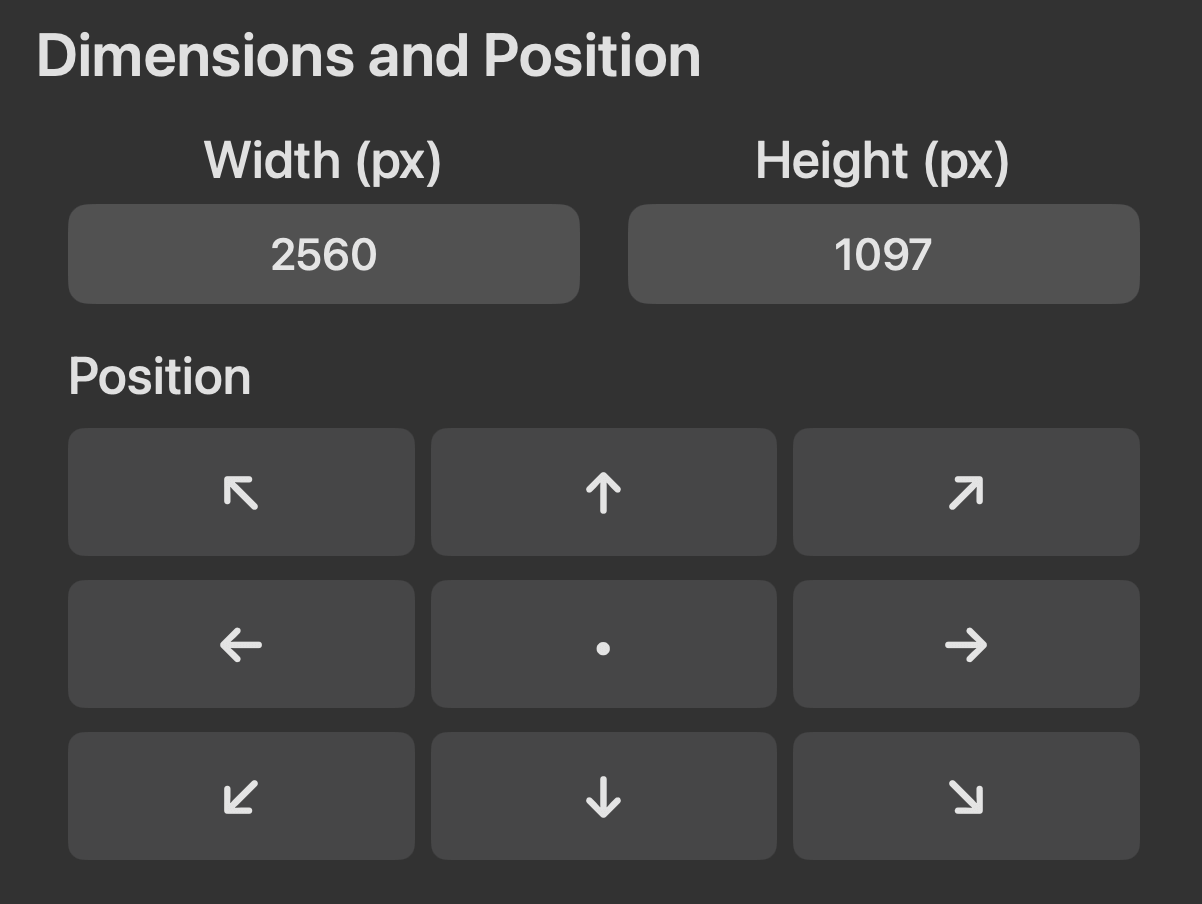
Dimensions & Position
Customize size and position precisely by entering pixel values or using drag handles, while preserving the selected aspect ratio.
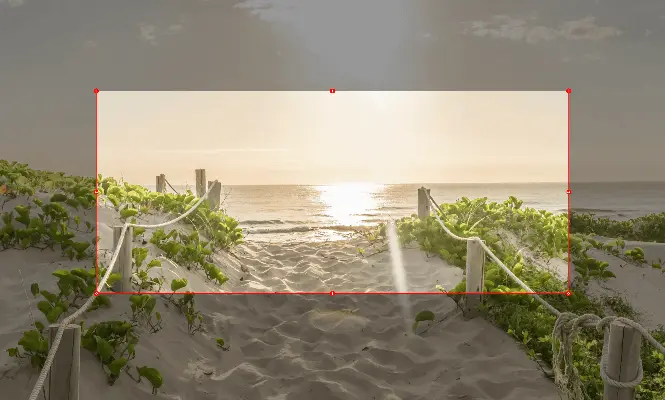
Focus Overlay
Dim everything outside the selected share region to keep focus on what matters during your presentations.
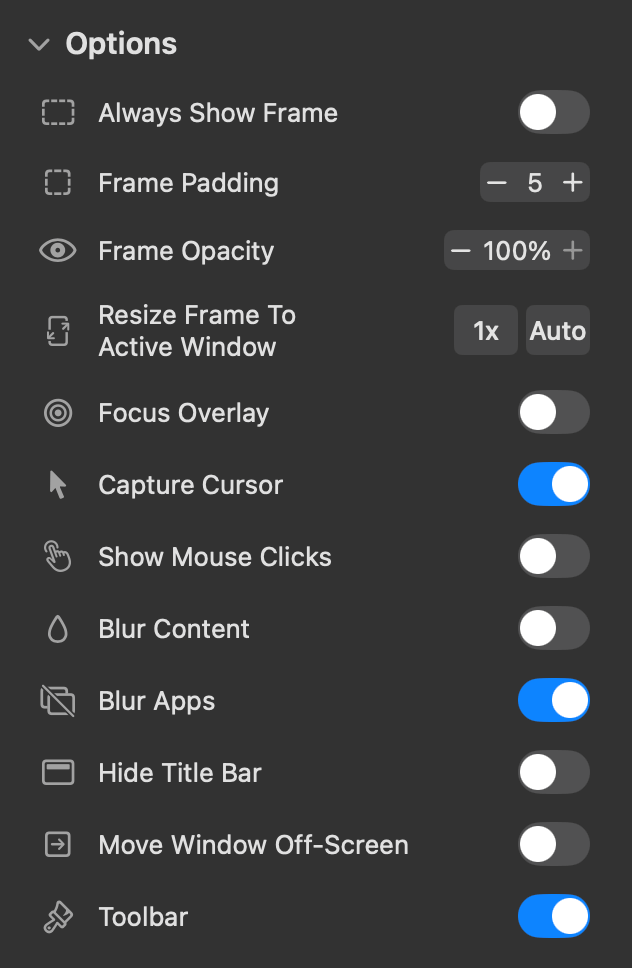
Flexible Sharing Options
Configure ZoneShare directly from the menu bar — choose presets, blur the screen, or hide your cursor with a single click.
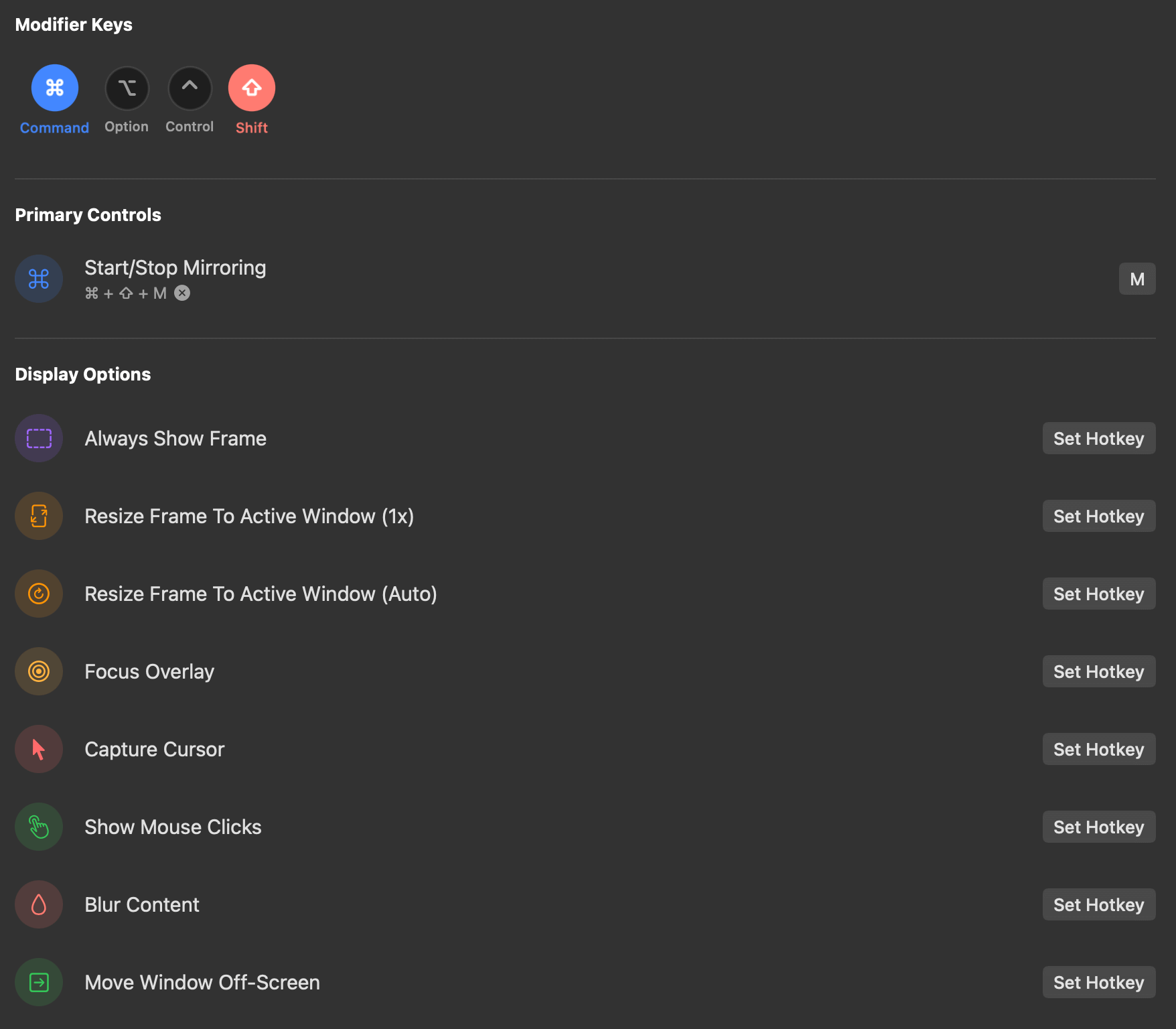
Customizable Hotkeys
Set up keyboard shortcuts to quickly capture and share specific areas of your screen without interrupting your workflow.
Three Simple Steps
Get started in seconds with an intuitive workflow
Start Mirroring
Choose your output: a Zone Share preview window showing the mirrored content, or the Zone Share Camera, a virtual camera that appears like a regular webcam in your meeting apps.
Customize View
Choose your preferred aspect ratio, size and position as needed.
Share the portion
In your conferencing app, share the window titled Zone Share — or select Zone Share Camera as your camera — instead of your entire screen.
Loved by Professionals
See what our users are saying about ZoneShare
ZoneShare has completely transformed how I present from my ultrawide monitor. No more zooming in or sharing my entire desktop!

Product Manager
The toolbar is so handy, directly drawing on the shared screen is such a game changer!

Architect
The hotkey feature saves me so much time during meetings. I can share a section of my screen without fumbling through menus.

Software Developer
As someone who presents daily, the blur feature for sensitive information has been incredibly useful. Highly recommend!

Financial Analyst
Simple, Transparent Pricing
Choose the plan that works best for you. All pro features included.
Monthly Free 3-day trial
excl. sales tax
Cancel anytime
- All Pro features unlocked
- Use on 1 device
- Cancel anytime
Lifetime
excl. sales tax
Pay once, own it forever
- All Pro features unlocked
- Use on 1 device
- Lifetime updates included
Frequently Asked Questions
Everything you need to know about ZoneShare
Preview Window: ZoneShare shows the mirrored content in a window titled Zone Share, which you share as a window in your meeting app. Works with any app that supports window sharing.
Virtual Camera: ZoneShare registers a virtual camera called Zone Share Camera. It appears like a normal webcam in Zoom, Microsoft Teams, Google Meet, Discord, OBS, and more — you simply select it as your camera. No window appears on your screen, your desktop stays clean.
Both options mirror the same region of your screen. You can switch between them anytime in Settings > General.
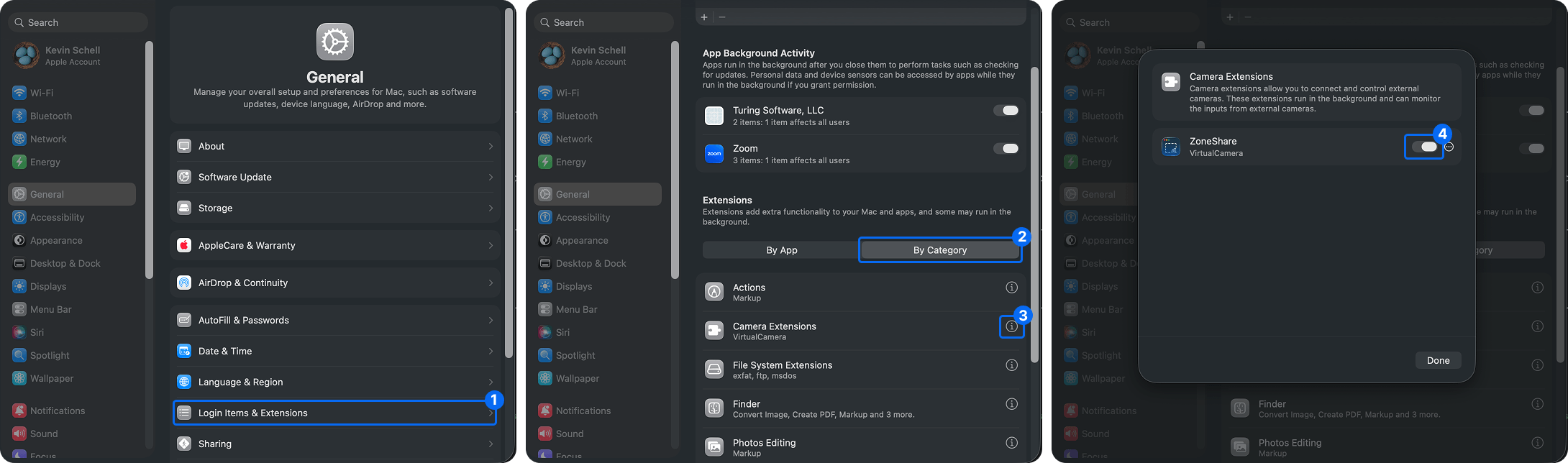
Enable the virtual camera under System Settings → General → Login Items & Extensions → By Category → Camera Extensions, by clicking the info button.. Then select Zone Share Camera as your camera in your meeting app, just like any other webcam.
Yes. With the Preview Window option, ZoneShare works with virtually any conferencing app that supports window sharing, including Zoom, Microsoft Teams, Google Meet, Webex, and more. With the Virtual Camera option, you can select Zone Share Camera as a camera source in Zoom, Microsoft Teams, Google Meet, Discord, OBS, and other apps that support webcams.
ZoneShare supports macOS 14 Sonoma and newer versions, including the latest macOS release.
Yes, ZoneShare allows you to set up custom hotkeys for quick access to all its features through the preferences menu.
With the Preview Window option, please ensure that mirroring has started. If you have multiple displays, the window will initially appear on the other screen. By default, it appears behind other windows to avoid distraction.
With the Virtual Camera option, no window appears. Instead, look for Zone Share Camera in the camera list of your meeting app. If it is missing, make sure the camera extension is approved in System Settings > General > Login Items & Extensions > By Category > Camera Extension.
The Pro Version purchased in the App Store is tied to the Apple ID used for the purchase. The license key does not require an Apple ID, which is useful for users who cannot make in-app purchases in the App Store.
Furthermore, the function that resizes an app window to match the frame is only available in the DMG version, because the App Store does not permit it.
You can enter your license key in the app settings, under the general tab.
The license key can be either single-device or multi-device, depending on your purchase. To switch devices, deactivate the license on the old device first. You can do this in the Polar Customer Center (see settings under the general tab).
No. ZoneShare only mirrors the selected part of your screen into a window or into the virtual camera. Everything happens locally on your Mac, and nothing is recorded or sent anywhere.
macOS requires explicit permission for screen sharing apps. ZoneShare needs this access only to mirror your selected portion. No data is stored or shared.
The virtual camera is a macOS system extension, and macOS requires you to approve it once in System Settings > General > Login Items & Extensions > By Category > Camera Extension. This approval is only needed if you want to use the Virtual Camera option — the Preview Window works without it. No data is stored or shared.
You can purchase the Pro version in two ways:
App Store: If you installed ZoneShare from the App Store, you can upgrade to the Pro version directly within the app via in-app purchase.
License Key: You can purchase a license key from our website, which can be activated in the app settings without requiring an Apple ID.
App Store: Through standard App Store update notifications on your device.
DMG: You will be notified directly within the app. The app checks for updates on each launch and every 24 hours.
New Apps
Discover other tools we recommend
Transform Your Screen Sharing Today
Download ZoneShare now and make online presentations, lectures, and classroom demos from your ultrawide monitor a breeze.
