Perfect Screen Sharing for Ultrawide Monitors, Presentations & Lectures
Share a specific screen area and draw, highlight, or annotate directly on it. Perfect for ultrawide displays!
Upgrade to Pro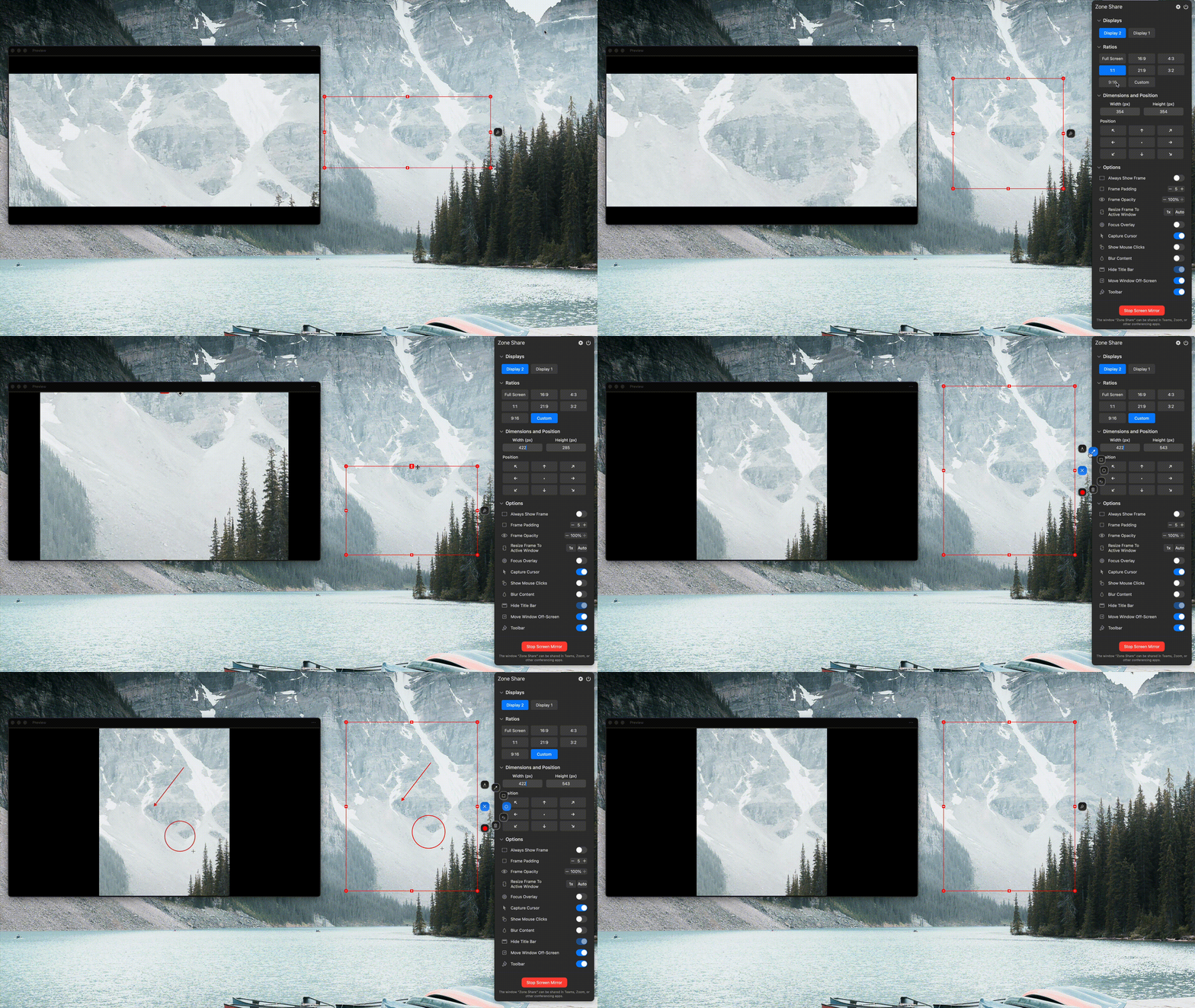
Powerful Features
Everything you need for professional screen sharing on your ultrawide monitor
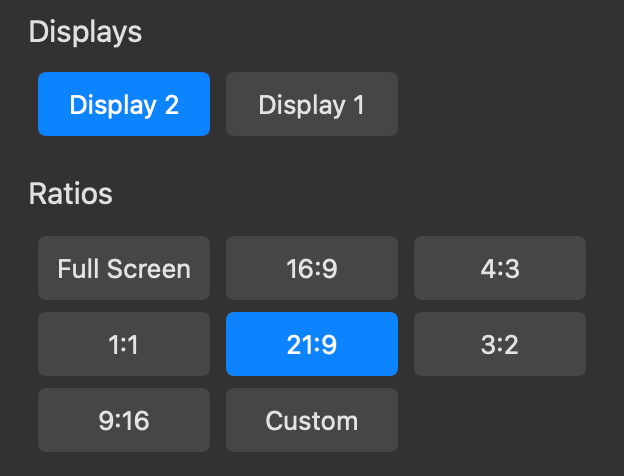
Pre-defined Ratios
Choose from standard aspect ratios like 16:9, 4:3, 3:2 and more to ensure your audience sees exactly what you want them to see.
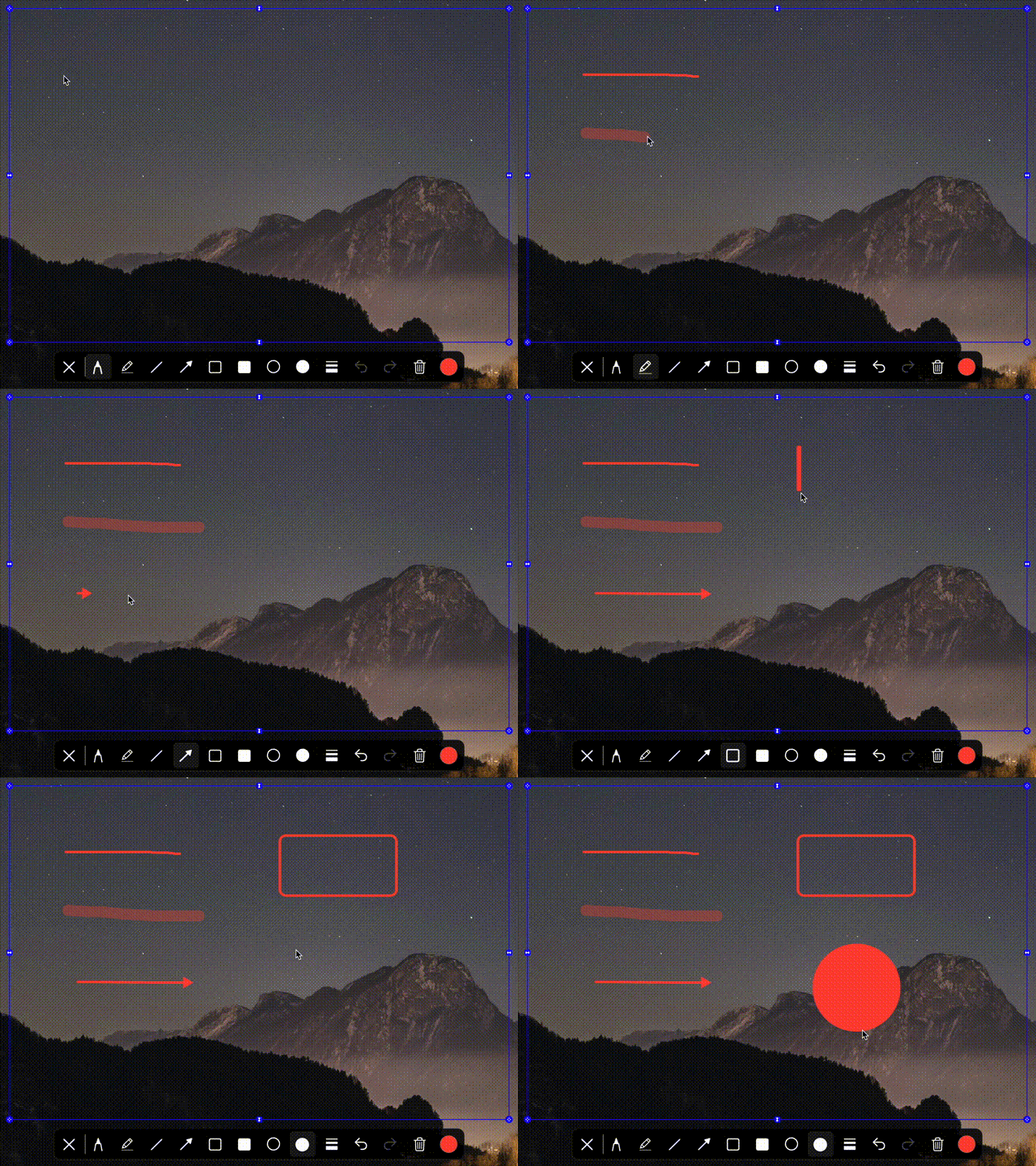
Toolbar
Draw, highlight, or annotate directly on the shared screen region using the built-in toolbar.
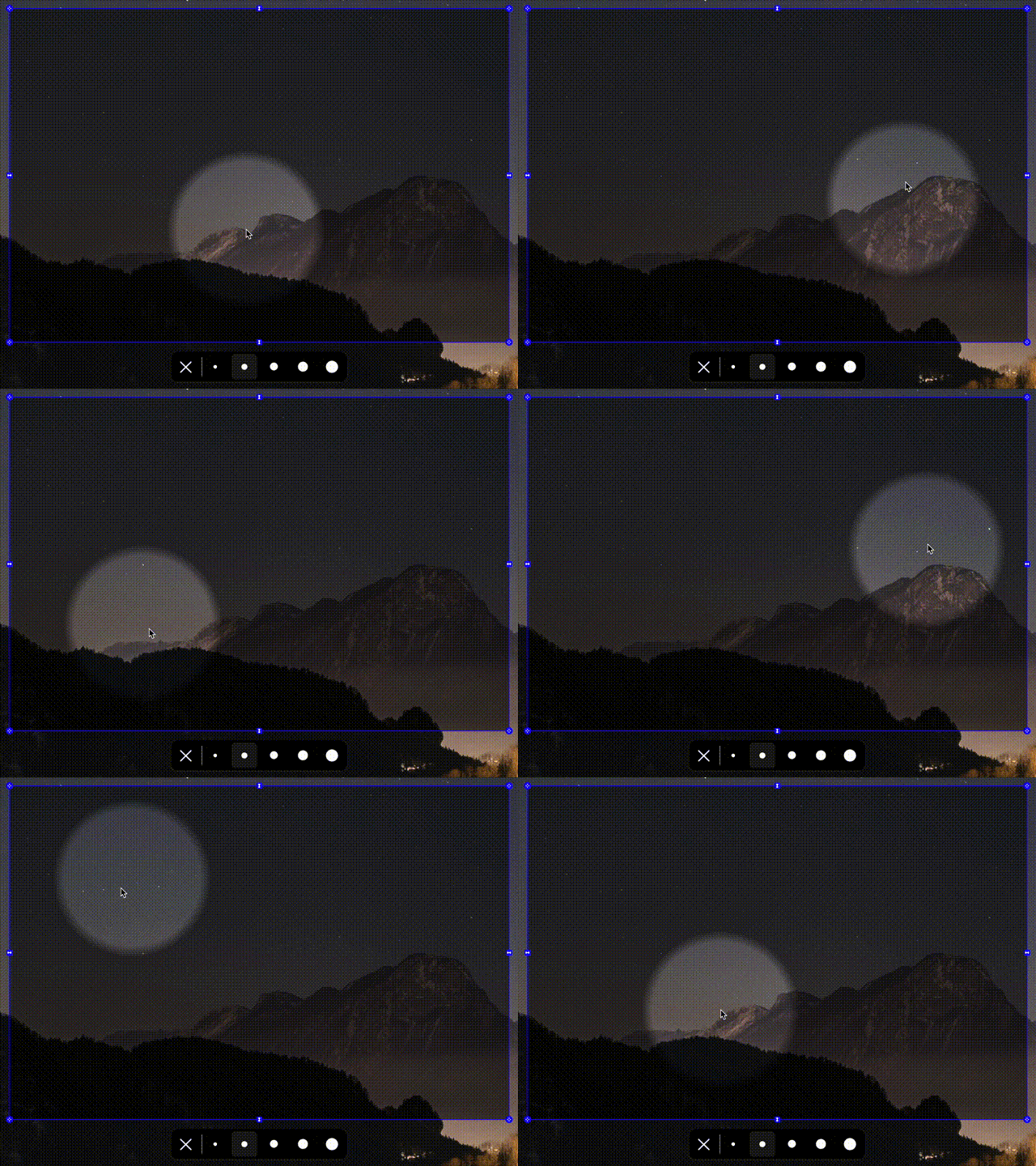
Spotlight
Draw attention to specific areas of your screen with an interactive spotlight tool that dims surrounding content.
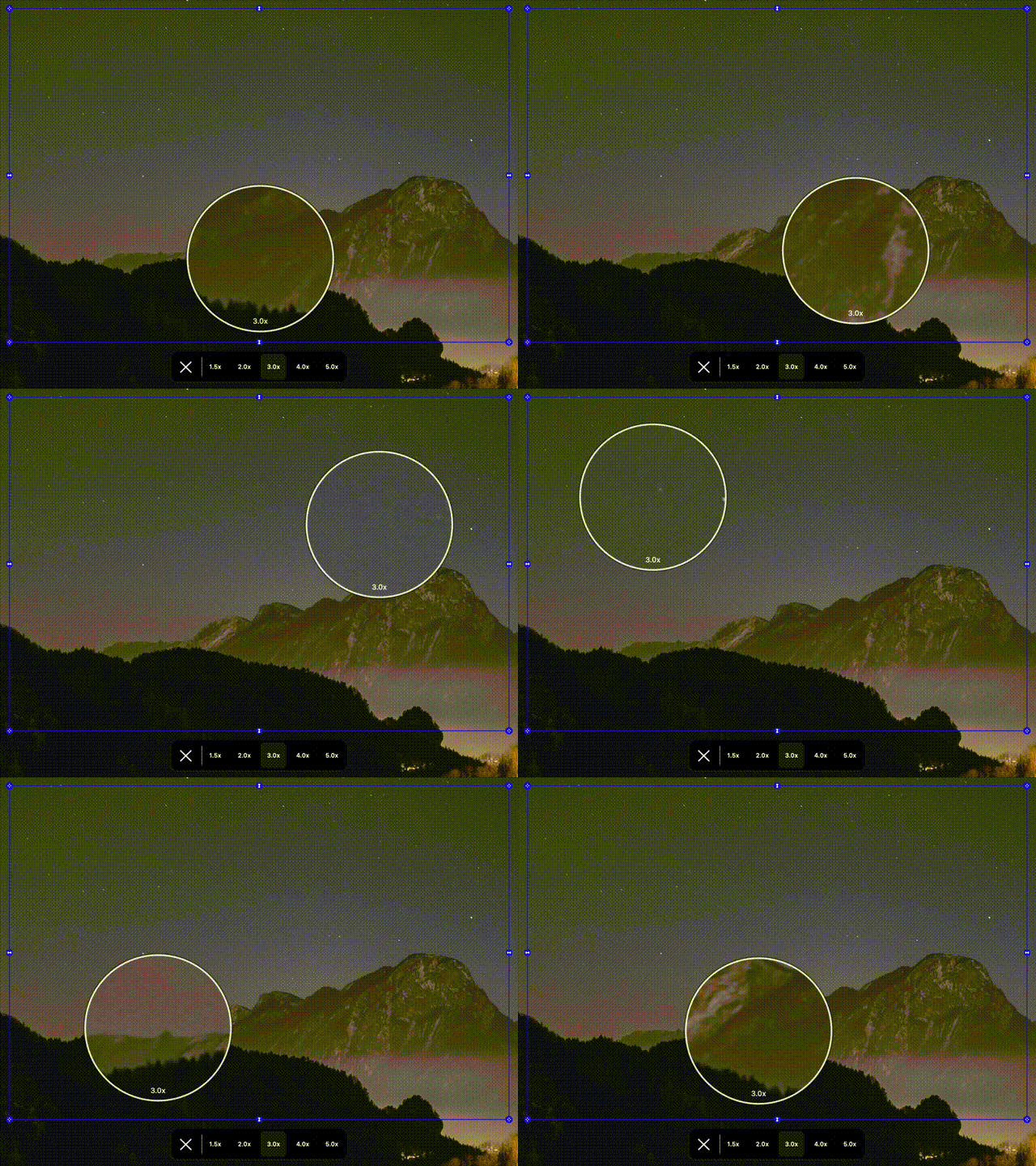
Zoom Controls
Magnify your shared region with a zoom effect to highlight finer details.
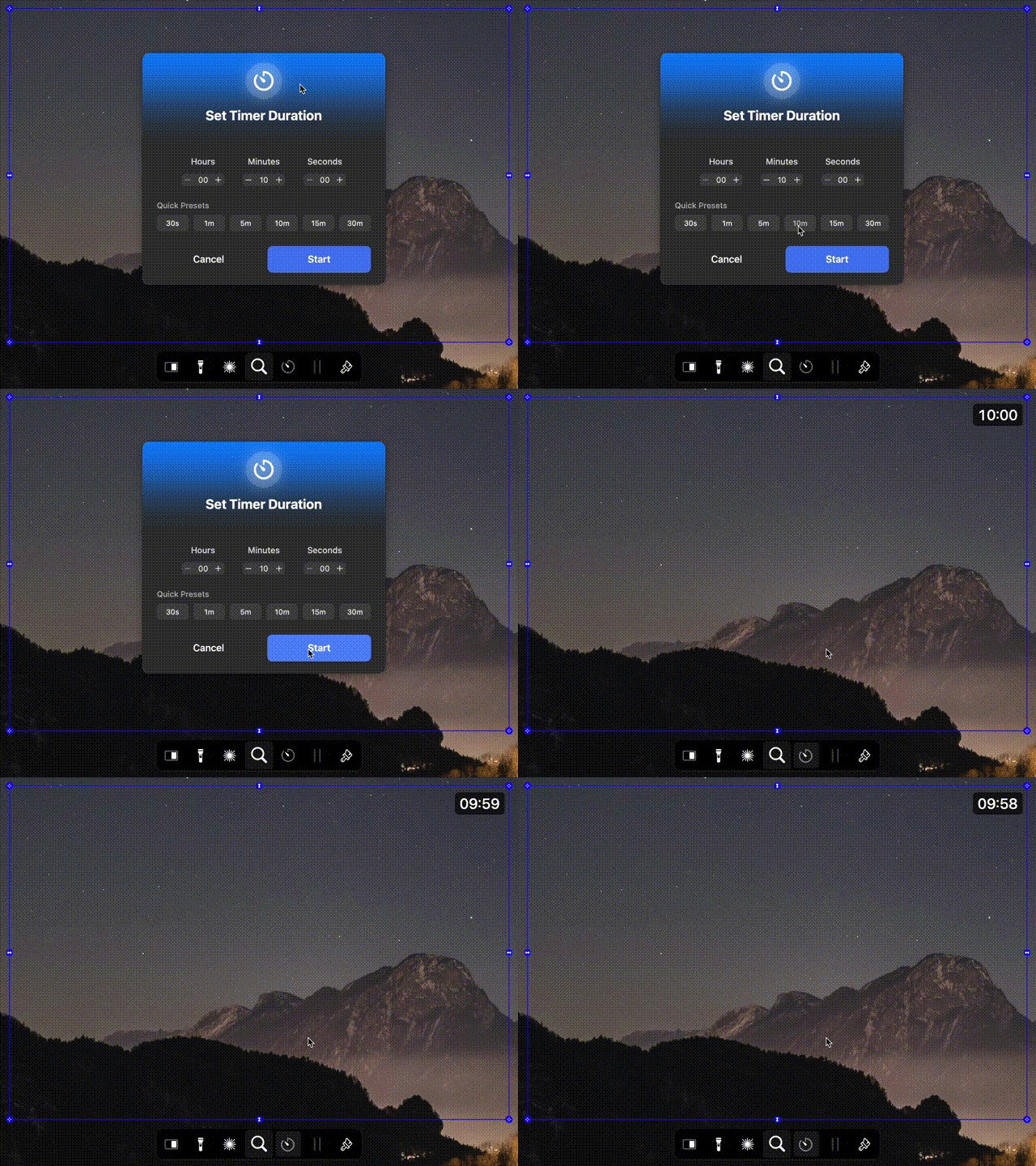
Timer
Keep track of presentation time with a built-in timer that displays directly in the shared region.
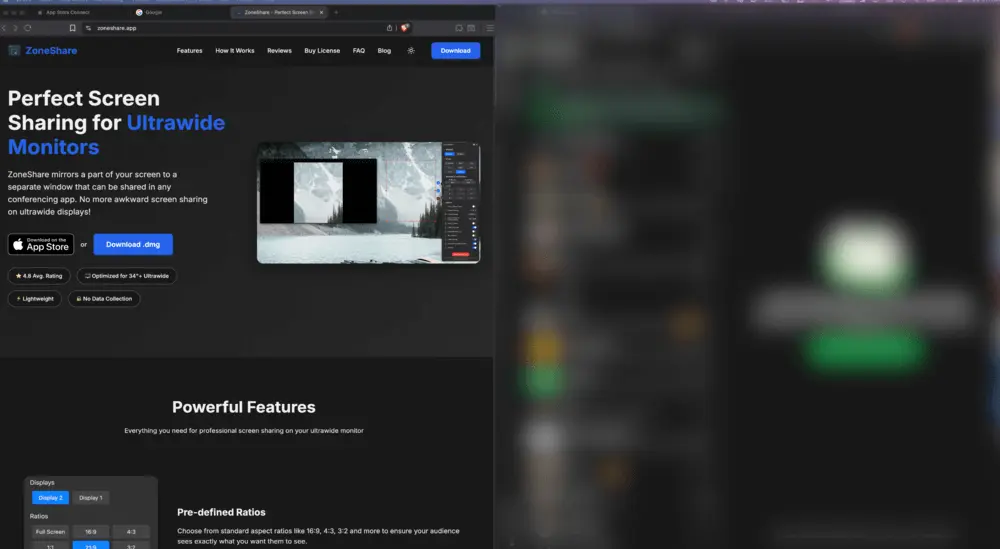
Smart Exclusion and Blur
Exclude or blur selected apps & browser tabs once they appear in the shared portion to maintain privacy during screen sharing.
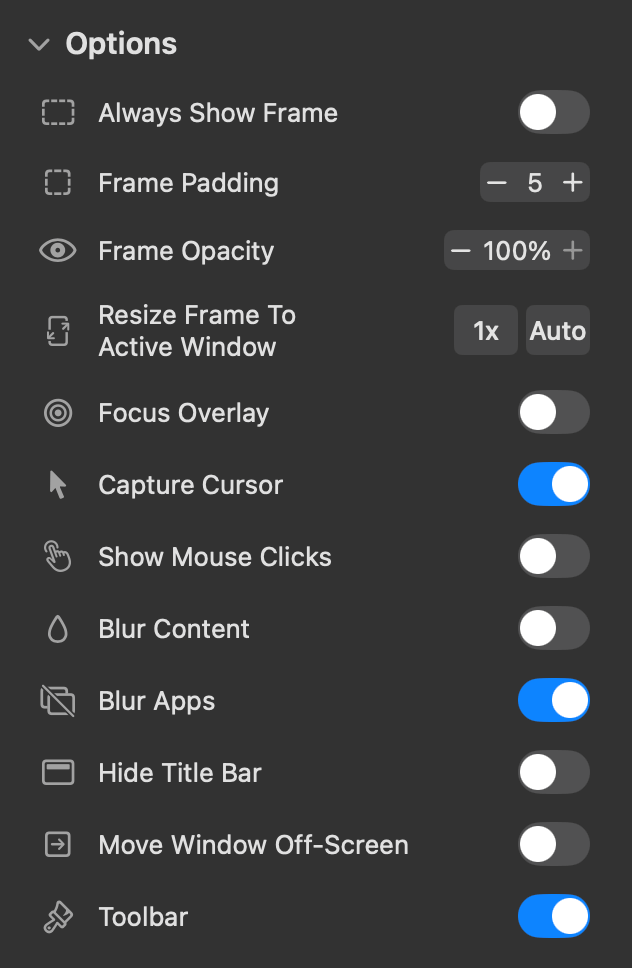
Flexible Sharing Options
Configure ZoneShare directly from the menu bar — choose presets, blur the screen, or hide your cursor with a single click.
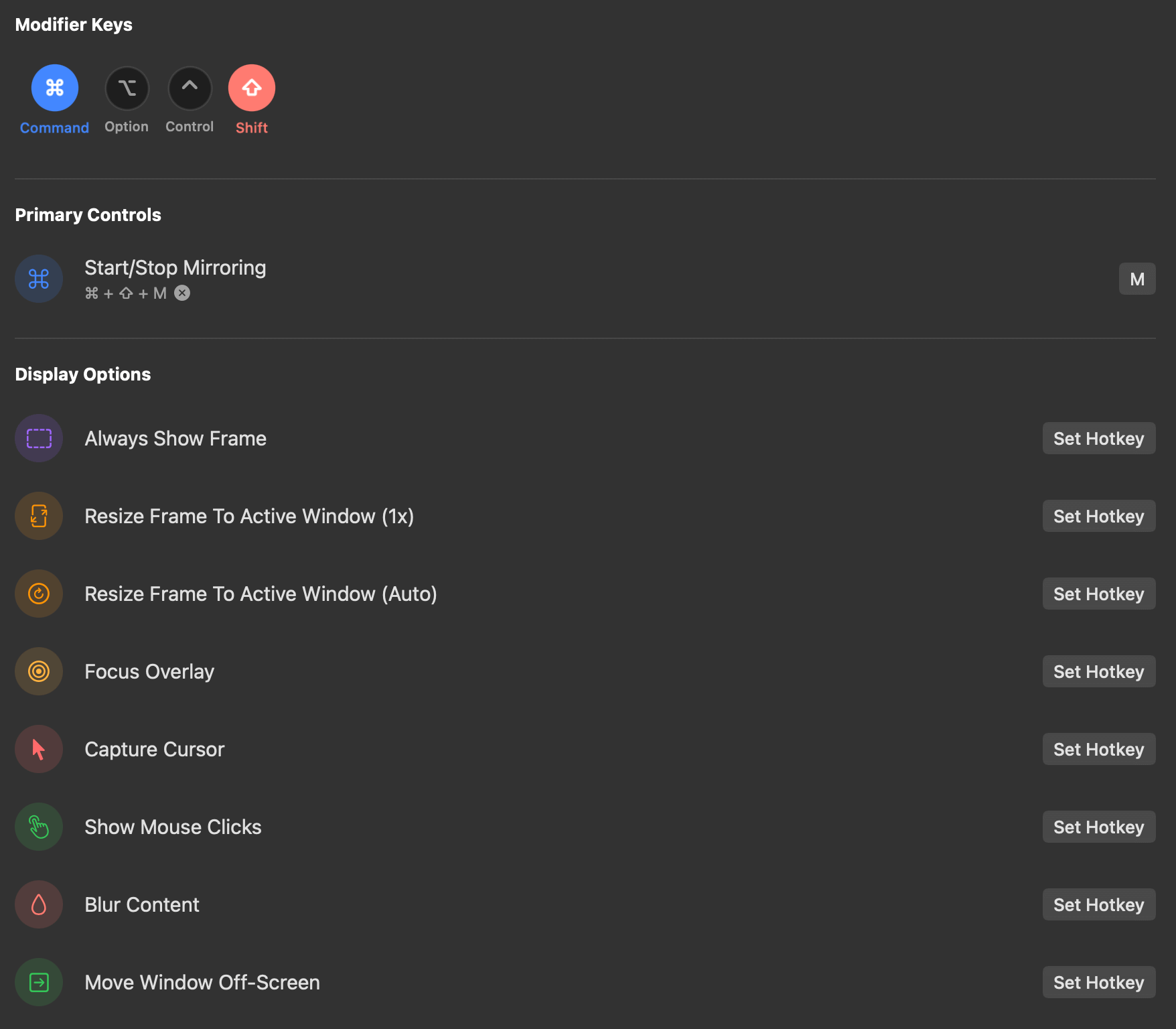
Customizable Hotkeys
Set up keyboard shortcuts to quickly capture and share specific areas of your screen without interrupting your workflow.
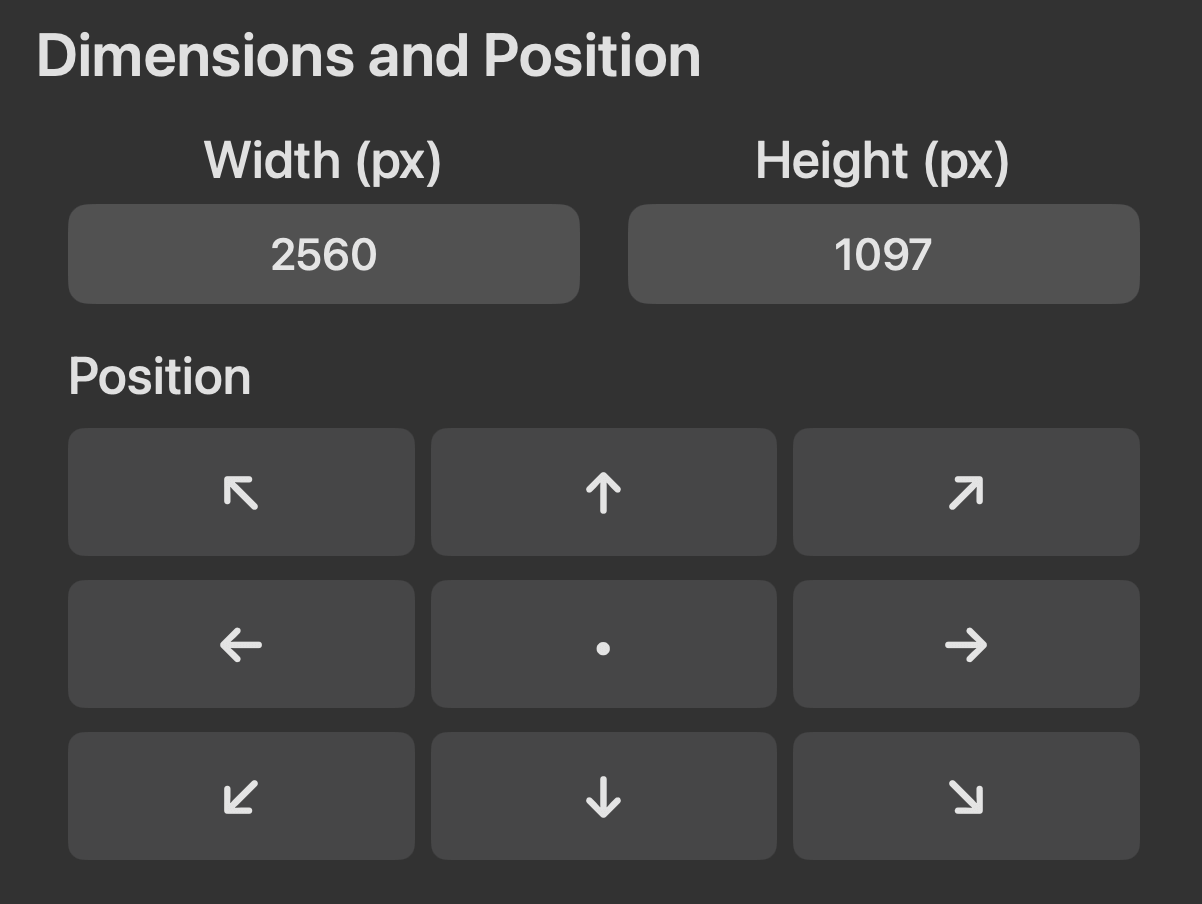
Customize Dimensions and Position
Customize size and position precisely by entering pixel values or using drag handles, while preserving the selected aspect ratio.
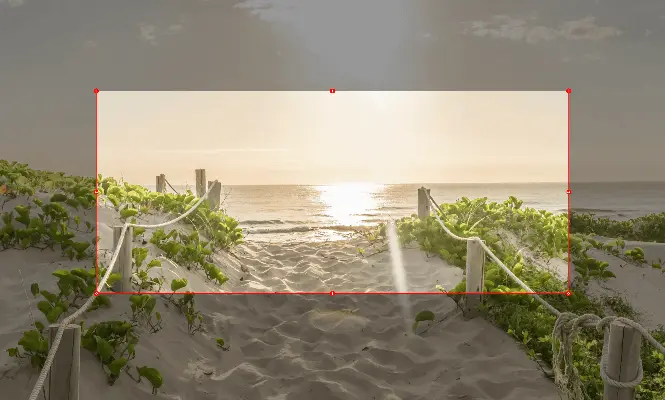
Focus Overlay
Dim everything outside the selected share region to keep focus on what matters during your presentations.
How It Works
Three simple steps to perfect screen sharing
Start Mirroring
A window titled Zone Share, showing the mirrored content of the selected region, will appear.
Customize View
Choose your preferred aspect ratio, size and position as needed.
Share Window
In your conferencing app, share the window titled Zone Share instead of your entire screen.
Loved by Professionals
See what our users are saying about ZoneShare

ZoneShare has completely transformed how I present from my ultrawide monitor. No more zooming in or sharing my entire desktop!

The toolbar is so handy, directly drawing on the shared screen is such a game changer!

The hotkey feature saves me so much time during meetings. I can share a section of my screen without fumbling through menus.

As someone who presents daily, the blur feature for sensitive information has been incredibly useful. Highly recommend!
Simple, transparent pricing
Choose the plan that works best for you. All pro features included.
Monthly
Cancel anytime · 3-day free trial
- All Pro features unlocked
- Use on 1 device
- Latest updates included
- Cancel anytime
Lifetime
Pay once, own it forever
- All Pro features unlocked
- Use on 1 device
- Lifetime updates included
- Priority support
Frequently Asked Questions
Everything you need to know about ZoneShare
Yes, ZoneShare works with virtually any conferencing app that supports window sharing, including Zoom, Microsoft Teams, Google Meet, Webex, and more.
ZoneShare supports macOS 14 Sonoma and newer versions, including the latest macOS release.
ZoneShare is designed to be lightweight and efficient, using minimal system resources even when actively mirroring your screen.
Yes, ZoneShare allows you to set up custom hotkeys for quick access to all its features through the preferences menu.
Please ensure that mirroring has started. If you have multiple displays, the window will initially appear on the other screen. By default, it appears behind other windows to avoid distraction.
The Pro Version purchased in the App Store is tied to the Apple ID used for the purchase. The license key does not require an Apple ID, which is useful for users who cannot make in-app purchases in the App Store.
Furthermore, the function that resizes an app window to match the frame is only available in the DMG version, because the App Store does not permit it.
You can enter your license key in the app settings, under the general tab.
The license key can be either single-device or multi-device, depending on your purchase. To switch devices, deactivate the license on the old device first. You can do this in the Polar Customer Center (see settings under the general tab).
No. ZoneShare only mirrors the selected part of your screen into another window. Everything happens locally on your Mac, and nothing is recorded or sent anywhere.
macOS requires explicit permission for screen sharing apps. ZoneShare needs this access only to mirror your selected portion. No data is stored or shared.
You can purchase the Pro version in two ways:
App Store: If you installed ZoneShare from the App Store, you can upgrade to the Pro version directly within the app via in-app purchase.
License Key: You can purchase a license key from our website, which can be activated in the app settings without requiring an Apple ID.
App Store: Through standard App Store update notifications on your device.
DMG: You will be notified directly within the app. The app checks for updates on each launch and every 24 hours.
Transform Your Screen Sharing Today
Download ZoneShare now and make online presentations, lectures, and classroom demos from your ultrawide monitor a breeze. Join thousands of professionals and educators who have improved their workflow.
