Screen Sharing for Teaching on Mac
Lectures, online classes, and live demonstrations work better when students can actually see the content. ZoneShare lets you share only the relevant portion of your screen — and keep everything else private.

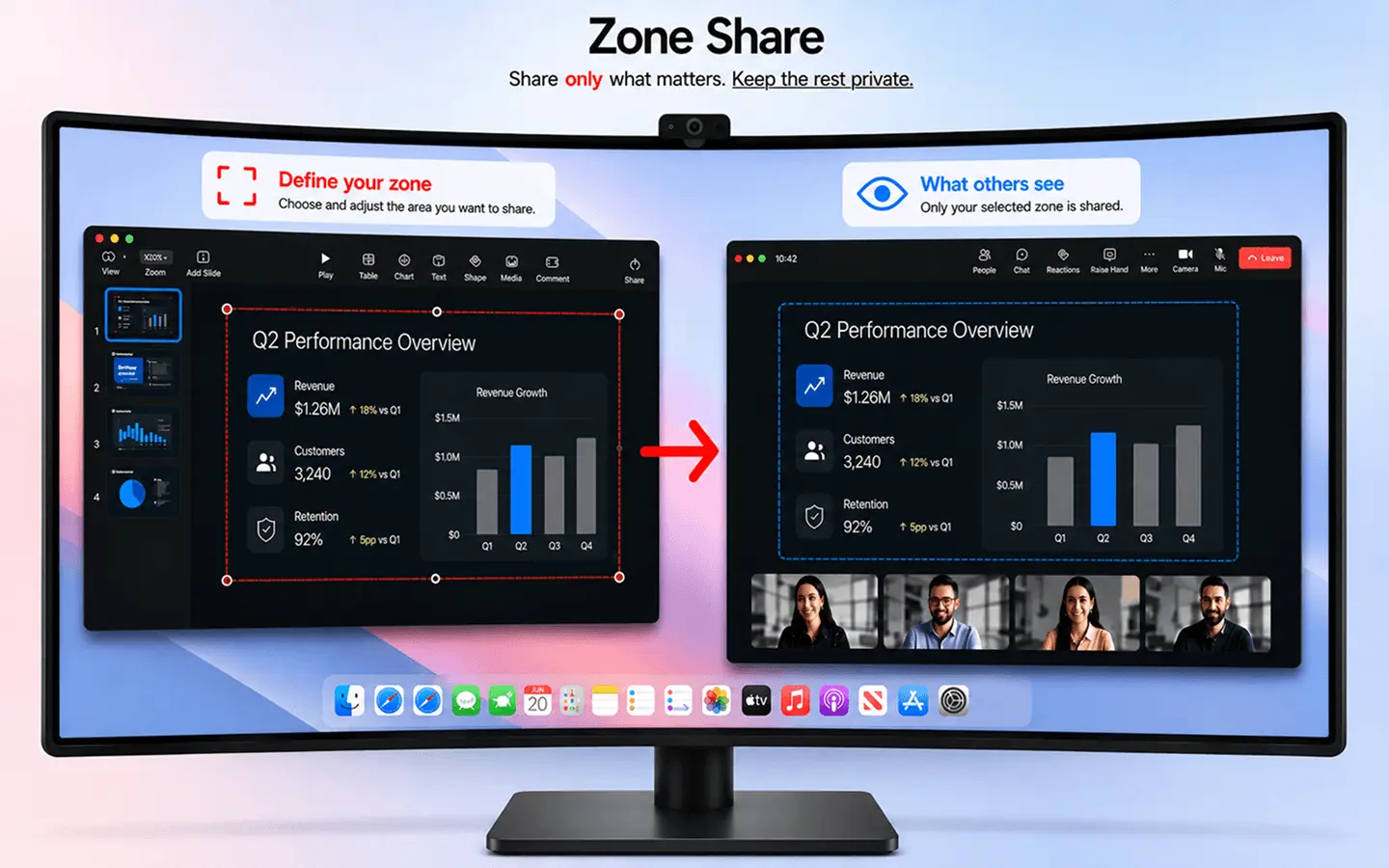
Teaching From a Large Monitor Is Hard
Your screen is bigger than your students' attention span.
Lecturers and tutors often work on large or ultrawide monitors with several windows open: slides, notes, a whiteboard app, a browser. When you share the whole screen, students see all of it — tiny text, scattered windows, and sometimes things you didn't mean to show.
For students, a cluttered or compressed share is hard to follow. For instructors, it's a constant worry about what's visible. Neither is good for learning.
- Hard to read. Squeezed or tiny content makes notes and examples difficult for students to follow.
- Too much going on. Multiple windows compete for attention instead of one clear teaching focus.
- Privacy risk. Personal messages, emails, and other apps can slip into the frame.
- No visual guidance. Without a way to point or draw, students lose their place in the material.
Share Only What Your Students Need
ZoneShare turns a corner of your screen into a clean, shareable teaching space.
- Frame the lesson. Place a region over your slides, notes, or whiteboard and share only that.
- Keep the rest private. Personal windows and messages stay out of the frame entirely.
- Teach with tools. Draw, highlight, spotlight, and time your class right inside the shared area.
ZoneShare is designed for this: showing students exactly the material you're teaching, at a readable size, while keeping your personal desktop private. It works in Zoom, Teams, Google Meet, and any other platform you use for classes.
You can annotate directly on the shared region to explain concepts, which makes it a natural fit for teaching. For a closer look at drawing during class, see our guide to annotating your screen on Mac.
Teach With a Focused Share in 3 Steps
Get your class share ready in seconds
Start Mirroring
Open ZoneShare and choose the Zone Share window or the Zone Share Camera.
Frame Your Material
Place the region over your slides, notes, or whiteboard and set your aspect ratio.
Start Your Class
Share the Zone Share window in your teaching platform, or select Zone Share Camera as your camera.
How Educators Use ZoneShare
Practical ways to share better in any teaching setting
Lectures
Present slides and notes at a readable size while your browser and messages stay private.
Online Classes
Share one clear teaching area instead of a busy desktop in every live session.
Presentations
Keep students focused on the material with a clean, standard-ratio share.
Live Demonstrations
Frame the tool you're demonstrating and annotate to explain each step.
Timed Activities
Use the built-in timer to keep lessons, quizzes, and activities on schedule.
Features for Teaching
The ZoneShare tools educators rely on
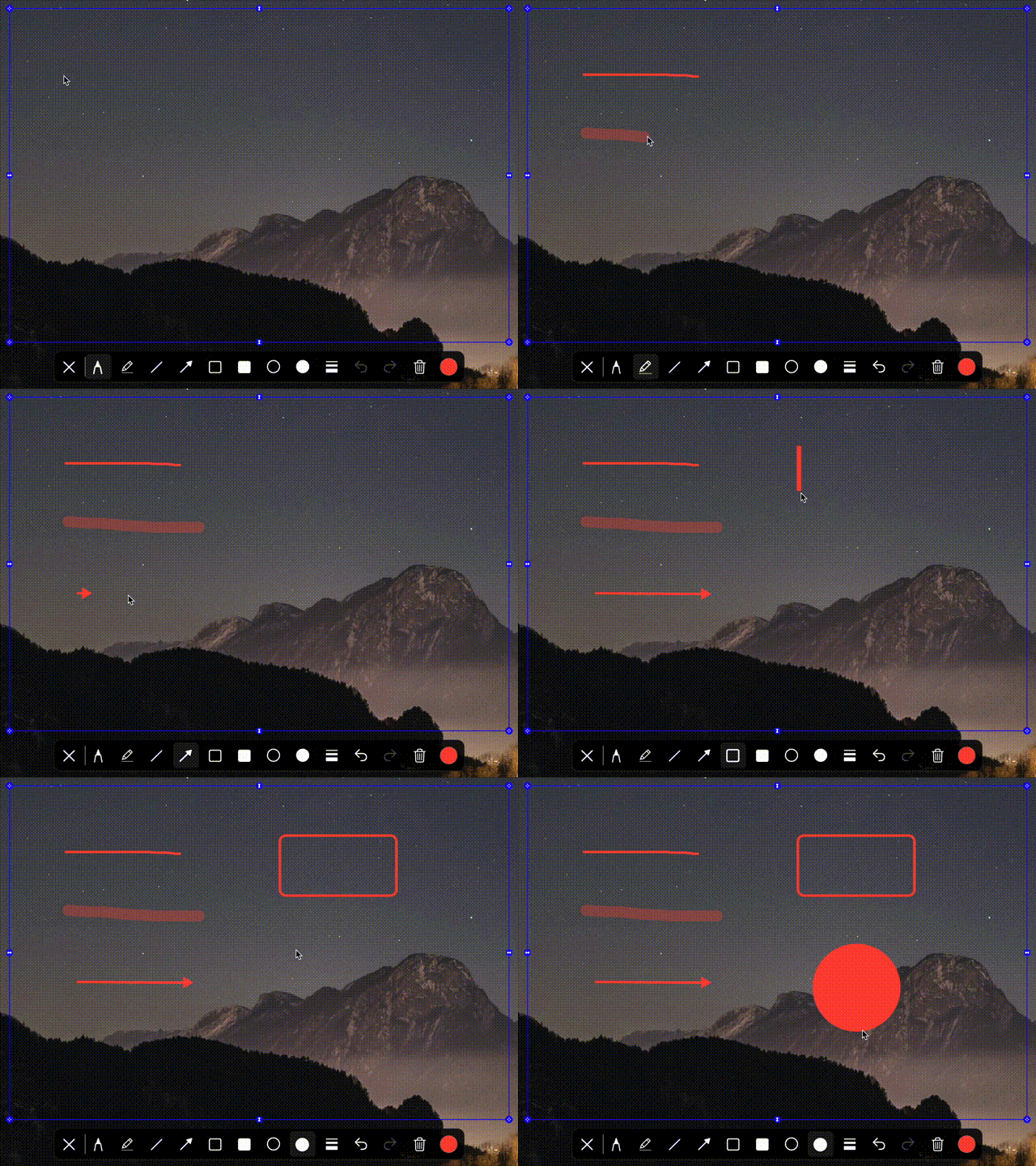
Drawing Toolbar
Draw, highlight, and annotate directly on the shared region to make concepts clear.
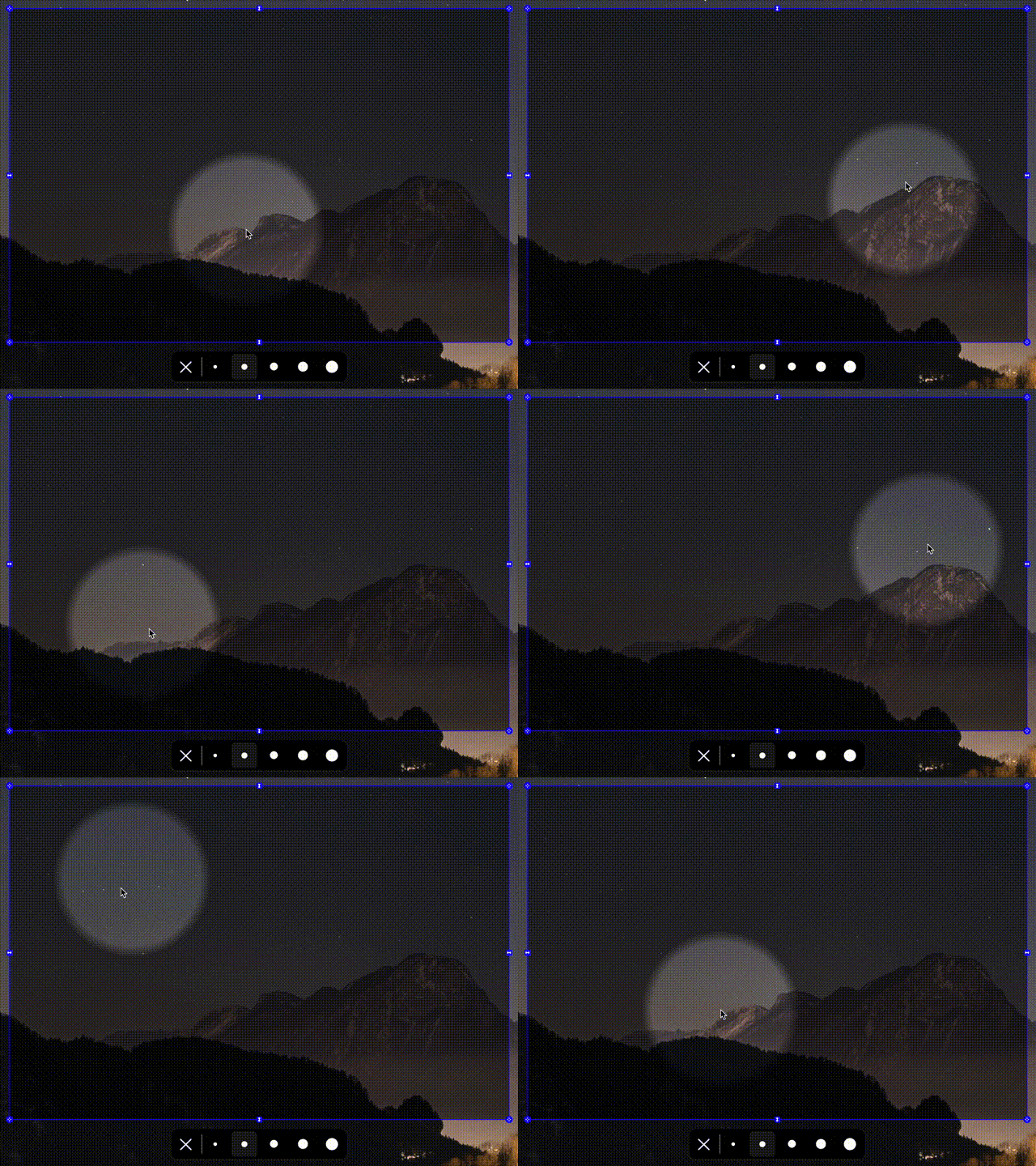
Spotlight
Guide students' attention to exactly what you're explaining by dimming the rest.
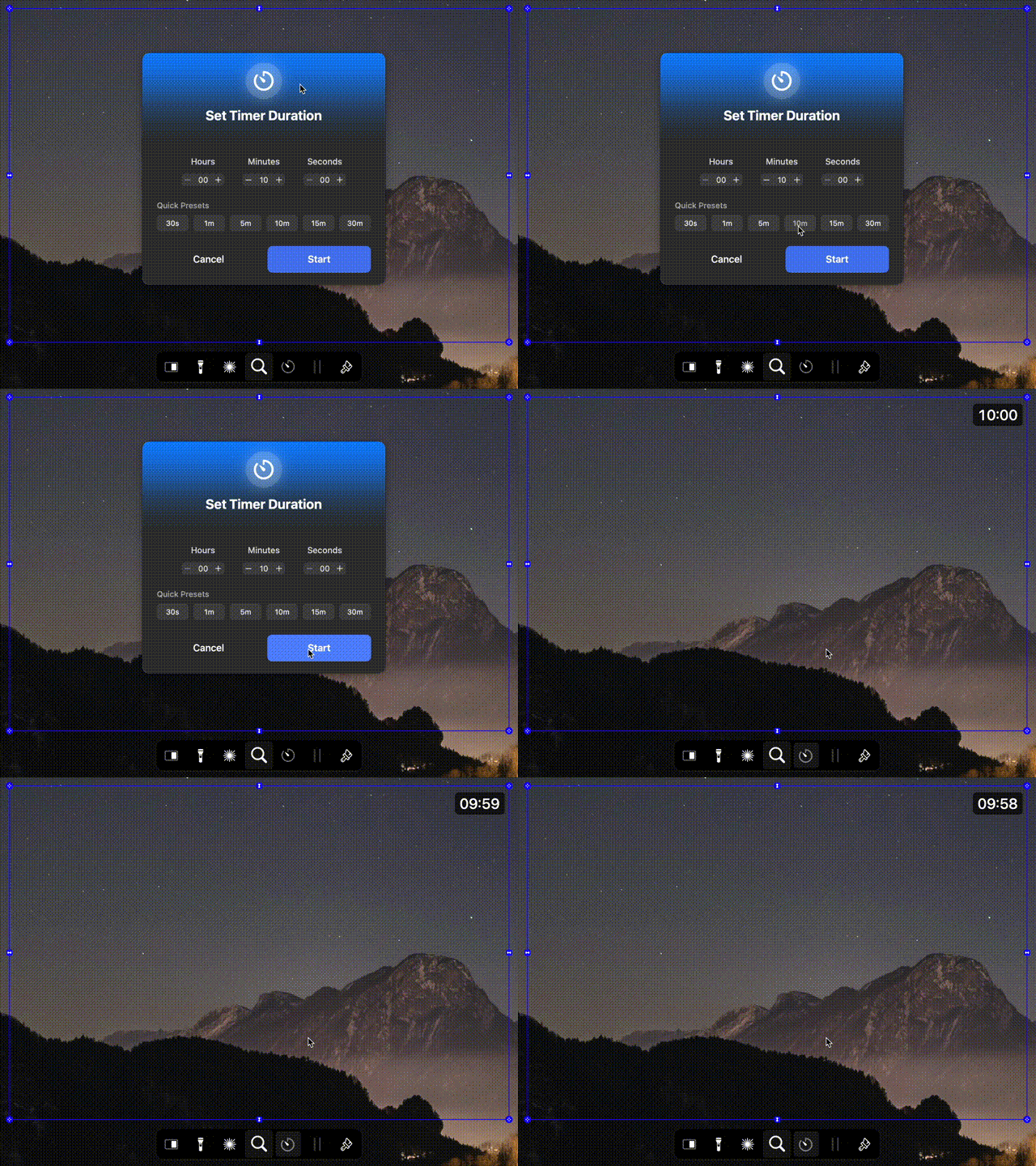
Timer
Keep track of class time and activities with a timer that displays in the shared area.

Keystroke Visualization
Show every key press and shortcut live so students can follow along.
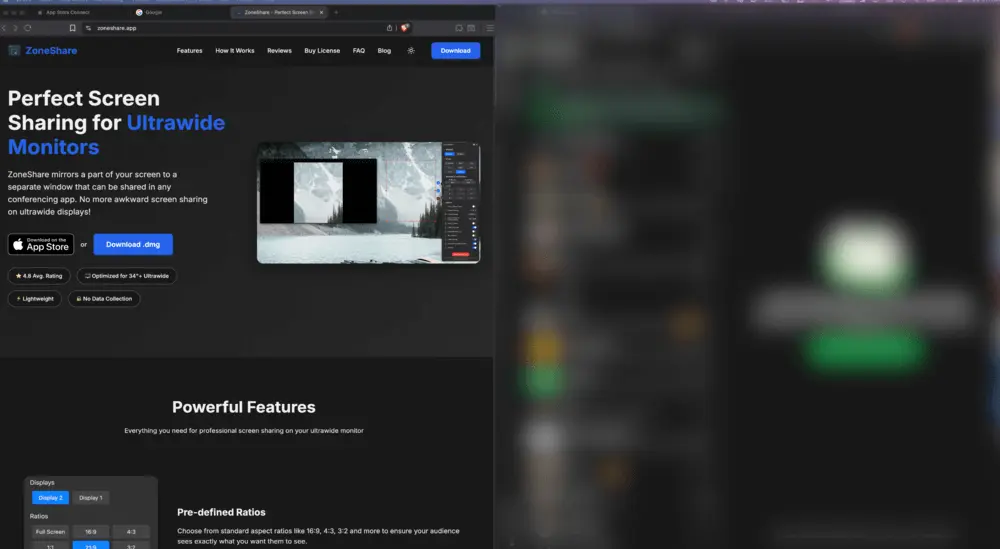
Smart Exclusion & Blur
Blur or exclude apps and tabs so personal information never appears on screen.
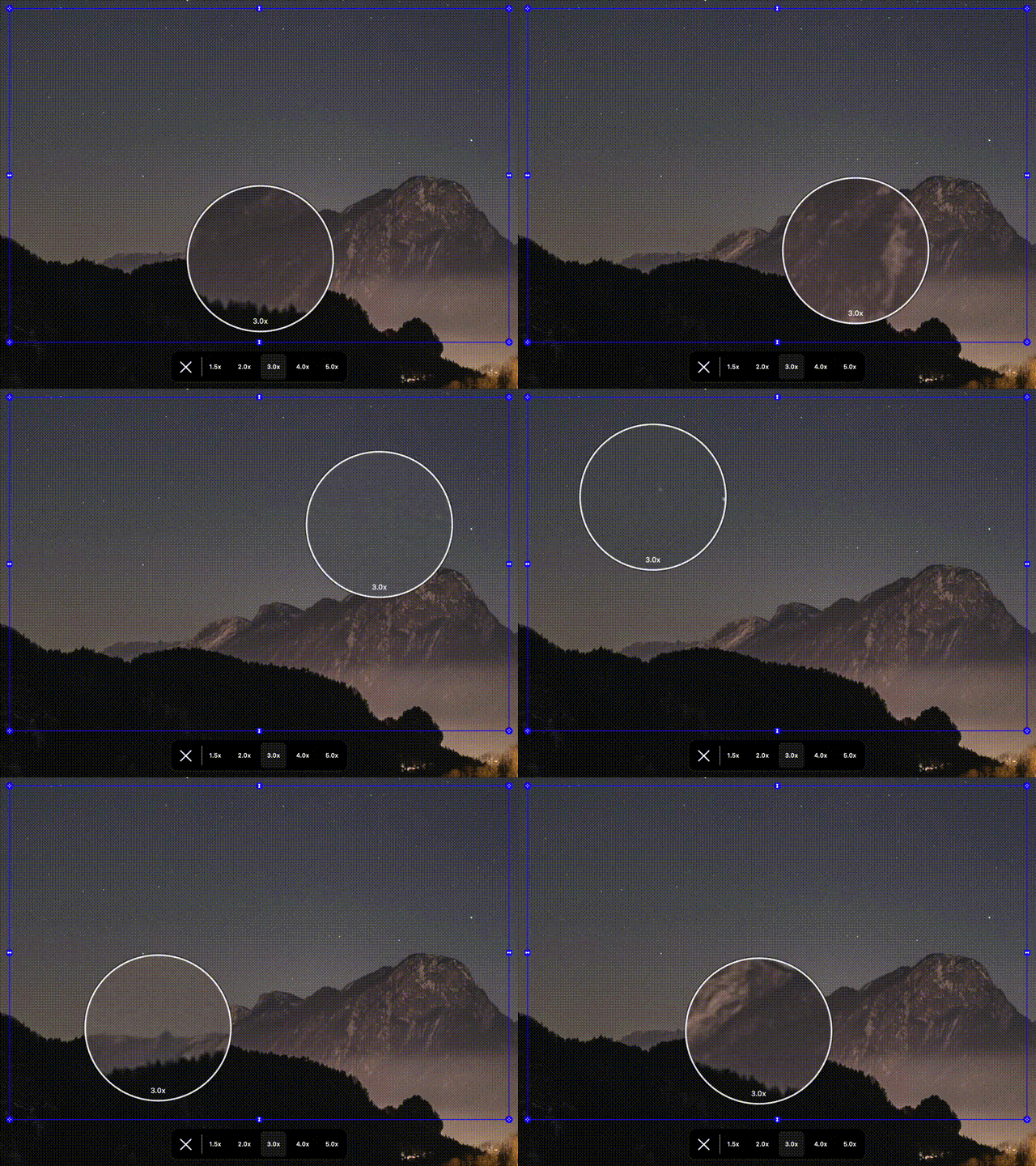
Zoom Controls
Zoom into fine details so every student can see the important parts.
Teaching & Screen Sharing Questions
Quick answers for educators who share their screen
ZoneShare mirrors only the region you select, so personal windows, messages, and apps never appear. You can also blur or exclude sensitive apps that show up inside the shared area.
Yes. ZoneShare includes a drawing toolbar, spotlight, and zoom tools that work directly on the shared region, so you can explain concepts as you go.
Yes. Share the Zone Share window with any platform that supports window sharing — Zoom, Teams, Google Meet, Webex — or use the Zone Share Camera as your webcam.
Yes. ZoneShare has a built-in timer that displays inside the shared region, which is great for lectures, quizzes, and timed activities.
ZoneShare is free to download from the App Store and lets you mirror a portion of your screen. Pro adds custom frame size, blur, hotkeys, and more.
No. ZoneShare only mirrors the selected region locally on your Mac. Nothing is recorded, stored, or uploaded.
Teach With a Screen That Works With You
Download ZoneShare free and share only what your students need to see.