How to Share an Ultrawide Screen in Zoom
An ultrawide or super ultrawide monitor is great for work, but sharing the whole 21:9 or 32:9 desktop in Zoom makes everything tiny. ZoneShare lets you share exactly the part of your screen your audience needs to see.

Why Sharing a Whole Ultrawide Screen in Zoom Fails
Your monitor is an advantage for you — but a liability for your viewers.
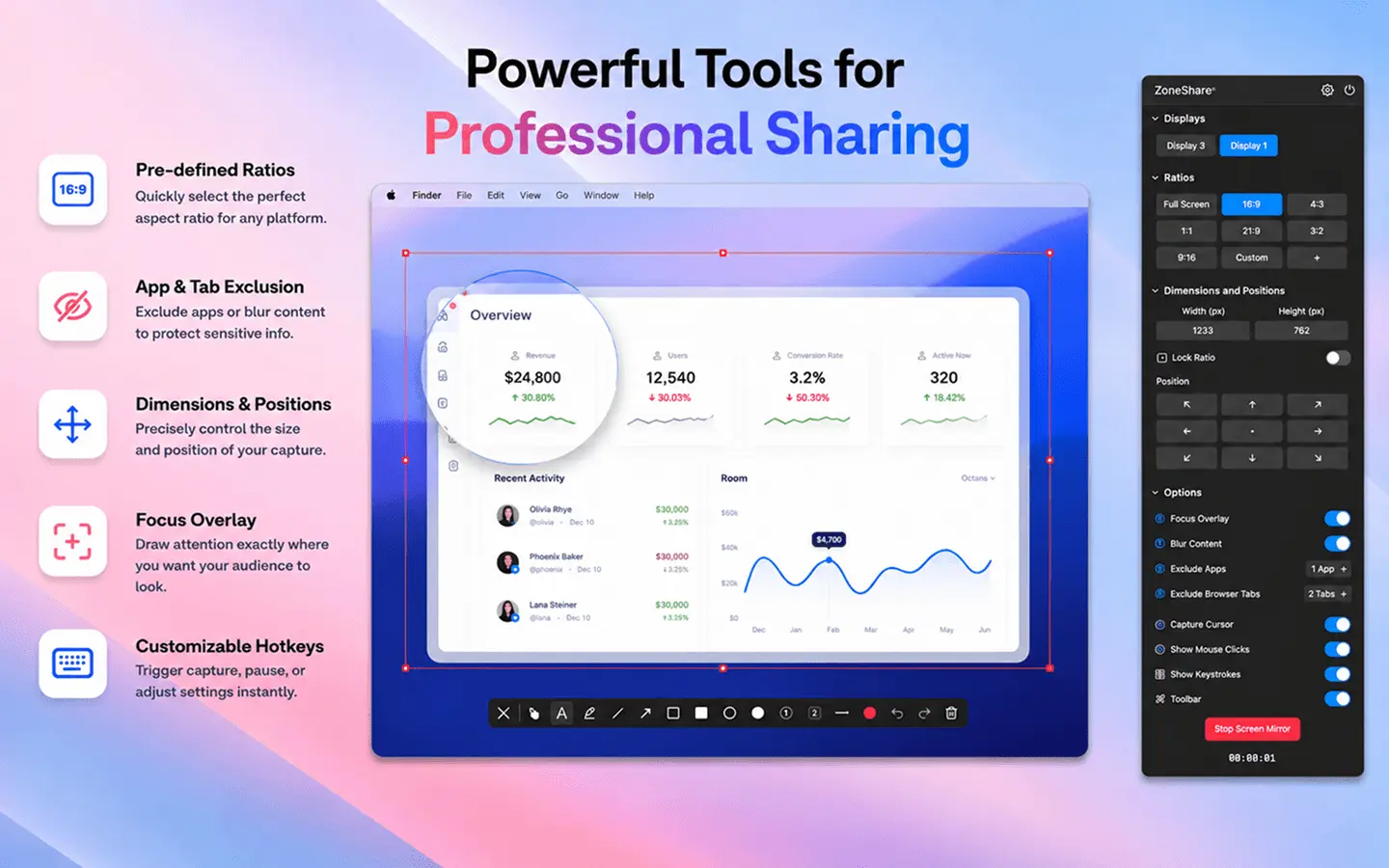
When you share your entire ultrawide display in Zoom, the meeting app compresses a very wide image into its standard frame. The result: your content shrinks to a sliver in the middle of the screen, and nobody can actually read what you're showing.
Worse, sharing the full desktop puts every open window, notification, and browser tab on display. You have to constantly think about what's visible, which makes a simple meeting feel awkward.
- Tiny, unreadable content. A 32:9 desktop squeezed into a Zoom frame leaves text and details too small to follow.
- Huge empty space. Large black bars and empty desktop surround your actual content, distracting from the point of the call.
- Privacy exposure. Notifications, personal files, and unrelated apps are visible to everyone on the call.
- Awkward navigation. Moving a window across your huge desktop becomes a public performance on every call.
Share Only What Matters
ZoneShare mirrors a selected region of your screen and presents it as a normal window or a webcam — so Zoom never sees the rest.
- Select your region. Draw a frame over any part of your screen — a window, a panel, a slide — and ZoneShare mirrors only that.
- Pick a ratio. Choose 16:9, 4:3, 3:2, or a custom aspect ratio so your share always fits the meeting frame.
- Share in Zoom. Share the Zone Share window as a window share, or select Zone Share Camera as your camera.
Instead of fighting your monitor's aspect ratio, ZoneShare works with it. The region you select is mirrored at a clean, readable size, and the rest of your desktop stays off-camera.
It works whether you present a focused window or move between multiple areas of a 32:9 display. For a deeper look at standard ratios, see sharing a 16:9 area on an ultrawide monitor, or learn how the same approach applies in Microsoft Teams and Google Meet.
Share Part of Your Screen in Zoom in 3 Steps
From first launch to sharing in under a minute
Start Mirroring
Choose your output: a Zone Share preview window, or the Zone Share Camera virtual camera that appears like a normal webcam.
Select Your Region
Choose a preset like 16:9 or set a custom area over the portion of your ultrawide screen you want to share.
Share in Zoom
In Zoom, share the window titled Zone Share — or pick Zone Share Camera as your camera — instead of your entire screen.
Where Focused Sharing Helps
Everyday Zoom situations that get noticeably better
Presentations
Share just the slide deck or document on your ultrawide screen so every viewer can read it clearly.
Code & Demos
Mirror your editor or terminal window at a readable size while keeping the rest of your setup private.
Spreadsheets
Walk through a model or dashboard without forcing viewers to squint at a compressed desktop.
Built for Ultrawide Zoom Sharing
The ZoneShare features that make ultrawide Zoom calls feel normal
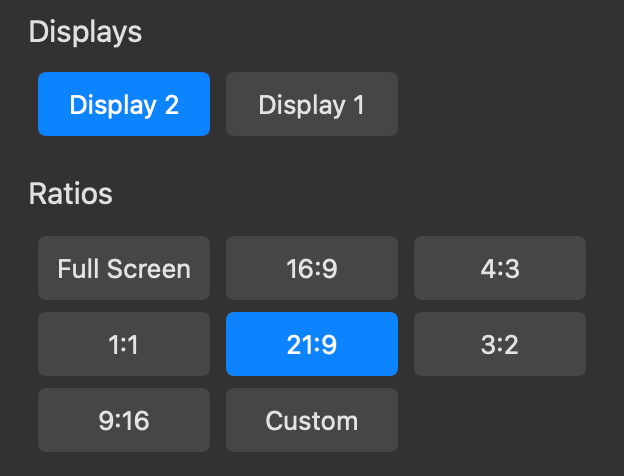
Pre-defined Ratios
Pick standard aspect ratios like 16:9, 4:3, or 3:2 so your share always fits the Zoom frame perfectly.
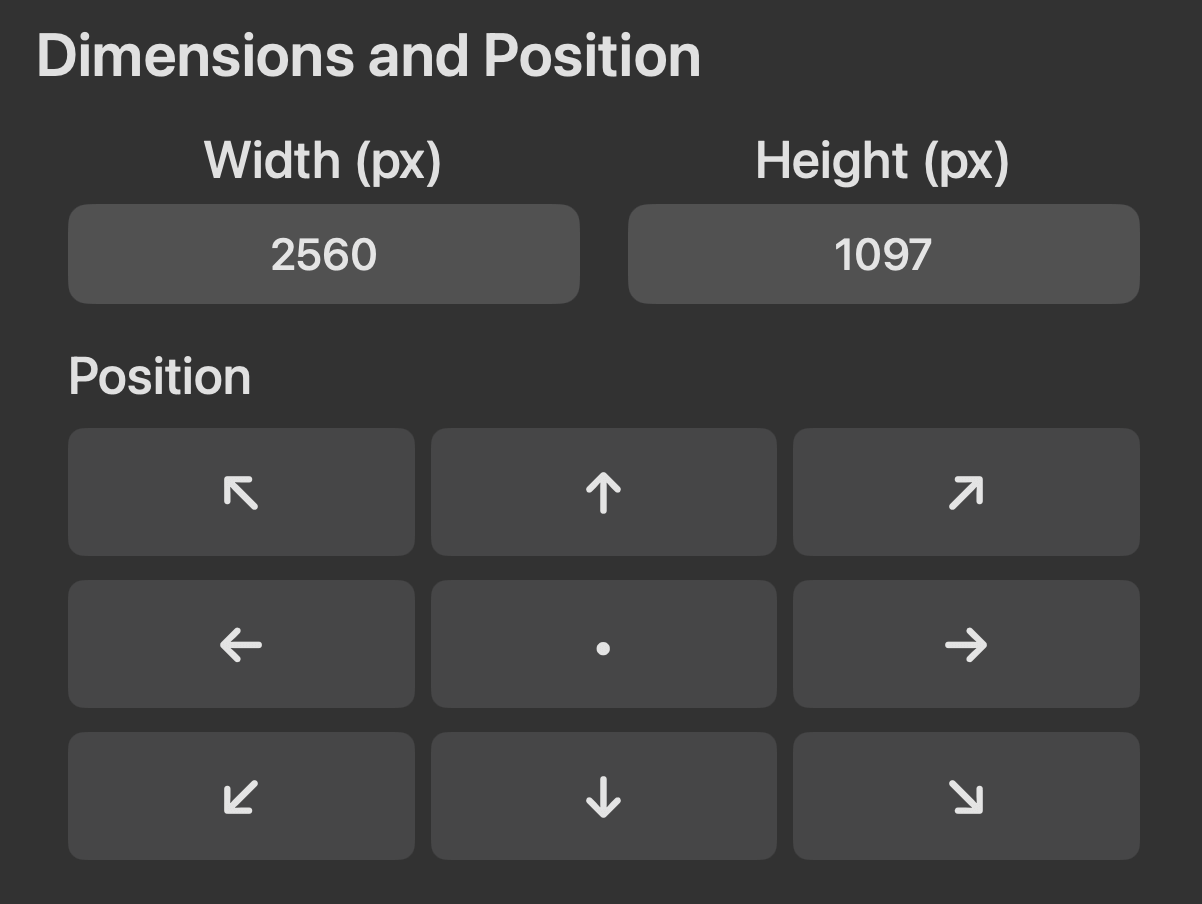
Dimensions & Position
Resize and reposition your shared region precisely with drag handles or exact pixel values.
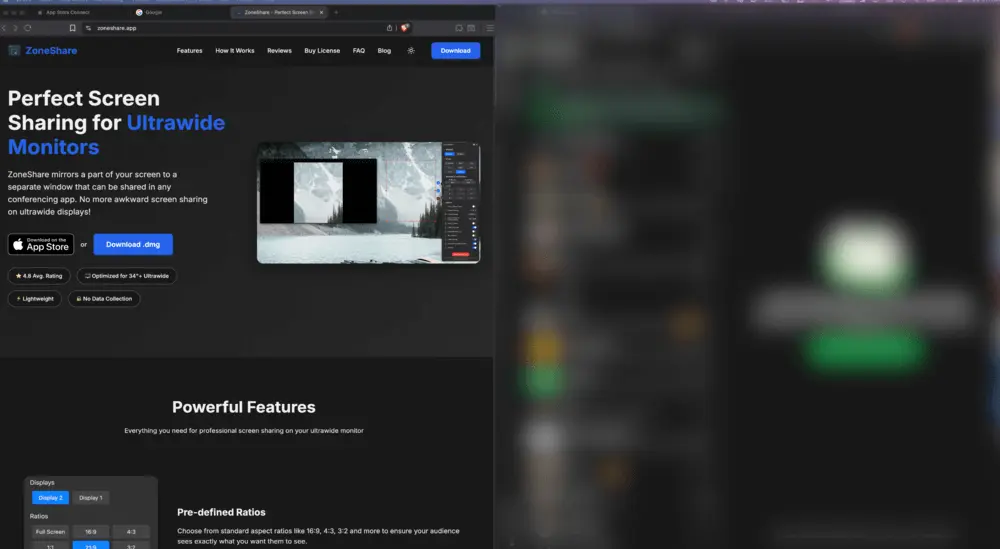
Smart Exclusion & Blur
Blur or exclude apps and browser tabs that appear inside the shared region to protect sensitive content.
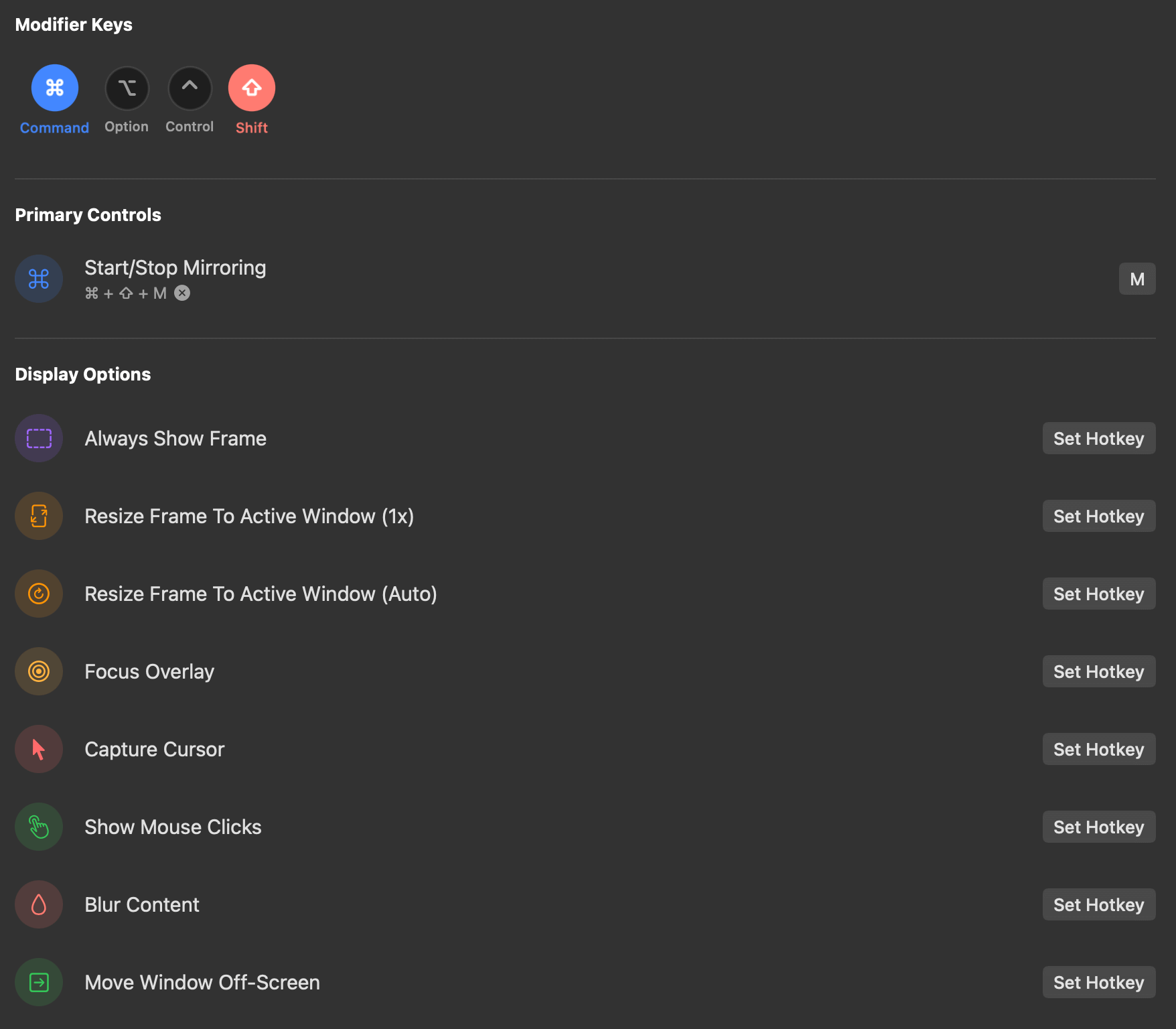
Customizable Hotkeys
Jump between saved regions with a keyboard shortcut — no fumbling through menus mid-meeting.
Ultrawide + Zoom Questions
Quick answers about sharing an ultrawide screen in Zoom
Yes. With ZoneShare you choose the 16:9 preset (or any other ratio) and mirror only that region into the Zone Share window or Zone Share Camera. You then share that window or camera in Zoom instead of your whole desktop.
Yes. You can share the Zone Share preview window using Zoom's window sharing, or select the Zone Share Camera as your webcam in Zoom's video settings. Both appear as normal options inside Zoom.
No. When you share the Zone Share window or use the Zone Share Camera, only the region you selected is visible to participants. Everything outside that area stays private on your Mac.
ZoneShare is free to download from the App Store. The free version lets you mirror a portion of your screen. Pro adds options such as custom frame size and position, blur, hotkeys, and more.
No. ZoneShare only mirrors the selected region of your screen into a window or the virtual camera. Everything happens locally on your Mac — nothing is recorded, stored, or sent anywhere.
Share Your Ultrawide Screen Properly in Zoom
Download ZoneShare free and present crisp, focused content in your next Zoom meeting.