How to Share an Ultrawide Screen in Microsoft Teams
Sharing a full 21:9 or 32:9 desktop in Teams leaves viewers squinting at compressed content. ZoneShare mirrors a clean, focused portion of your ultrawide display — and keeps the rest private.

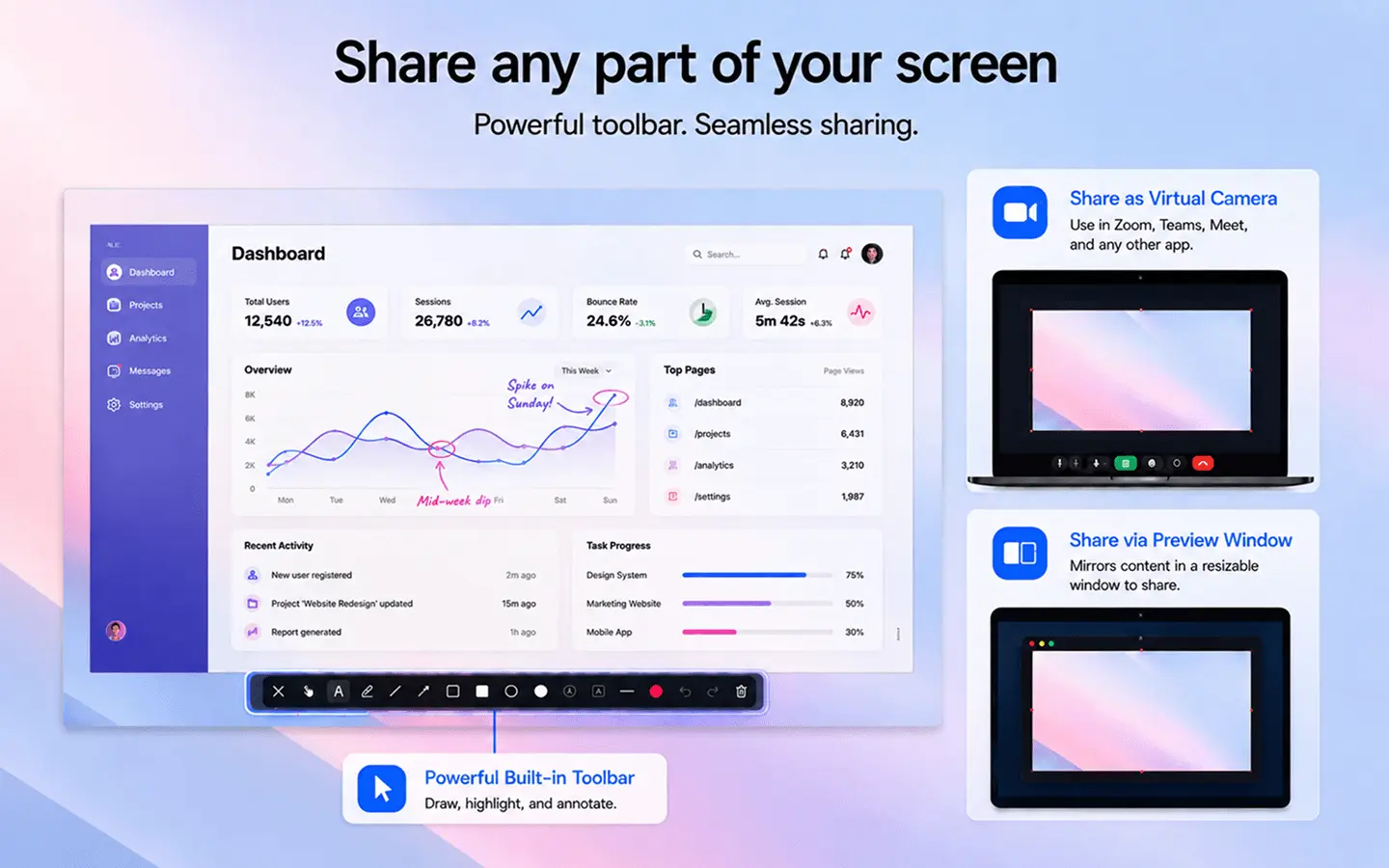
Ultrawide Screens Don't Fit Teams the Way You'd Hope
The same monitor that powers your workday can derail a meeting.
Microsoft Teams scales shared content to fit the viewer's window. A 21:9 or 32:9 desktop becomes a thin strip across the screen, with your actual work compressed into a hard-to-read band.
Sharing a single app helps, but on an ultrawide display even one window is often much wider than a standard 16:9 frame. And switching between apps during a call means ending one share and starting another, which breaks the flow.
- Content scaled down. Viewers see a shrunken, letterboxed version of your desktop instead of the content that matters.
- App switching is clunky. Ending one share to show another app makes presentations feel disjointed.
- Private stuff on display. Chat windows, personal tabs, and notifications are visible to everyone.
- Distracted audience. Viewers try to decode tiny windows instead of listening to what you're saying.
Share a Clean, Focused Area Instead
ZoneShare turns any part of your ultrawide display into a neat, shareable region.
With ZoneShare you place a frame over the part of your screen you want to present — a slide deck, an editor, a spreadsheet — and that region is mirrored into a Zone Share window. In Teams you simply share that window.
Prefer to look like a webcam? Switch to the Zone Share Camera virtual camera and select it in Teams' camera menu. Your desktop stays clean, and the region always matches the ratio you picked. The same approach works in Zoom and Google Meet.
- Focused sharing. Present exactly the window or area you need — nothing more, nothing less.
- Clean 16:9 output. Standard ratios keep your share looking right in every viewer's window.
- Easy switching. Jump between saved regions with hotkeys, so moving from code to slides takes a second.
- Privacy by design. Everything outside your region stays off the call.
Share a Screen Region in Teams in 3 Steps
Focused, professional sharing without a learning curve
Start Mirroring
Choose the Zone Share preview window or the Zone Share Camera virtual camera as your output.
Frame Your Region
Select the portion of your ultrawide screen you want to share, using a preset ratio or a custom area.
Share in Teams
In Teams, share the Zone Share window — or pick Zone Share Camera as your camera.
Teams Scenarios That Get Better
Practical ways to use focused sharing on an ultrawide monitor
Presentations
Share the slide window at a readable size while your speaker notes and meeting app stay out of view.
Coding & Code Reviews
Mirror your editor at a comfortable width so everyone can read the code during reviews and demos.
Spreadsheets
Walk colleagues through a financial model or dashboard without losing detail to compression.
Remote Work
Keep your full ultrawide workspace available while sharing just the one window the call is about.
Walkthroughs & Demos
Guide people through a product or workflow while keeping unrelated windows out of the frame.
Features for Teams Meetings
The ZoneShare features most useful when you present in Teams
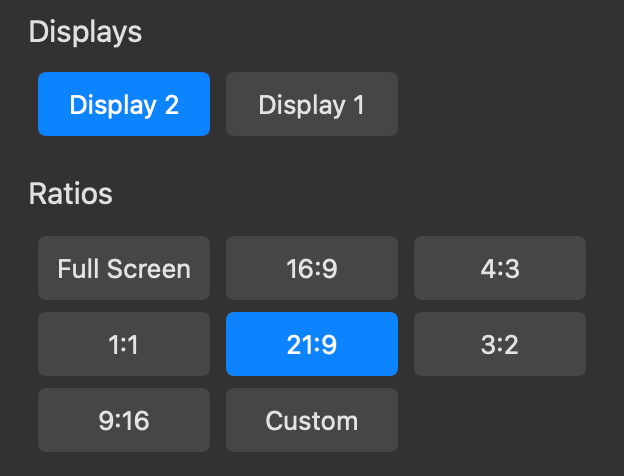
Pre-defined Ratios
Keep your share at a standard ratio so it fits every viewer's Teams window without awkward scaling.
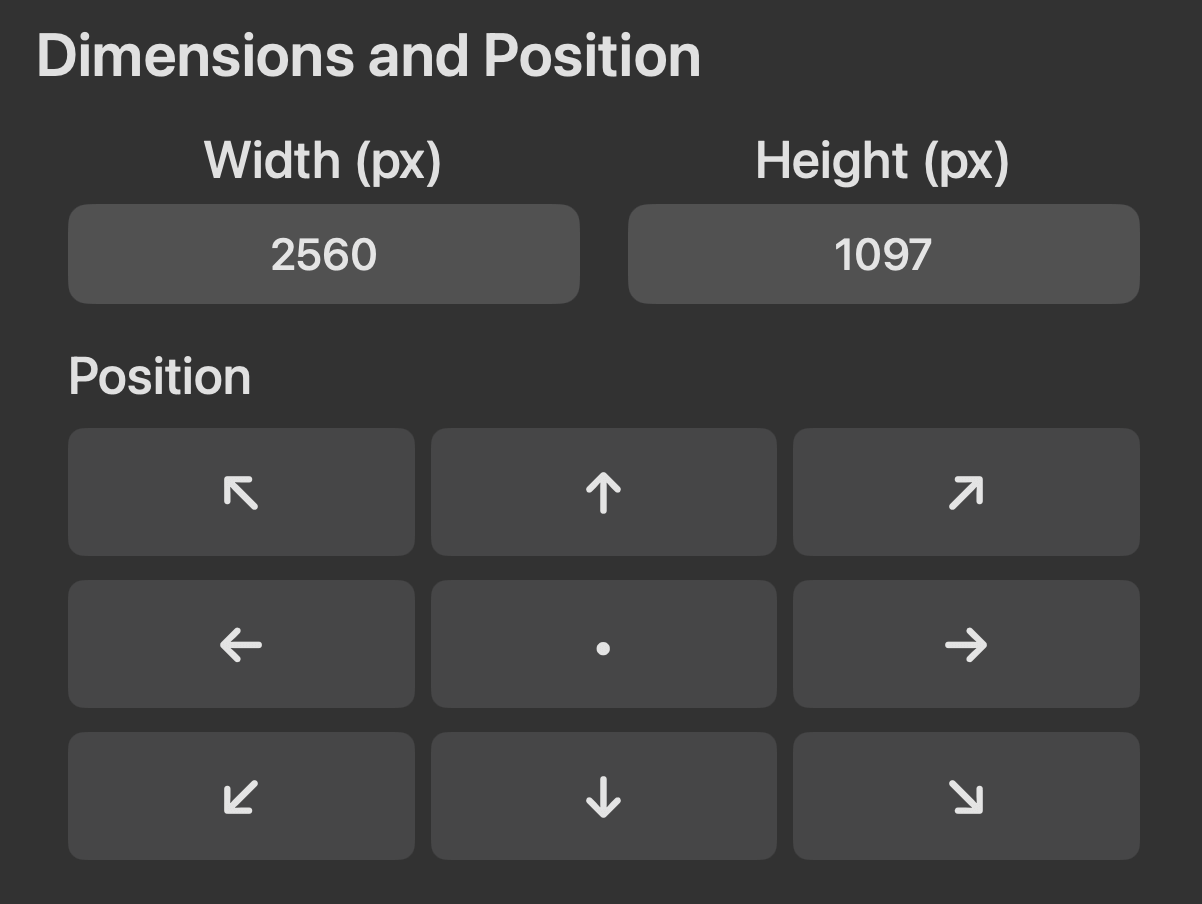
Dimensions & Position
Position the frame precisely over a window, spreadsheet, or slide with drag handles or pixel values.
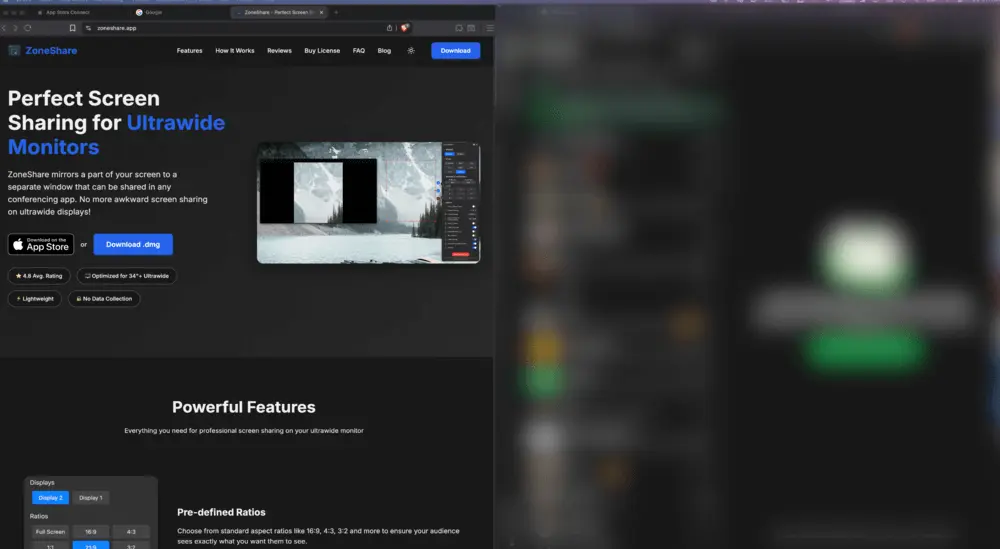
Smart Exclusion & Blur
Blur or exclude apps and browser tabs inside the shared region to keep sensitive content safe.
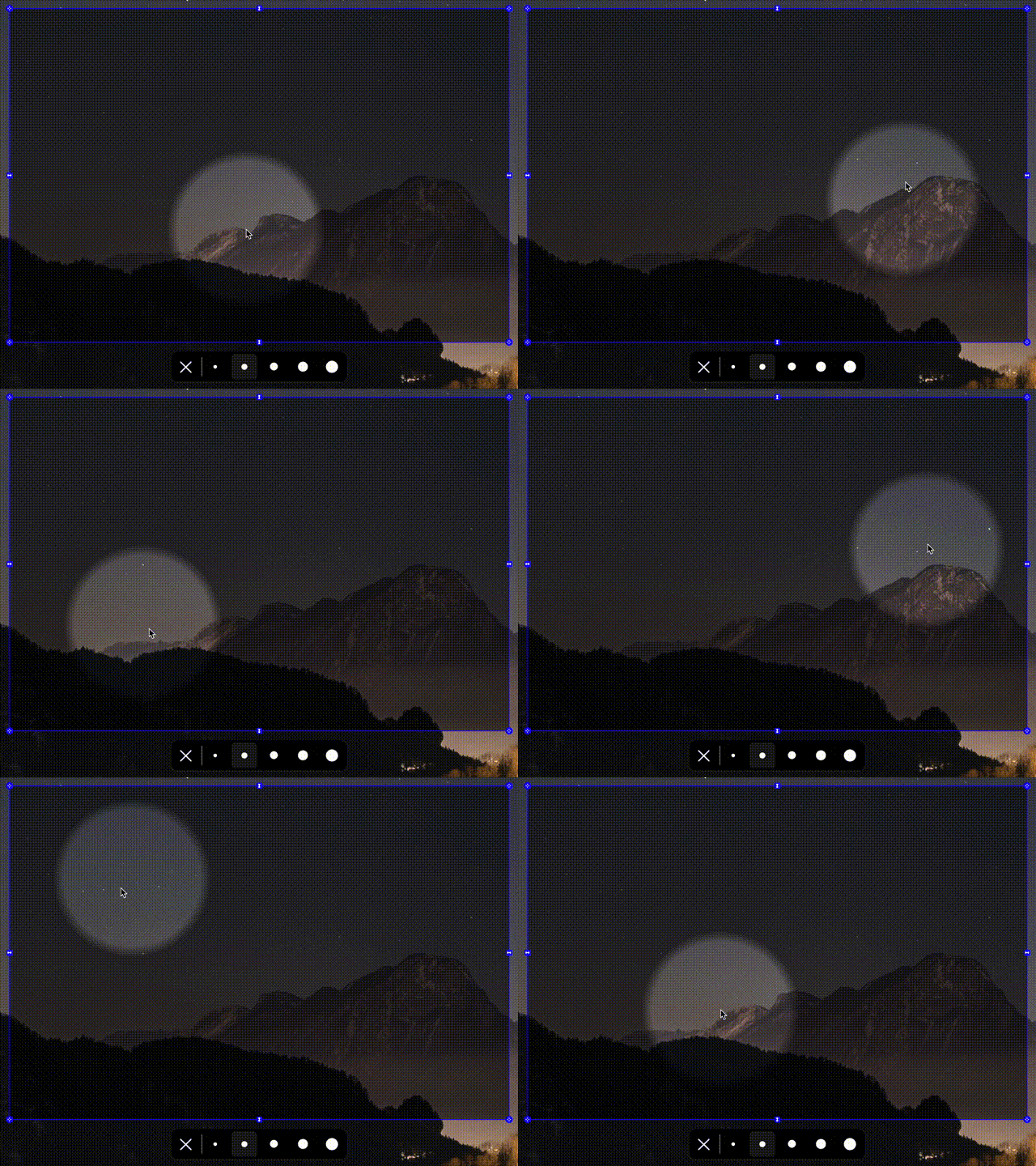
Spotlight
Highlight the exact spot you're discussing with a spotlight that dims everything around it.
Ultrawide + Teams Questions
Quick answers about sharing an ultrawide screen in Teams
Yes. ZoneShare mirrors only the region you select into a Zone Share window or the Zone Share Camera. In Teams you share that window or select Zone Share Camera as your camera, so only that region is visible.
Yes. When you share your screen in Teams you can choose to share a window instead of the entire screen. Share the window titled Zone Share to present only the region ZoneShare is mirroring.
Enable the virtual camera in System Settings under General > Login Items & Extensions > Camera Extensions, then select Zone Share Camera in Teams' camera picker. It behaves like a normal webcam.
Yes. ZoneShare lets you choose between the Zone Share preview window and the Zone Share Camera in Settings under General, and you can change it at any time.
Yes. Only the mirrored region is visible in Teams. Apps, notifications, and windows outside that region remain private on your Mac. You can also blur sensitive content inside the shared area.
Present Better in Every Teams Meeting
Download ZoneShare free and share only the part of your ultrawide screen that matters.