How to Share an Ultrawide Screen in Google Meet
A 21:9 or 32:9 display is a joy to work on — and a challenge to present from. ZoneShare lets you share a focused area of your ultrawide screen in Google Meet, so everyone can actually read what you show.

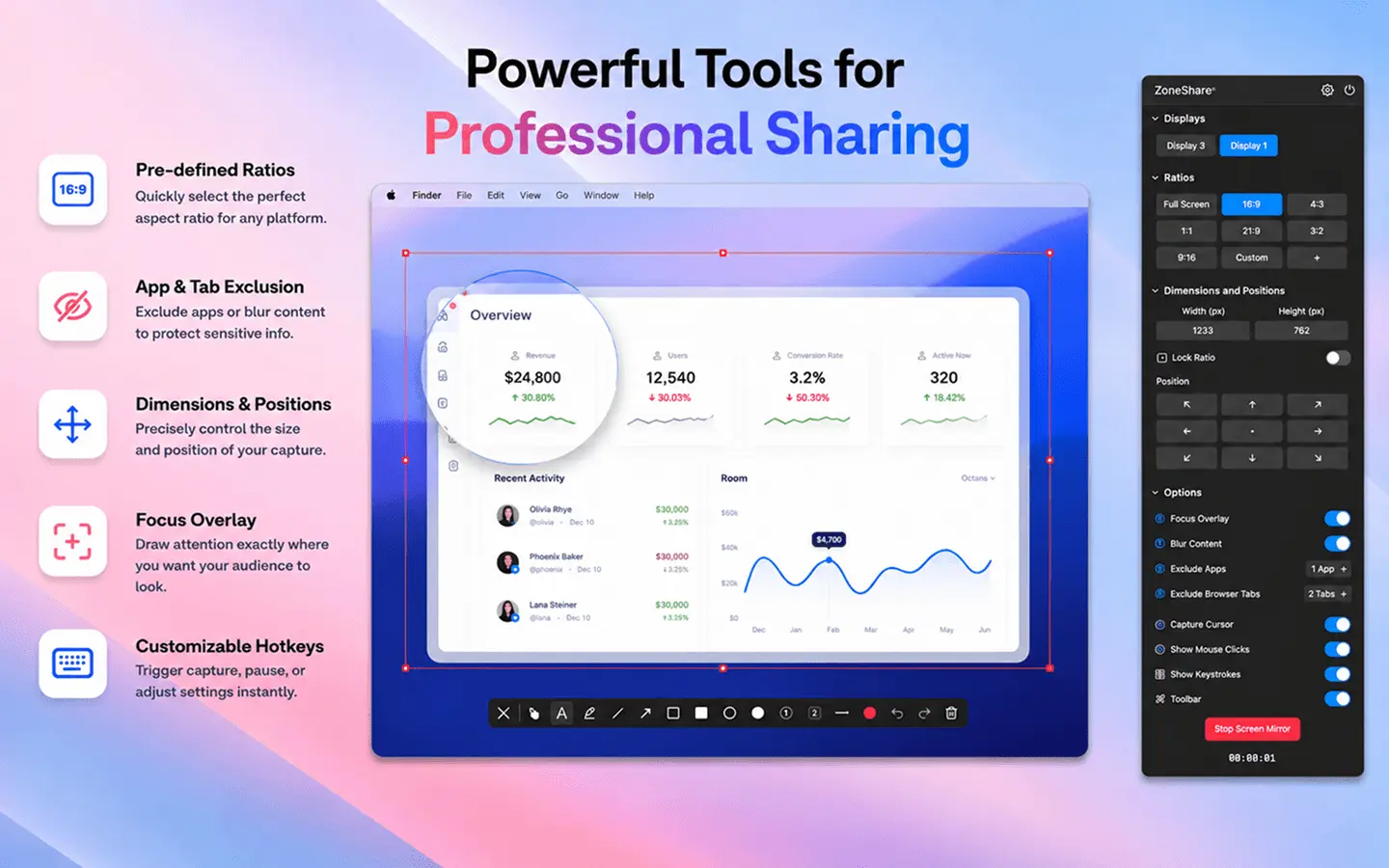
Wide Screens, Narrow Frames
Google Meet shows your share at a size that fits every participant — which is exactly the problem.
When you present your entire ultrawide desktop in Google Meet, Meet scales the very wide image down to fit the meeting frame. Your slides and documents end up small, and the empty desktop around them makes it worse.
Meet supports sharing a single window or tab, which helps. But on an ultrawide display, a full-width application window is still far wider than a standard 16:9 frame, and showing just a browser tab hides the apps you may actually need.
- Everything shrinks. A 32:9 desktop becomes a thin strip that viewers have to lean in to read.
- Tab or window sharing is limiting. You can only show one thing at a time, and wide windows still don't fit well.
- Privacy risk. Full-screen sharing exposes tabs, notifications, and apps you didn't plan to show.
- Distraction. Viewers spend time figuring out what they're looking at instead of following along.
Present a Focused Area, Not the Whole Screen
ZoneShare mirrors the part of your screen you choose into a clean, shareable window.
- Define your region. Frame a slide, a document, or any area of your 21:9 or 32:9 display.
- Pick the right ratio. Use 16:9 or another preset so your share fills the frame instead of getting squeezed.
- Share it in Meet. Present the Zone Share window, or use the Zone Share Camera as your webcam.
Because the mirrored region uses a standard ratio, it renders large and sharp in Meet. The rest of your ultrawide desktop — every other window, tab, and notification — stays completely out of the frame.
The same focused-sharing workflow works in Zoom and Microsoft Teams, and the basics are covered in our guide to sharing only part of your screen on Mac.
Share a Screen Region in Google Meet in 3 Steps
Simple enough to set up right before your call
Start Mirroring
Open ZoneShare and choose the Zone Share preview window as your output.
Frame the Area
Select a 16:9 or custom region over the portion of your ultrawide screen you want to present.
Present in Meet
Click Present now in Google Meet and choose the Zone Share window — or select Zone Share Camera as your camera.
Great Ways to Use It in Meet
Real situations where focused sharing makes a difference
Presentations
Present your deck at full readable size while keeping your notes and browser tabs private.
Product Walkthroughs
Show a specific part of your app or site without the whole browser window stealing the show.
Data Reviews
Discuss a dashboard or chart with colleagues without compressing it into an unreadable strip.
Features That Fit Google Meet
The ZoneShare tools that make ultrawide Meet calls feel natural
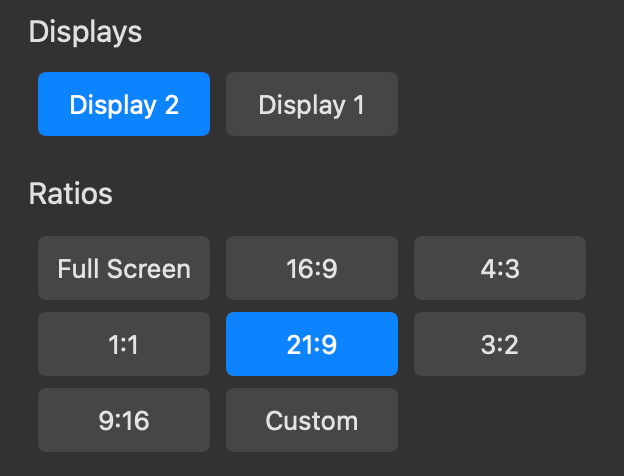
Pre-defined Ratios
Keep your share at a standard ratio so Meet fills the frame instead of squeezing your content.
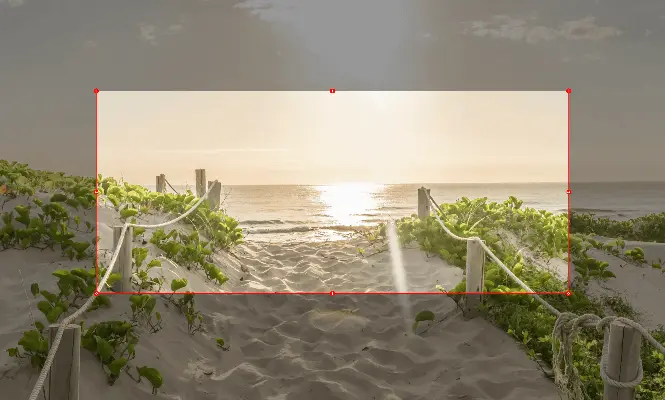
Focus Overlay
Dim everything outside your selected region so you always know exactly what's on screen.
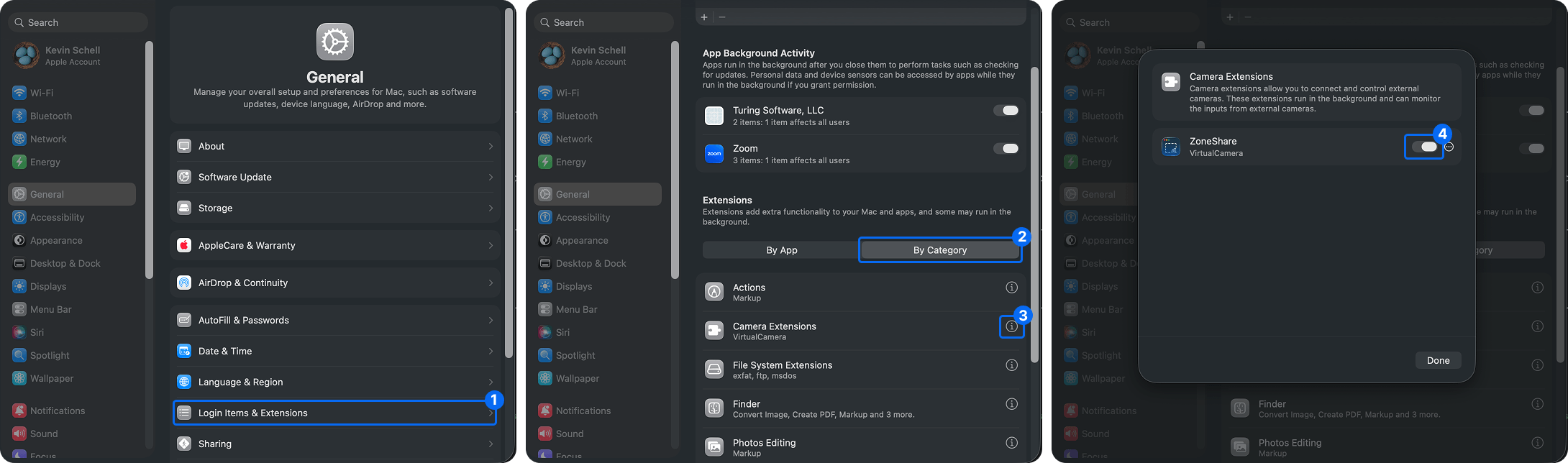
Virtual Camera
Use the Zone Share Camera as your webcam for a clean, always-ready presentation feed.
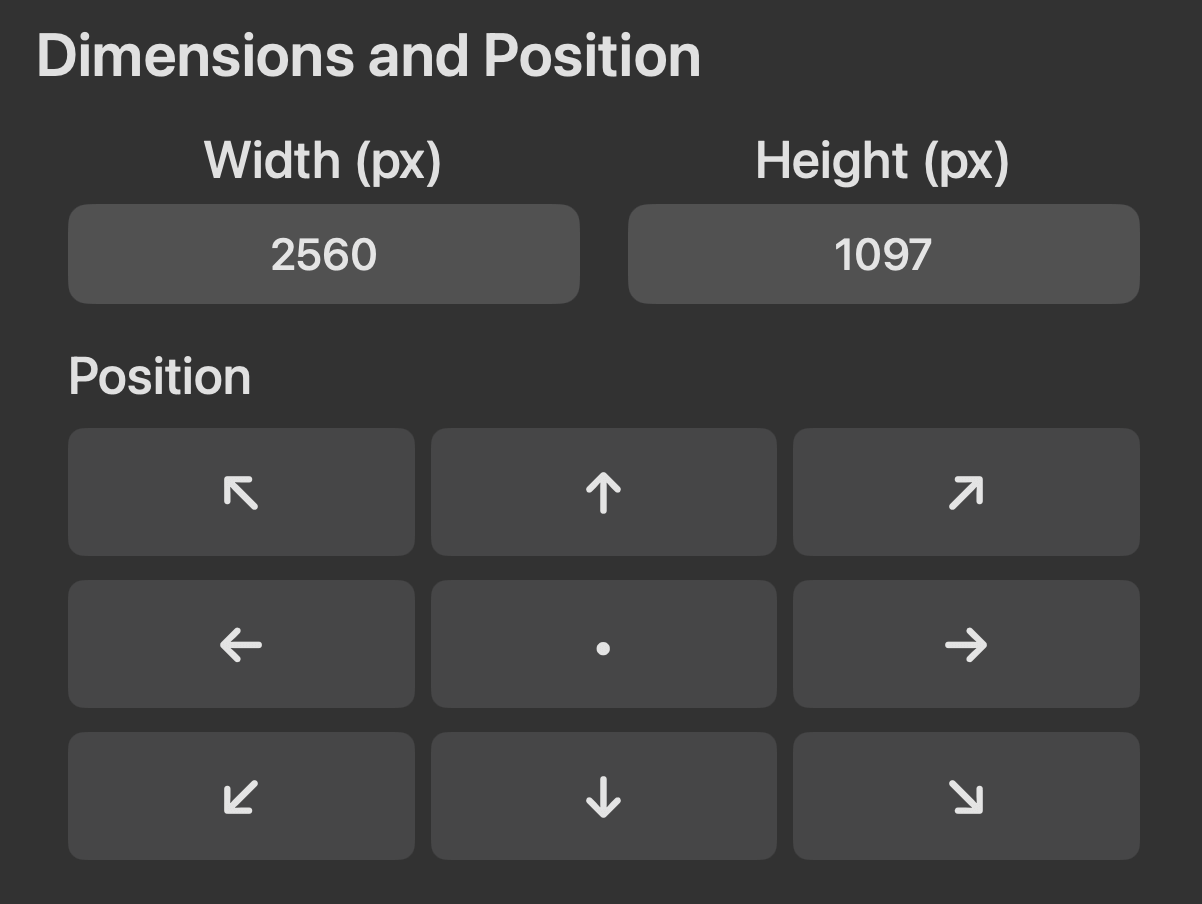
Dimensions & Position
Fine-tune the region with drag handles or exact pixel values, so it sits perfectly over your content.
Ultrawide + Google Meet Questions
Quick answers about sharing an ultrawide screen in Meet
Yes. ZoneShare mirrors only the region you select into a Zone Share window. In Google Meet, use Present now and choose the Zone Share window. You can also select the Zone Share Camera as your camera source.
Meet fits shared content to the viewer's window, so an entire 21:9 or 32:9 desktop appears very small. Sharing a 16:9 region keeps your content large and readable for everyone.
Yes. Once the camera extension is approved in System Settings, Zone Share Camera appears in the camera picker when you turn on your camera in Google Meet.
Yes. ZoneShare is a macOS app that works alongside your browser. You share the Zone Share window using Meet's built-in window sharing, or the Zone Share Camera as a webcam — no browser extensions needed.
No. Only the mirrored region is shared. Everything else on your ultrawide desktop stays private, and you can blur sensitive content inside the shared area with ZoneShare.
Share Your Ultrawide Screen the Right Way in Meet
Download ZoneShare free and present focused, readable content in every Google Meet call.