How to Share a 16:9 Area on an Ultrawide Monitor
Your 21:9 or 32:9 monitor is great to work on, but meetings and presentations expect 16:9. ZoneShare lets you frame a standard 16:9 area of your ultrawide screen and share exactly that.

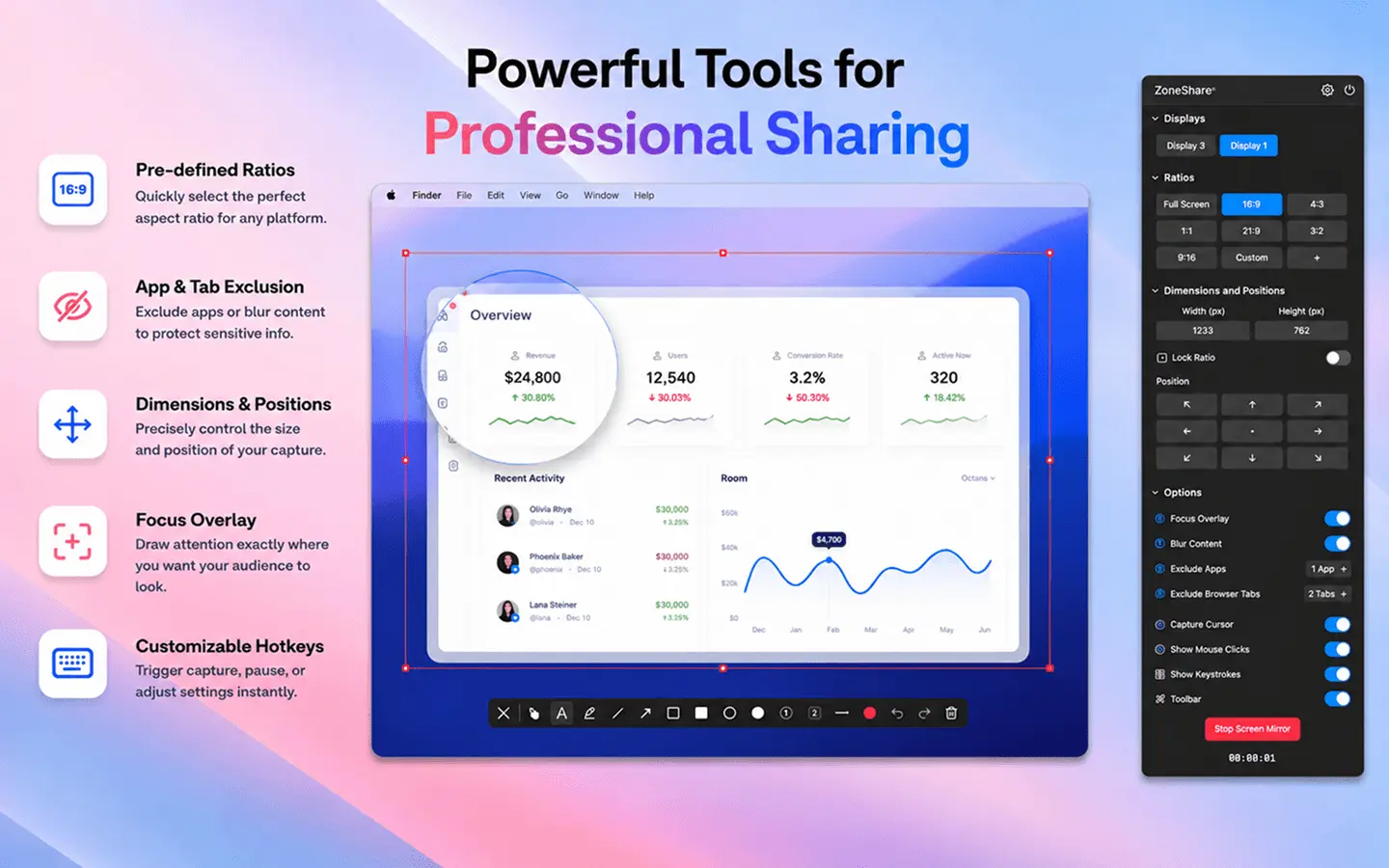
16:9 Is What Everyone Expects
Video calls, slides, and recordings are built around 16:9 — your monitor isn't.
Whether it's a Zoom call, a PowerPoint deck, or a recording for your team, the content you share is almost always 16:9. When you share an entire 21:9 or 32:9 desktop, it gets compressed into that frame and your content shrinks dramatically.
The result is the same everywhere: tiny text, giant empty margins, and viewers who struggle to follow along. The content was never the problem — the aspect ratio was.
- Compressed content. A very wide desktop squeezed into 16:9 makes everything smaller than it needs to be.
- Empty margins. Large areas of desktop frame your content, pushing it to the center of a letterboxed image.
- Ugly presentations. A half-empty share looks unpolished, no matter how good your slides are.
- Recordings suffer too. Recorded meetings keep the same squished, wide-frame look for anyone watching later.
Frame a 16:9 Region and Share Just That
ZoneShare turns your ultrawide monitor into a clean 16:9 presenter.
- Choose 16:9. Select the 16:9 preset and ZoneShare locks your region to that exact ratio.
- Position it anywhere. Place the frame over a slide, a document, or any part of your ultrawide display.
- Share it anywhere. The region mirrors into the Zone Share window or the Zone Share Camera for any app.
ZoneShare was designed for this exact scenario. Instead of resizing your windows or zooming into the middle of your screen, you pick the 16:9 preset and drag the frame over the content you want to present.
Because the region is a true 16:9, it fills the meeting frame perfectly. The rest of your ultrawide desktop — every window, tab, and notification — stays out of view. The same idea works in Zoom, Teams, and Google Meet, and is covered in our guide to sharing only part of your screen on Mac.
Share a 16:9 Area in 3 Steps
From ultrawide desktop to standard 16:9 share
Start Mirroring
Open ZoneShare and choose the Zone Share window or Zone Share Camera as your output.
Choose 16:9
Pick the 16:9 preset, then drag the frame over the content on your ultrawide screen.
Share It
Share the Zone Share window in your meeting app, or select the Zone Share Camera as your webcam.
Why 16:9 Works Everywhere
The situations where a standard ratio really pays off
Video Calls
Look your best in Zoom, Teams, and Meet with a share that fills the frame instead of shrinking into it.
Presentations
Present slides at full 16:9 so they look exactly the way you designed them.
Recordings
Record a clean 16:9 video for your team or audience without the ultrawide letterboxing.
Streaming & Screen Sharing
Share content to a TV, projector, or stream in a standard format that fits every screen.
Features That Keep You at 16:9
The ZoneShare tools for perfect ratios
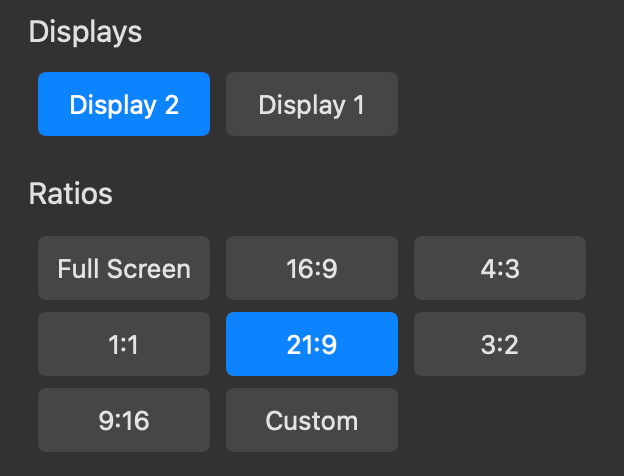
Pre-defined Ratios
Choose 16:9, 4:3, 3:2, and more to keep your share at the ratio your audience expects.
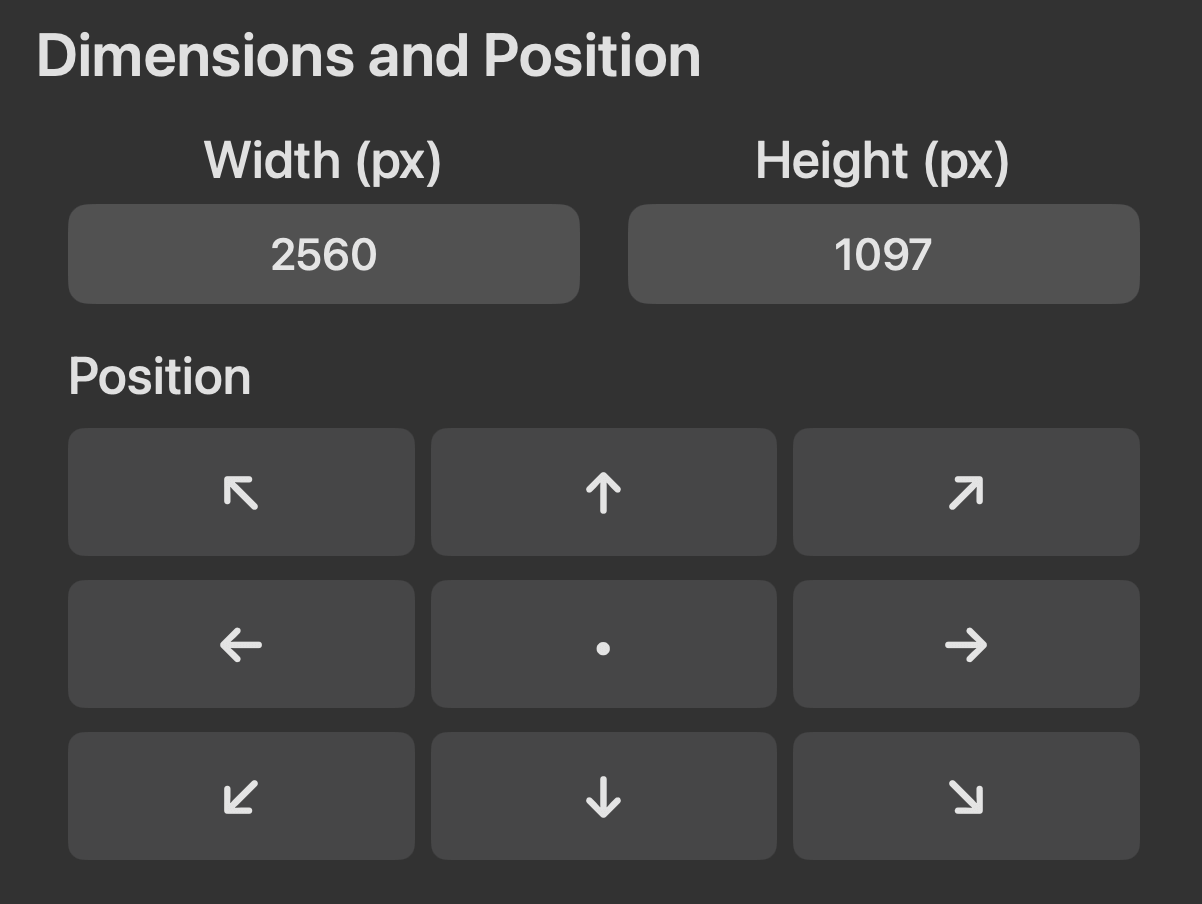
Dimensions & Position
Move and resize the region precisely so it sits perfectly over your content.
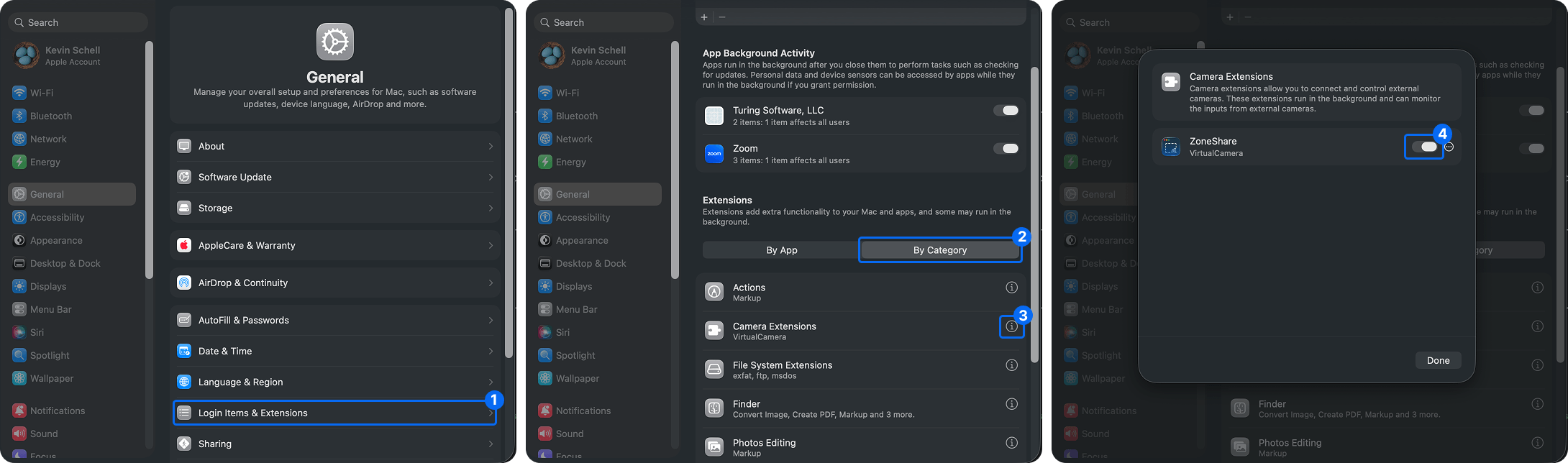
Virtual Camera
Use the Zone Share Camera for a clean, always-ready 16:9 presentation feed.
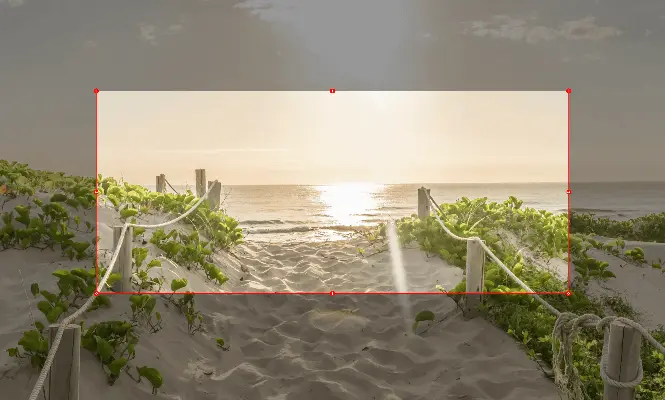
Focus Overlay
Dim the rest of the screen so you always know exactly what's being shared.
16:9 on Ultrawide Questions
Quick answers about 16:9 sharing on ultrawide monitors
16:9 is the standard ratio for slides, videos, and meeting apps. Content designed in 16:9 fills the frame and stays readable, whereas an ultrawide desktop gets compressed into a thin band with empty margins.
ZoneShare includes presets such as 16:9, 4:3, and 3:2, and lets you work with custom ratios and precise pixel dimensions.
Yes. That's exactly what ZoneShare is for. You place a 16:9 frame anywhere on your ultrawide display and mirror only that region.
Yes. Share the Zone Share window with any app that supports window sharing, or select the Zone Share Camera as your webcam in Zoom, Teams, Meet, and more.
Yes. You can change the ratio or position of the region at any time, and Pro users can define hotkeys to switch instantly.
No. Only the 16:9 region you select is mirrored. Everything else on your ultrawide screen stays private.
Present 16:9 Content From Any Ultrawide Monitor
Download ZoneShare free and share a clean, standard-ratio region in every meeting.