Presenting on an Ultrawide Monitor Without Sharing Your Entire Screen
Designers, developers, and presenters love ultrawide displays — until it's time to share. ZoneShare creates a focused presentation area on your 21:9 or 32:9 monitor while keeping the rest of your desktop private.

The Wide Screen Presenter's Dilemma
Your monitor shows everything. Your presentation shouldn't.
Ultrawide monitors are built for multitasking: code on one side, browser on the other, notes in between. But when you present, all of that context becomes noise. Viewers don't want to watch you hunt for a window across 32 inches of desktop.
The bigger the monitor, the more visible your working desktop — and the harder it is to keep a presentation clean, focused, and professional.
- Too much on screen. A busy desktop dilutes your message and makes presentations feel unfocused.
- Scaling problems. A full 21:9 or 32:9 share shrinks your content to fit a 16:9 viewer.
- Privacy exposure. Design files, code, messages, and notes are visible to everyone.
- Awkward transitions. Moving between apps on a wide desktop is a slow, visible process for the audience.
Create a Focused Presentation Area
ZoneShare turns part of your ultrawide screen into a clean presentation stage.
- Frame your stage. Place a 16:9 or custom frame over the content you want to present.
- Keep the rest private. Everything outside the frame stays off-screen — notes, code, messages, and all.
- Present with tools. Add spotlights, drawings, zoom, and a timer directly inside the shared area.
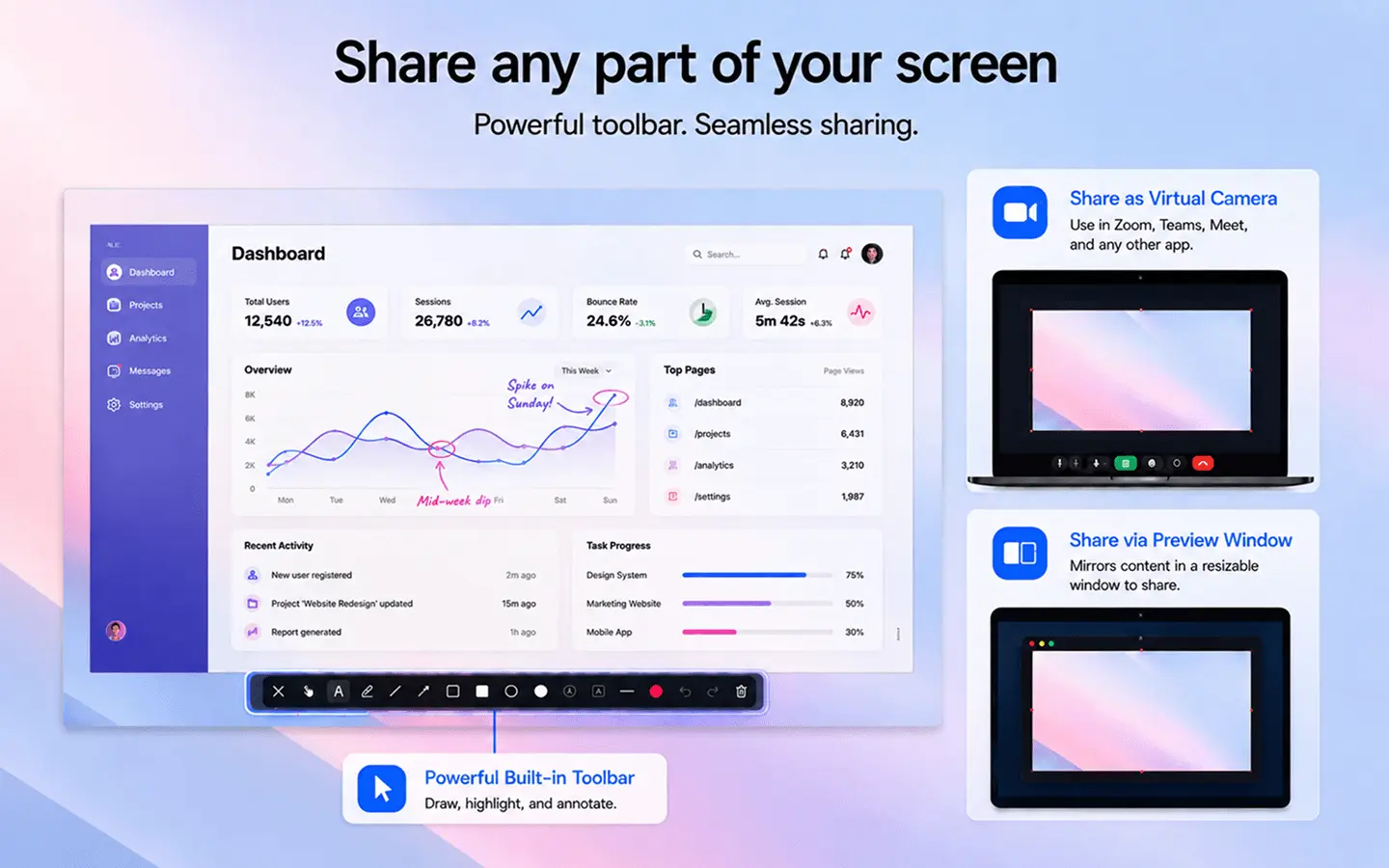
With ZoneShare, your presentation area is whatever rectangle you choose — a Keynote window, a Figma artboard, a browser tab, a document. That region is mirrored into the Zone Share window or the Zone Share Camera, and the rest of your ultrawide desktop never appears.
Because the region is a standard ratio, it renders large and sharp for every viewer. Combined with drawing and annotation, it's a complete presentation workflow. If you often present standard-ratio content, our guide to sharing a 16:9 area is a good next read.
Present on an Ultrawide Monitor in 3 Steps
Set up your presentation stage in seconds
Start Mirroring
Open ZoneShare and choose the Zone Share preview window or the Zone Share Camera.
Frame Your Stage
Place the frame over your slides, artboard, or document and lock your aspect ratio.
Present
Share the Zone Share window in your meeting app — or select Zone Share Camera as your camera.
Presentation Workflows That Work
Focused presentation areas for the tools you already use
Keynote & PowerPoint
Present your deck at full 16:9 while keeping speaker notes and other apps off-screen.
Figma & Design Tools
Walk through artboards and prototypes at a comfortable size without sharing the whole canvas.
Browser Windows
Present a single webpage or dashboard while every other tab stays private.
Client Reviews
Keep your working desktop out of sight and focus the call on the work itself.
Live Demos & Walkthroughs
Frame the part of the screen you're demonstrating and annotate as you go.
Features Built for Presenters
The ZoneShare tools that make presenting on ultrawide a pleasure
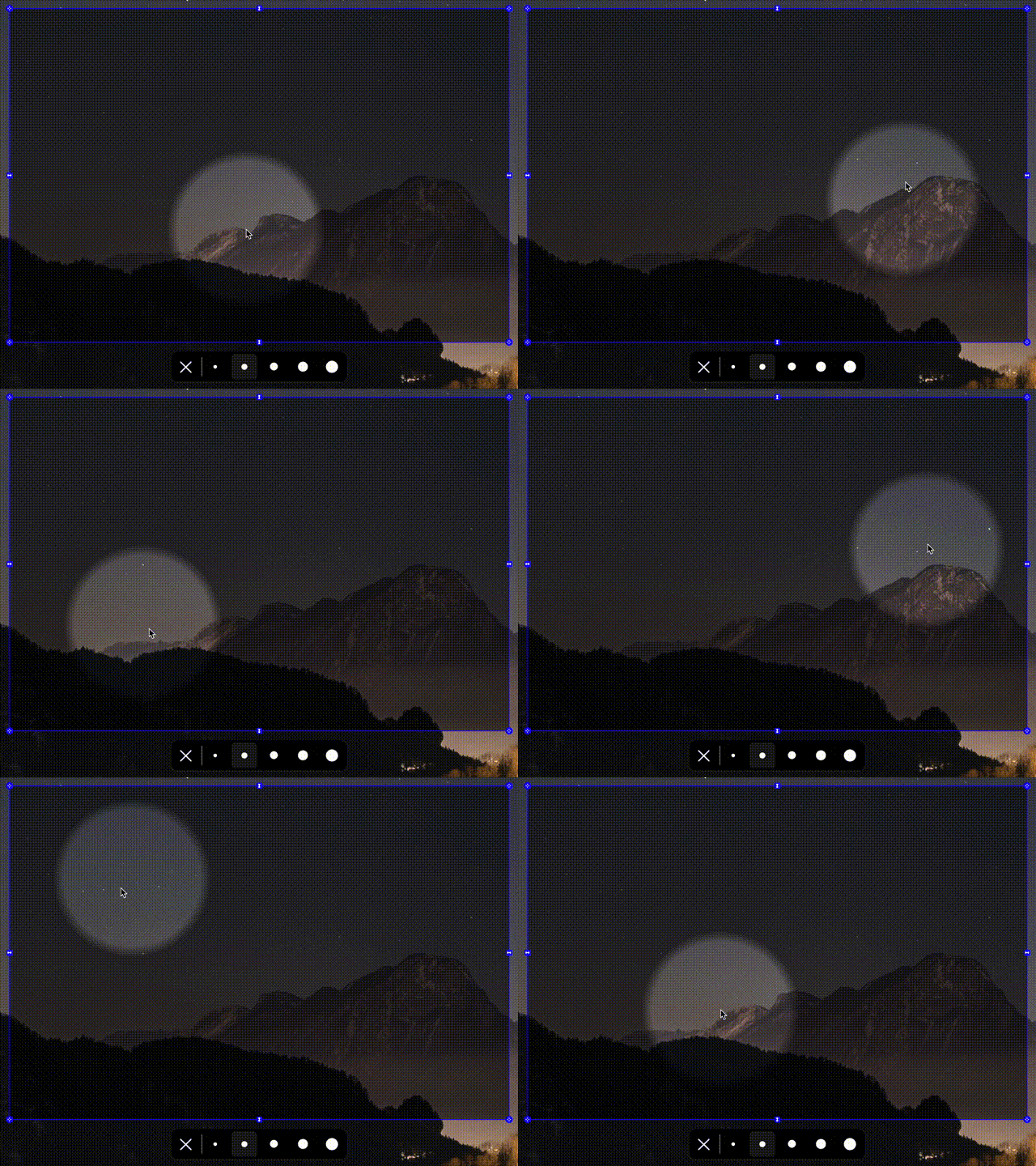
Spotlight
Guide attention to the exact part of your presentation that matters, dimming everything else.
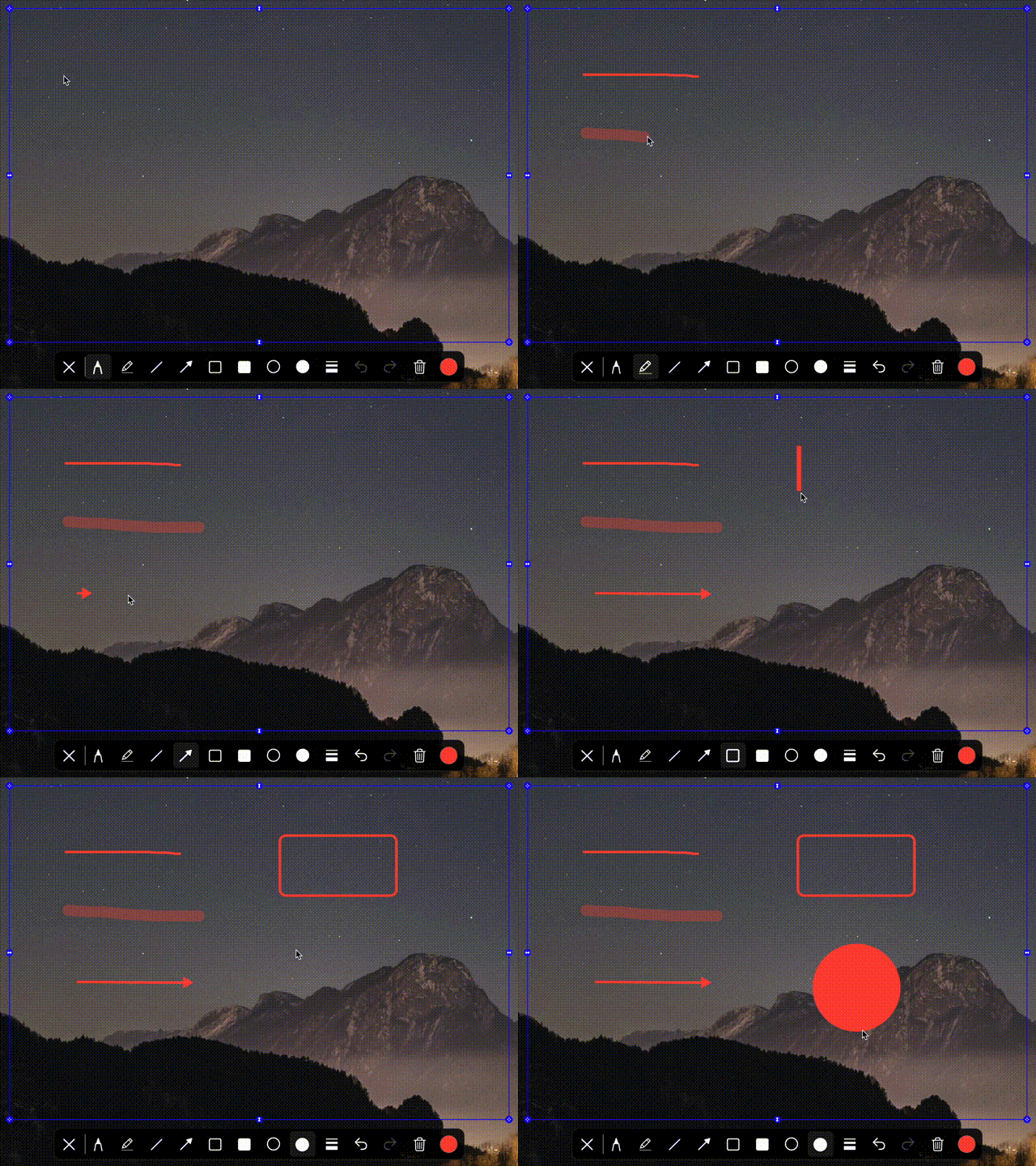
Drawing Toolbar
Draw, highlight, or annotate directly on the shared region to explain your ideas.
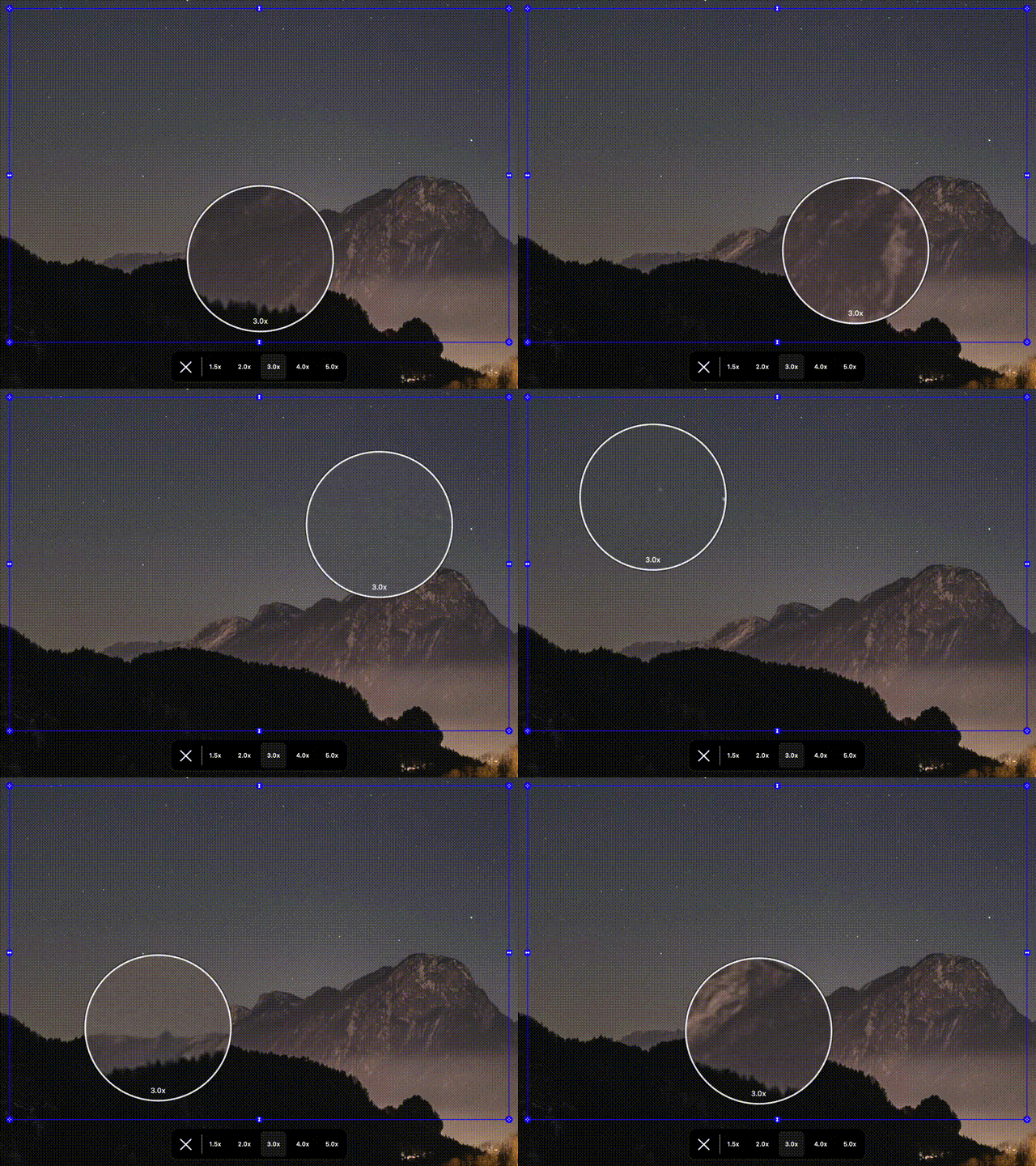
Zoom Controls
Magnify details so everyone can see the fine points of your work.
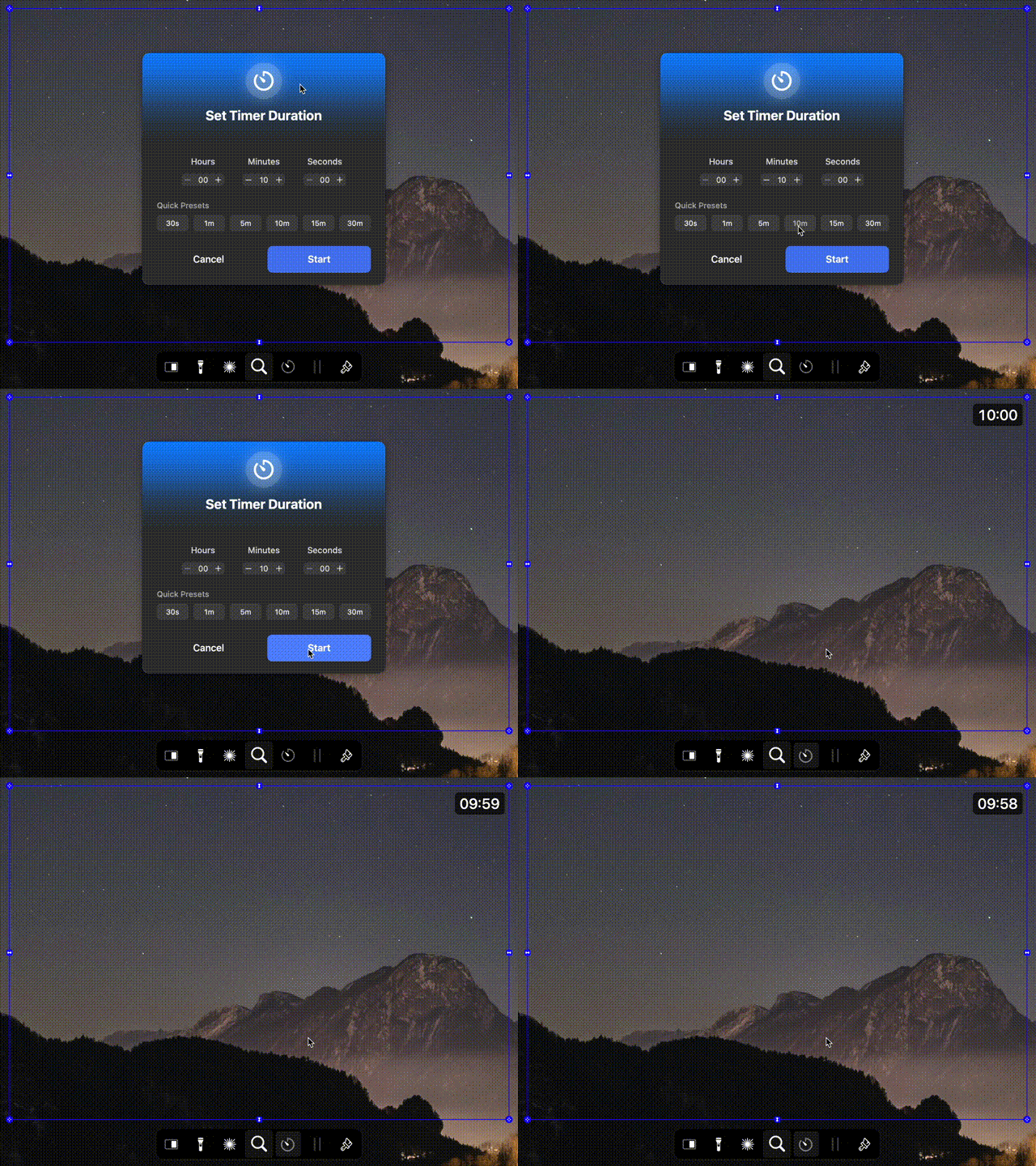
Timer
Keep your presentation on schedule with a timer that displays right in the shared area.
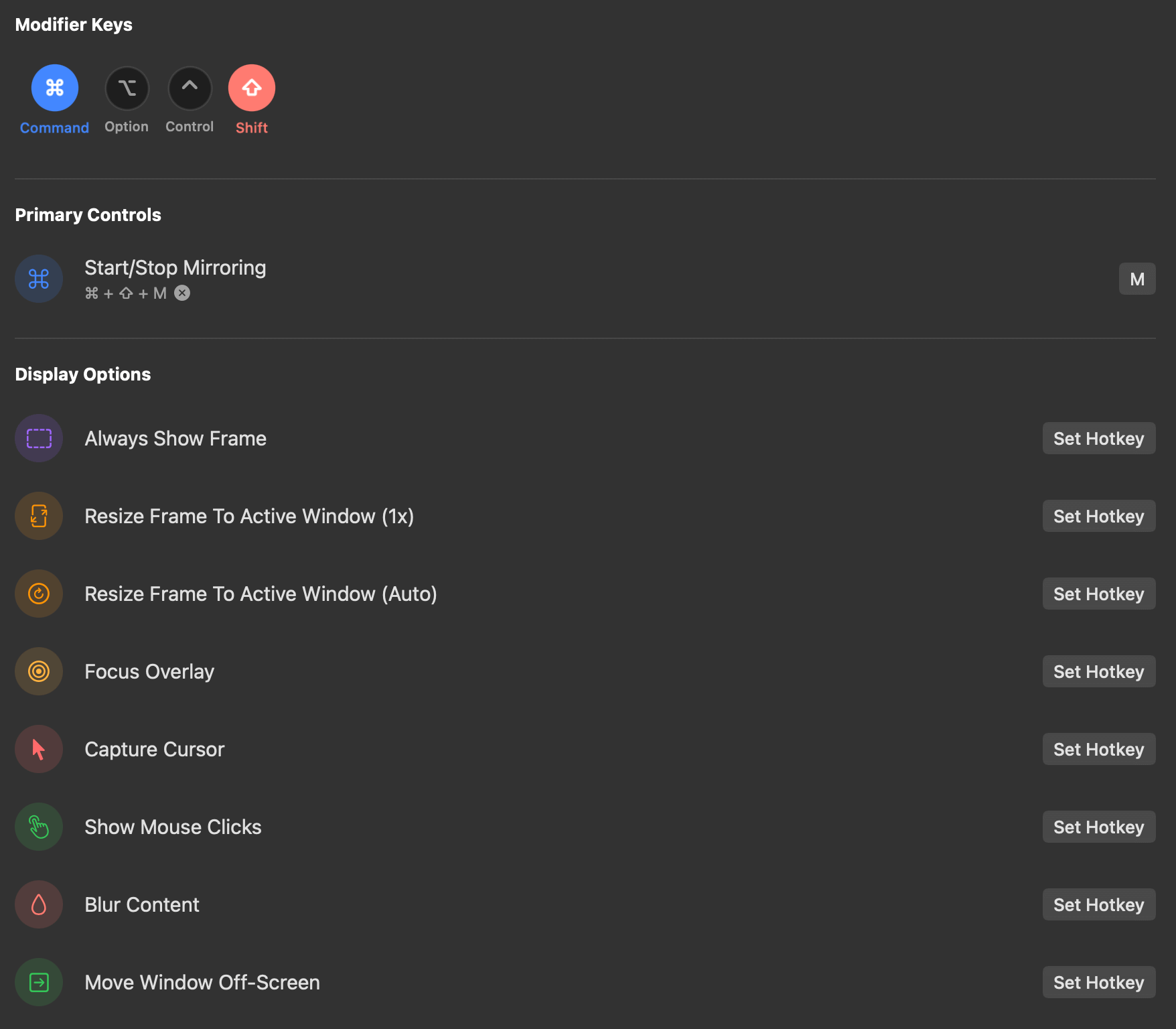
Customizable Hotkeys
Switch between presentation areas with a keystroke — perfect for moving from slides to demo.
Ultrawide Presentation Questions
Quick answers about presenting from an ultrawide monitor
Yes. ZoneShare lets you frame the exact area you want to present — slides, a design, a document — and shares only that region. The rest of your desktop stays private.
Yes. Keynote and PowerPoint are normal macOS windows, so you simply frame the window and share the Zone Share window or Zone Share Camera.
Yes. ZoneShare includes a drawing toolbar, spotlight, and zoom tools that work directly on the shared region.
Yes. You can move the frame at any time, and Pro users can set up hotkeys to jump between saved regions instantly.
No. Only the region you select is mirrored. Speaker notes, code, and other windows outside the frame are never shared.
ZoneShare is free to download from the App Store and lets you mirror a portion of your screen. Pro adds custom frame size, blur, hotkeys, and more.
Present With Confidence From Your Ultrawide Monitor
Download ZoneShare free and turn your ultrawide display into a professional presentation tool.