How to Share Only Part of Your Screen on Mac
Sometimes you don't need to share the whole screen. ZoneShare lets you define a precise screen region on your Mac and share only that — in Zoom, Microsoft Teams, Google Meet, and any presentation app.

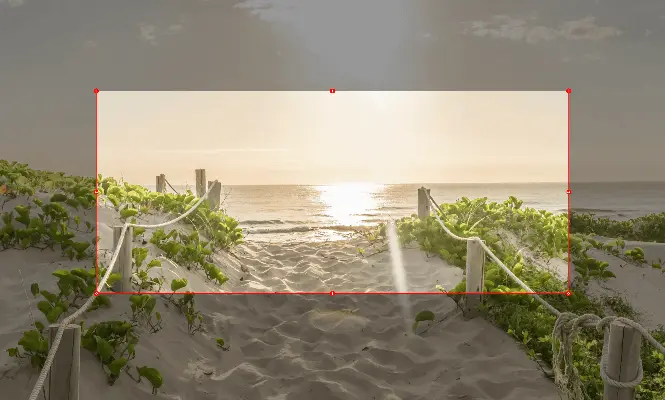
Why Share the Whole Screen at All?
Full-screen sharing is a habit, not a requirement — and it comes with real downsides.
Sharing your entire Mac screen exposes everything: notifications, chat windows, personal files, and apps you'd rather keep to yourself. It also forces viewers to scan a busy desktop instead of focusing on the content you're talking about.
For presentations, teaching, and remote work, showing the whole screen rarely helps anyone. What matters is the one window, slide, or document you're working with — and that's exactly what should be on screen.
- Privacy benefits. Keep messages, files, and notifications out of the call while still sharing your work.
- Focused viewers. When only the relevant content is visible, people follow along instead of getting distracted.
- Readable content. A narrow, well-framed region stays large and crisp in every meeting app.
- A professional look. No more fumbling with windows or apologizing for a cluttered desktop.
Share Exactly the Region You Choose
ZoneShare gives you precise control over what your audience sees.
- Define your region. Drag a frame over any part of your screen, or enter exact pixel values for pixel-perfect positioning.
- Lock an aspect ratio. Keep the region at 16:9 or another ratio so it always fits the meeting frame.
- Mirror it cleanly. The region appears in the Zone Share window or the Zone Share Camera — never your whole desktop.
ZoneShare is built for exactly this: selecting a precise area of a Mac screen and sharing only that area. The rest of your display simply doesn't exist to the meeting.
You can reposition the region anytime, save positions for quick access, and even blur sensitive apps that happen to appear inside it. To keep your share at a standard size, see our guide to sharing a 16:9 area, or go deeper with better screen sharing on Mac.
Share Only Part of Your Screen in 3 Steps
Select, mirror, share — that's it
Start Mirroring
Open ZoneShare and choose the Zone Share preview window or the Zone Share Camera virtual camera.
Define Your Region
Drag the frame over the exact area of your Mac screen you want to share, and pick your aspect ratio.
Share the Window
In your meeting app, share the Zone Share window — or select Zone Share Camera as your camera.
When Partial Sharing Helps Most
Everyday situations where a precise region beats a full-screen share
Privacy & Confidentiality
Present data, documents, or designs without showing messages, tabs, or anything you'd rather keep private.
Presentations
Show just the slide or document on screen so the rest of your workspace stays hidden.
Teaching & Training
Demonstrate one tool or concept clearly while keeping the rest of your setup out of the frame.
Remote Work & Support
Walk a colleague through a task by sharing exactly the part of the screen they need to see.
Design & Review
Focus the conversation on the design or layout you're discussing, not the entire screen.
Features for Precise Sharing
The ZoneShare tools that make region sharing effortless
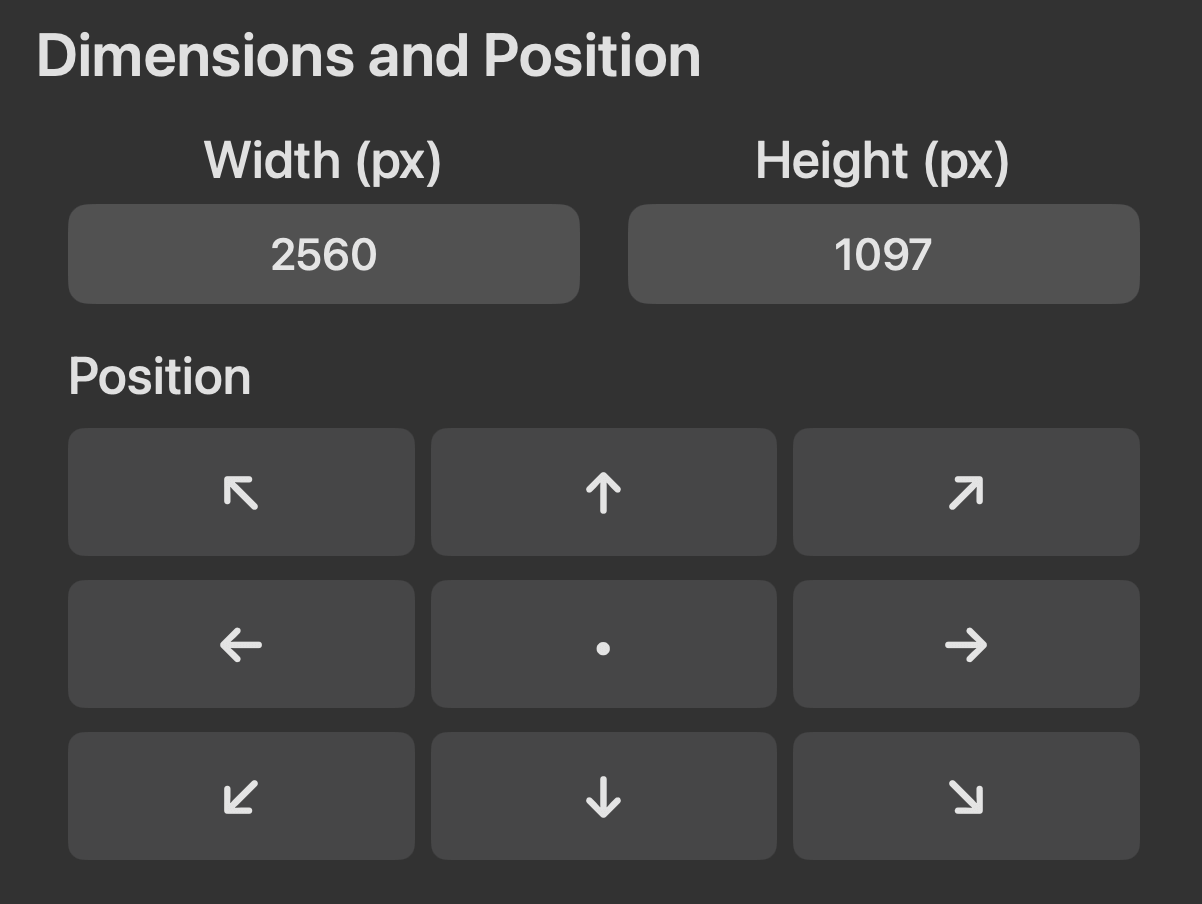
Dimensions & Position
Fine-tune the size and placement of your region with drag handles or exact pixel values.
Focus Overlay
Dim everything outside your selected region so you always know what's on screen.
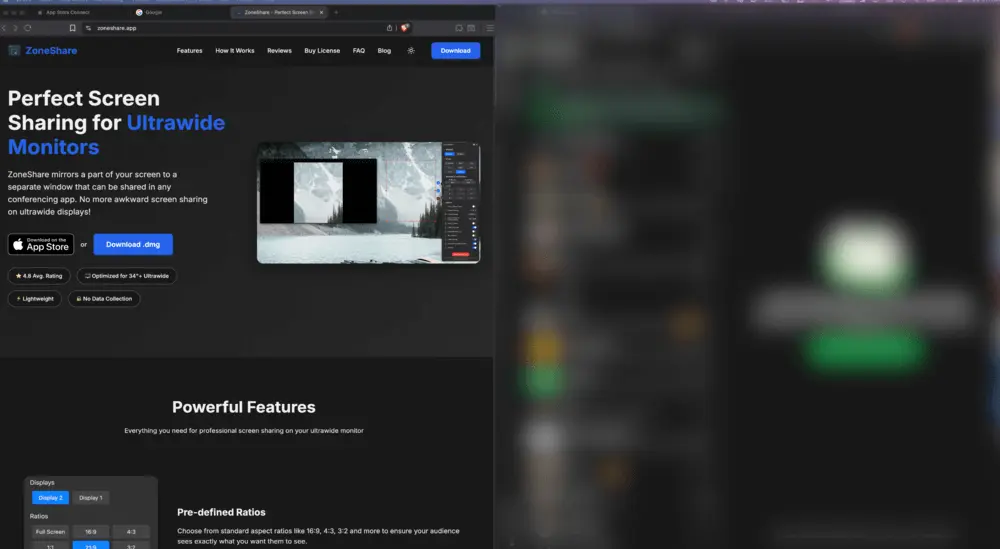
Smart Exclusion & Blur
Blur or exclude apps and tabs that appear inside the shared region to protect sensitive content.
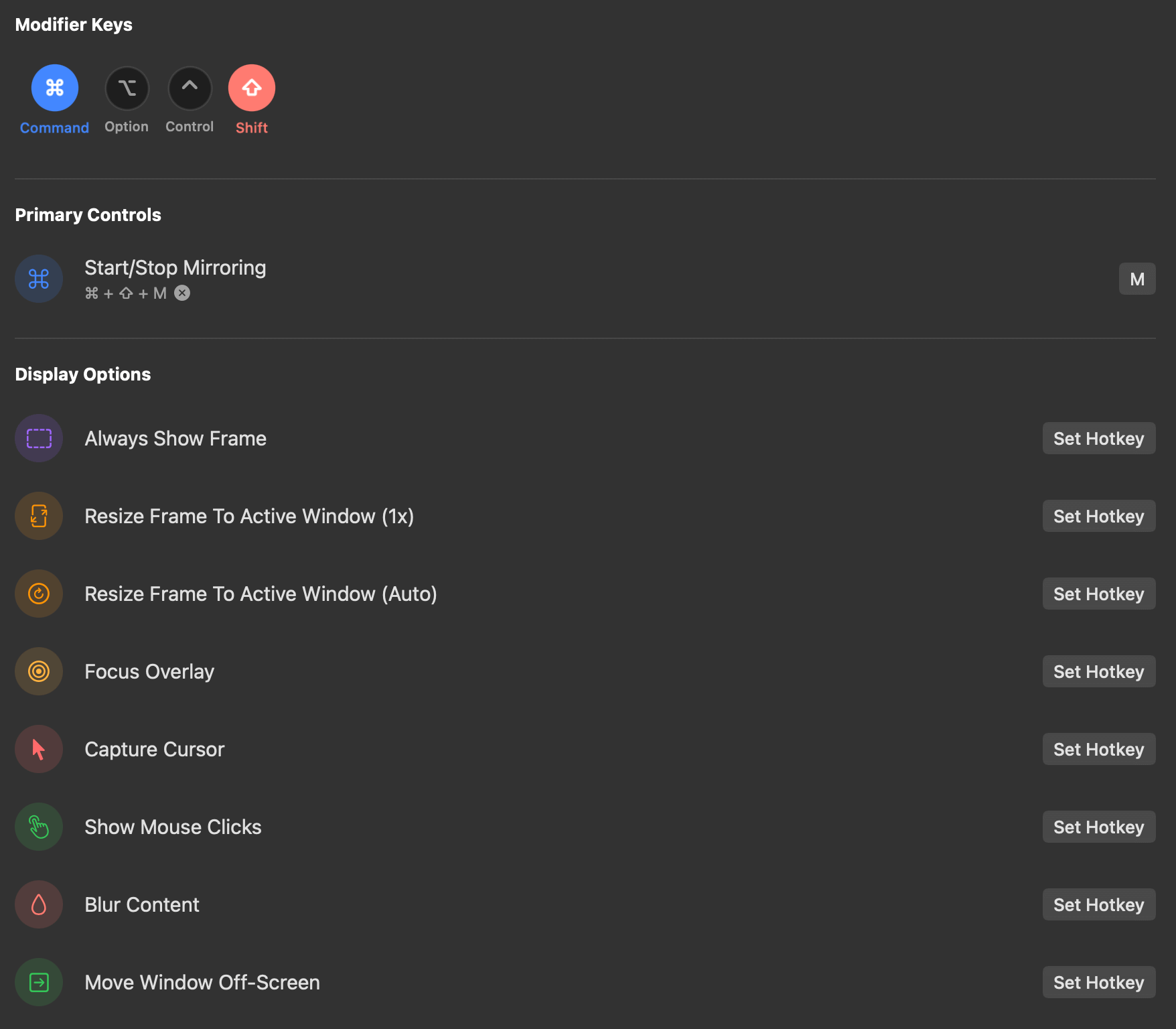
Customizable Hotkeys
Jump between saved regions with a keyboard shortcut — no fumbling through menus mid-meeting.
Selective Sharing Questions
Quick answers about sharing part of your screen on Mac
Yes. ZoneShare lets you draw a frame over any part of your screen. Only that region is mirrored into the Zone Share window or the Zone Share Camera.
Yes. The Zone Share window can be shared with any app that supports window sharing, including Zoom, Microsoft Teams, Google Meet, and Webex. The Zone Share Camera works as a webcam in those apps and more.
Yes. Only the mirrored region is visible to participants. Anything outside the region never appears in the share, and you can blur apps that appear inside it.
Yes. You can move and resize the frame at any time, and Pro users can set up hotkeys to switch between saved positions instantly.
Yes. ZoneShare is free to download from the App Store and lets you mirror a portion of your screen. Pro adds custom frame size, blur, hotkeys, and more.
No. ZoneShare only mirrors the selected region locally on your Mac. Nothing is recorded, stored, or sent anywhere.
Share Only What You Want to Share
Download ZoneShare free and take control of what your audience sees.