Better Screen Sharing on Mac
ZoneShare improves how you share your screen on macOS — especially on large and ultrawide displays. Share precise regions, keep your desktop private, and present like a professional.

Most Screen Sharing on Mac Could Be Better
The tools built into macOS and meeting apps weren't designed for large or ultrawide displays.
Screen sharing is a staple of remote work, teaching, and presentations. But on large and ultrawide monitors, the standard approach — share the whole screen — produces content that's too small, too wide, or too exposed.
The alternative, sharing a single window, breaks down when a window is wider than a standard frame or when you need to switch between several apps during one presentation.
- Squished content. Wide desktops get compressed to fit the meeting frame, making everything harder to read.
- Privacy exposure. The whole screen is visible, including messages, tabs, and files you'd rather keep private.
- No focus. Viewers can't tell what matters in a busy, cluttered desktop.
- Limited tools. Standard sharing offers no way to draw, spotlight, or keep a consistent aspect ratio.
ZoneShare: Professional Screen Sharing for Mac
A full set of tools for sharing exactly what you want, the way you want it.
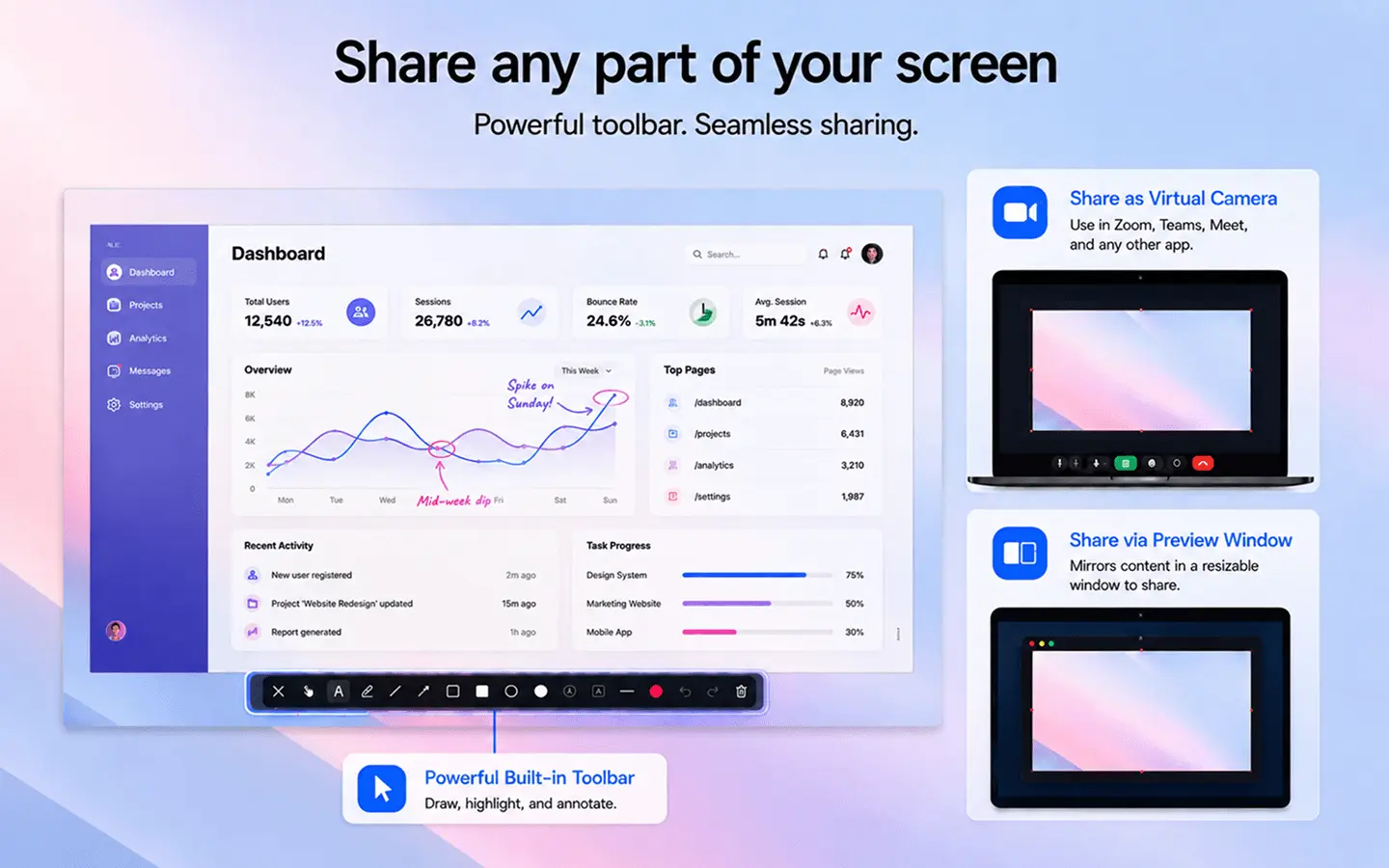
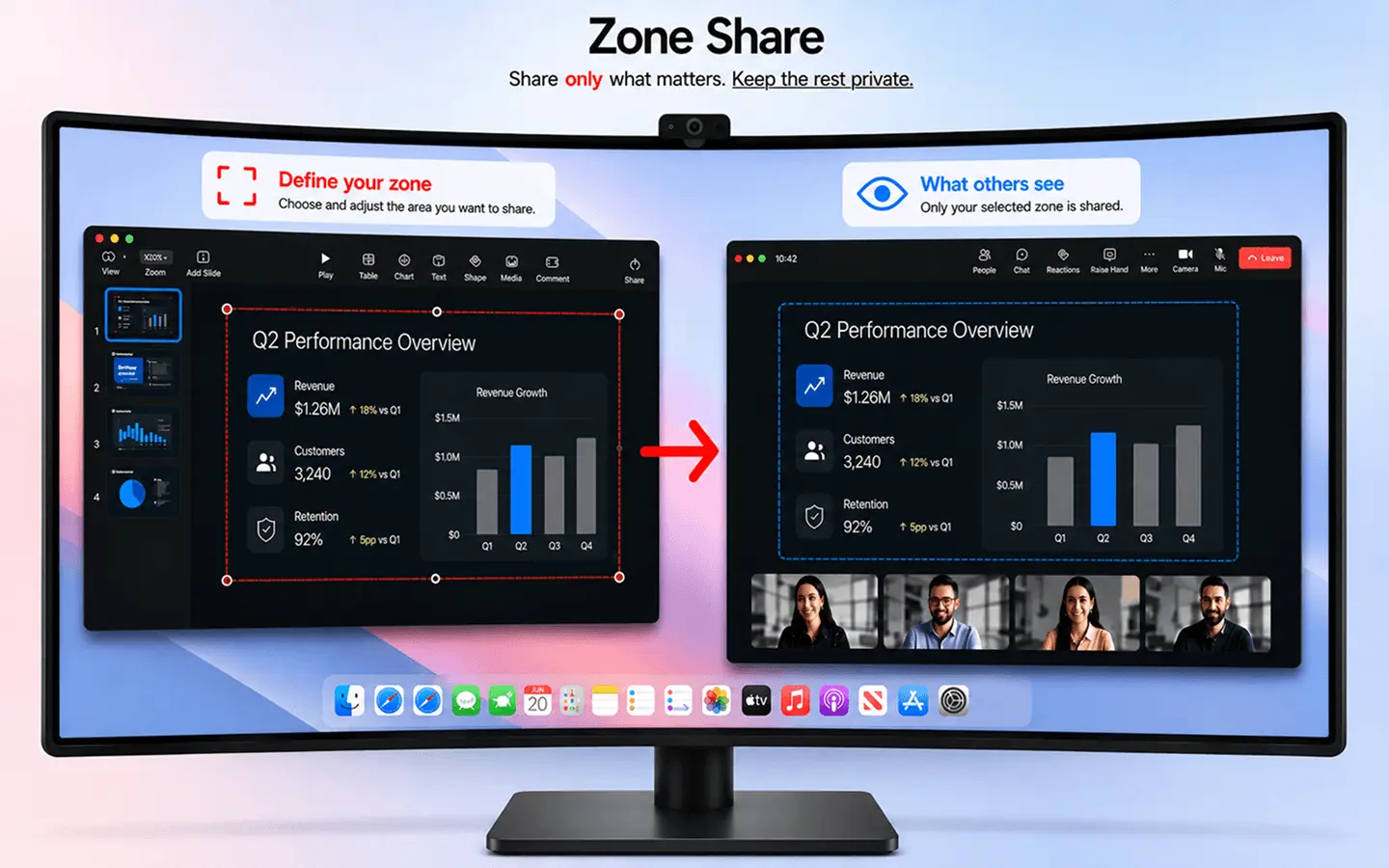
- Selective screen sharing. Mirror only the region you choose into a window or virtual camera — never your whole desktop.
- Custom screen regions. Position and size your region precisely, with presets for the most common ratios.
- Aspect ratios. Keep your share at 16:9 or another standard ratio so it always fits the meeting frame.
- Presentation tools. Spotlight, blur, draw, zoom, and time your presentation — right inside the shared region.
- Keyboard shortcuts. Switch between regions and tools instantly with customizable hotkeys.
ZoneShare brings together everything you need for professional screen sharing on macOS: selective regions, standard aspect ratios, drawing and annotation, spotlight, blur, keystroke visualization, and a built-in timer. It works in Zoom, Teams, Google Meet, and any app that can share a window or use a webcam.
Every guide in this section is built on the same workflow. Start with the basics in sharing only part of your screen, then explore the guides below for your specific scenario.
Get Started in 3 Steps
The same simple workflow powers every ZoneShare feature
Start Mirroring
Choose the Zone Share preview window or the Zone Share Camera virtual camera.
Frame Your Region
Pick an aspect ratio and position the frame over the content you want to share.
Share It Anywhere
Share the Zone Share window in any meeting app — or use Zone Share Camera as your webcam.
Built for Every Screen-Sharing Scenario
One tool, one workflow, many ways to use it
Presentations
Present slides, designs, and dashboards at a clean, readable size from any monitor.
Remote Meetings
Keep calls focused and professional by sharing only what matters.
Teaching & Training
Share a clear teaching area and annotate as you explain.
Coding & Reviews
Show code at a comfortable width during reviews and pair programming.
Recordings & Streams
Produce crisp, standard-ratio recordings without ultrawide letterboxing.
Support & Demos
Walk people through tasks by sharing exactly the part of the screen they need.
Every ZoneShare Feature
A complete toolkit for better screen sharing on macOS
Pre-defined Ratios
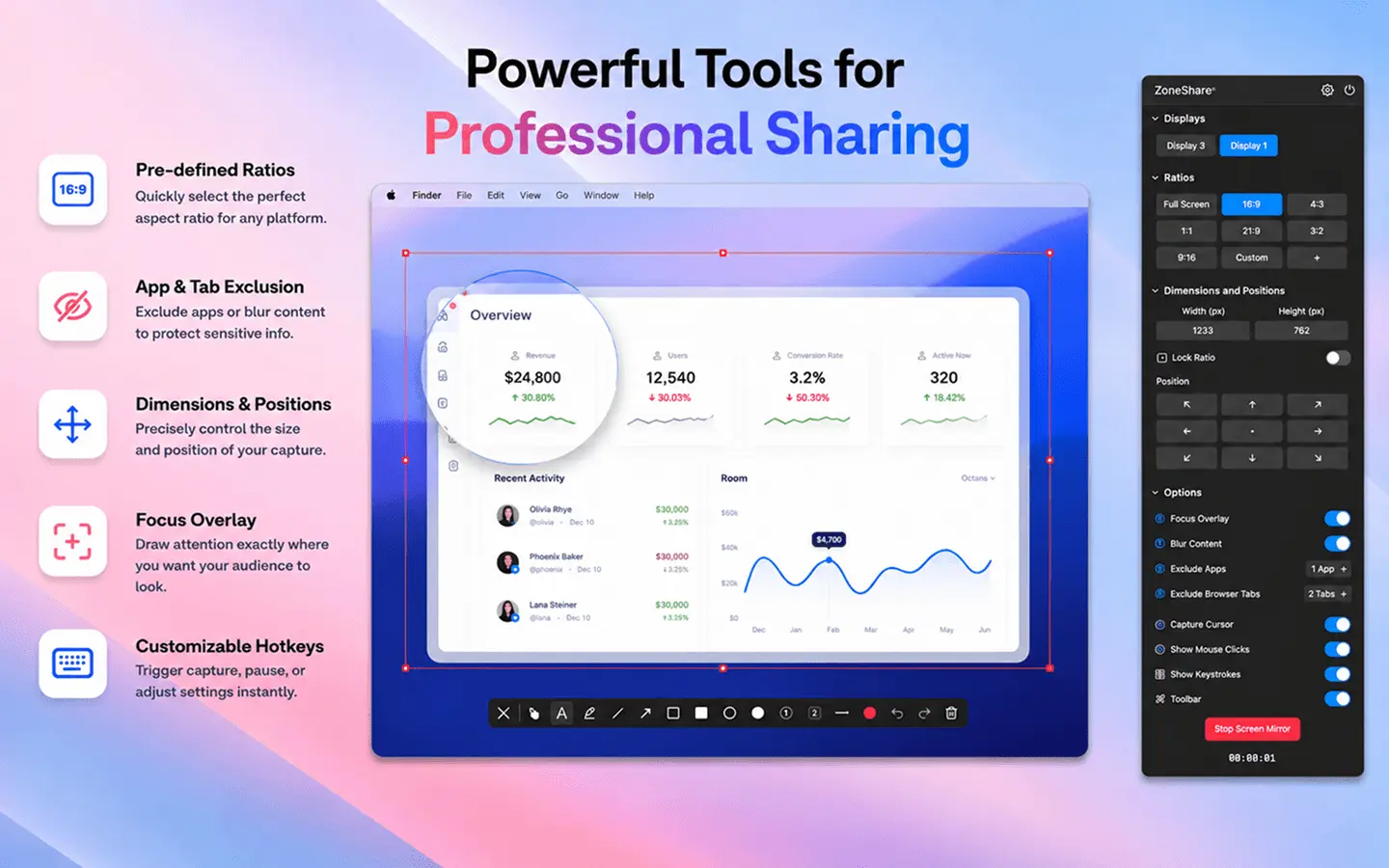
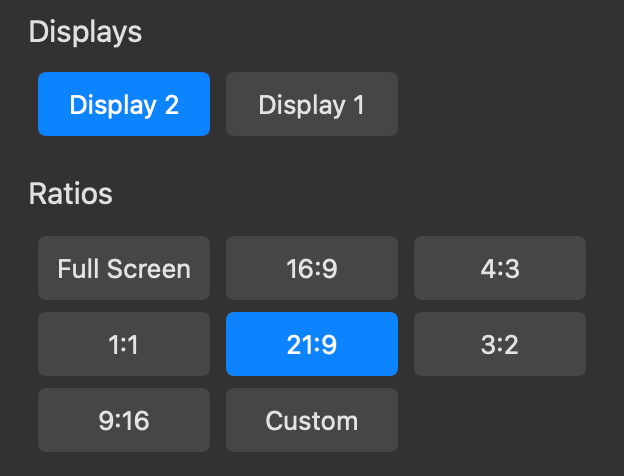
Choose from standard aspect ratios like 16:9, 4:3, 3:2 and more to ensure your audience sees exactly what you want.
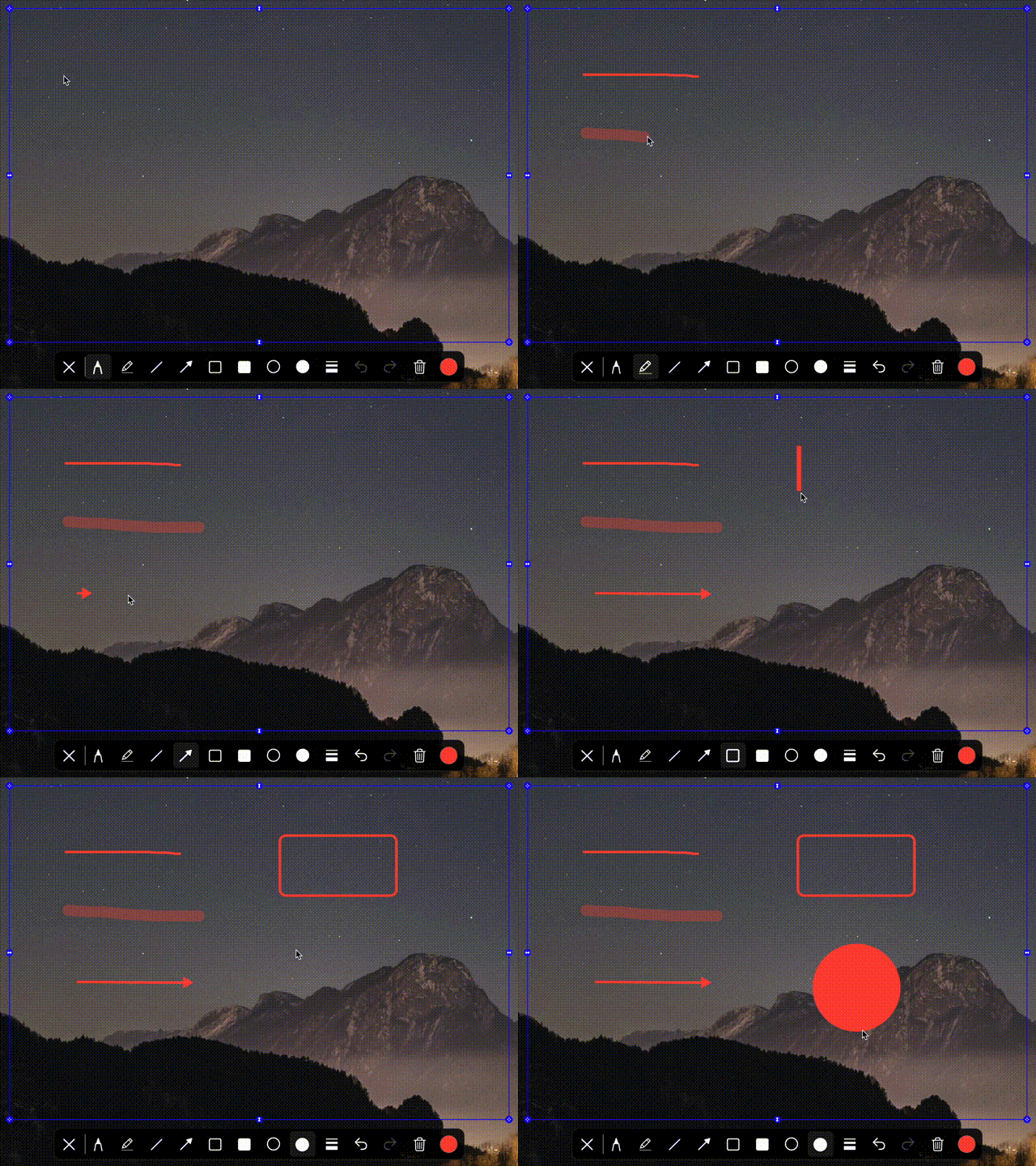
Drawing Toolbar
Draw, highlight, or annotate directly on the shared screen region using the built-in toolbar.
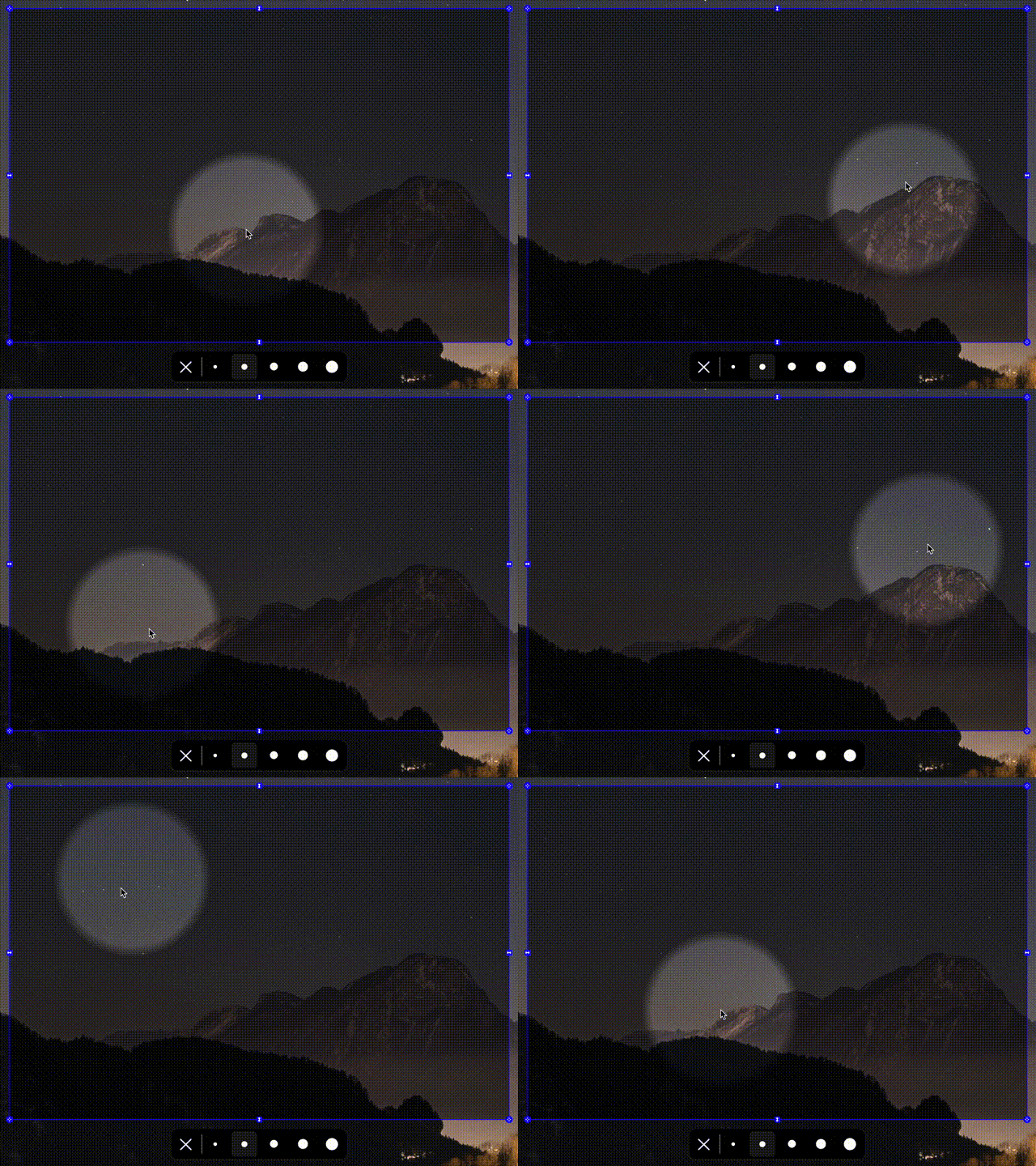
Spotlight
Draw attention to specific areas of your screen with an interactive spotlight that dims surrounding content.
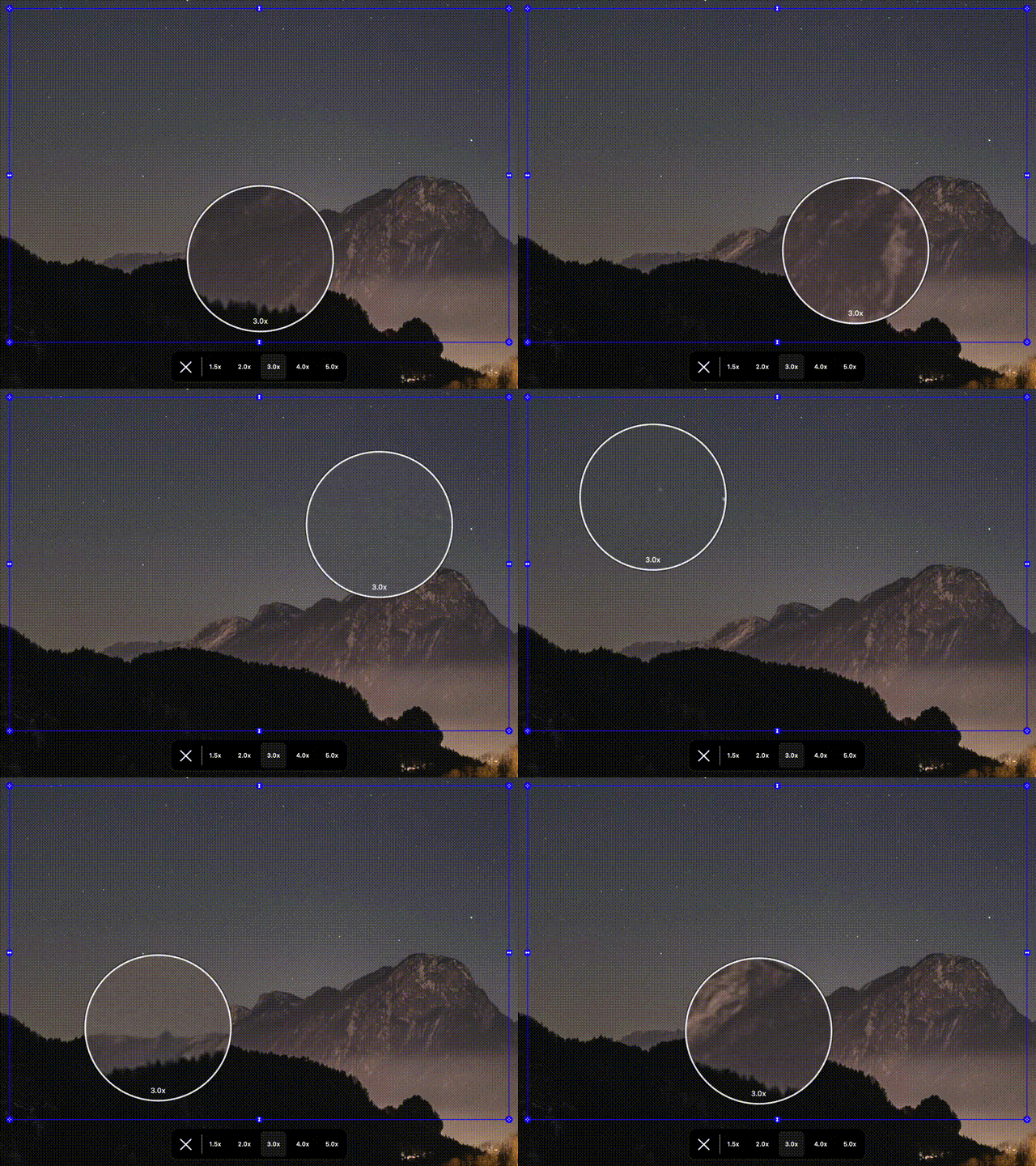
Zoom Controls
Magnify your shared region with a zoom effect to highlight finer details.
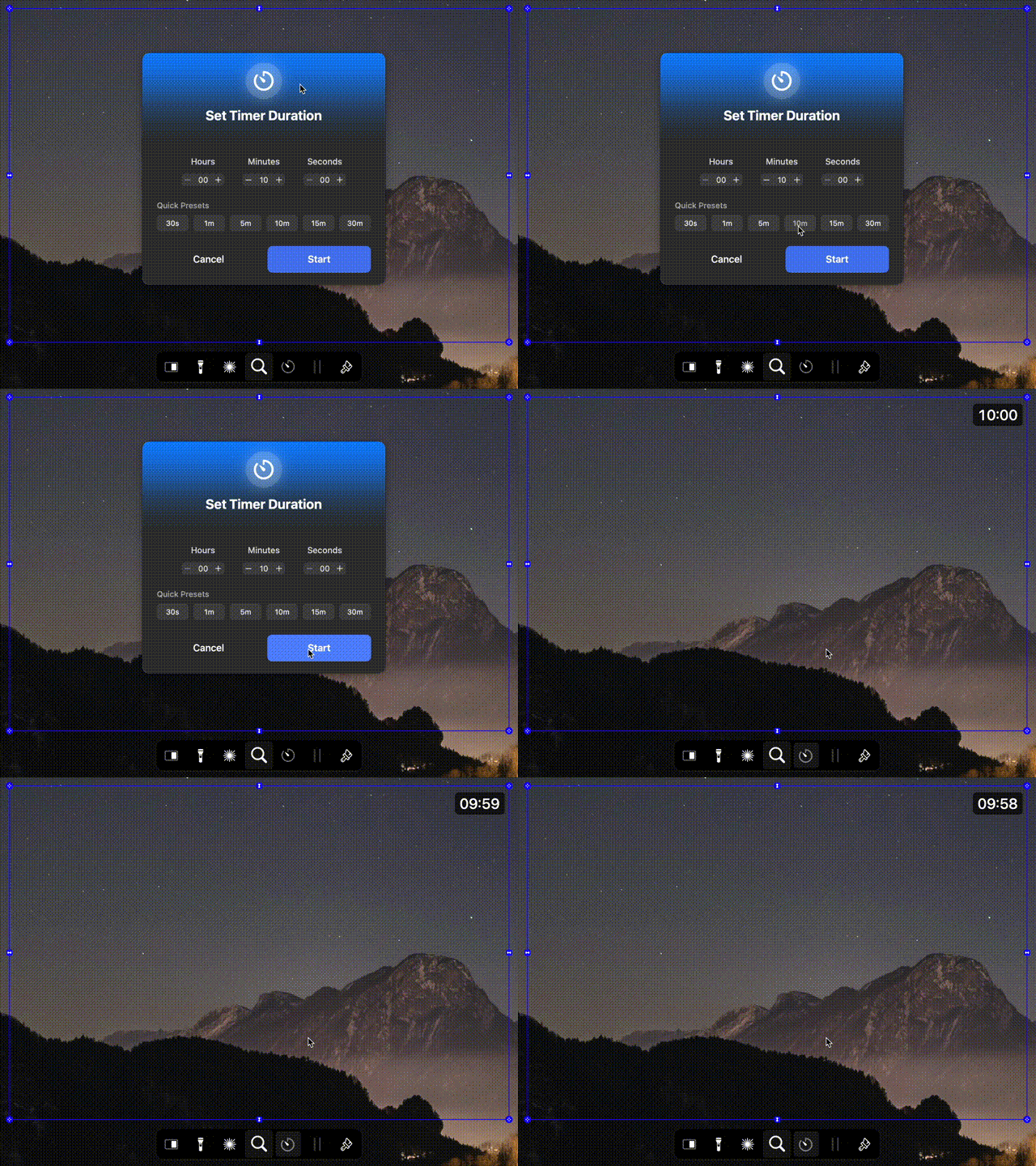
Timer
Keep track of presentation time with a built-in timer that displays directly in the shared region.

Keystroke Visualization
Display every key press and shortcut live so viewers can follow along.
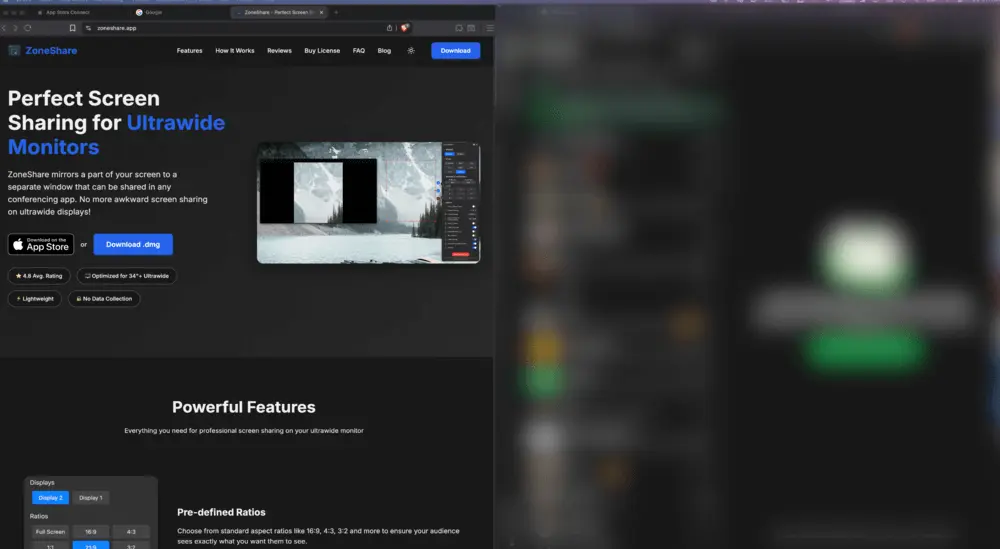
Smart Exclusion & Blur
Exclude or blur selected apps and browser tabs to maintain privacy during screen sharing.
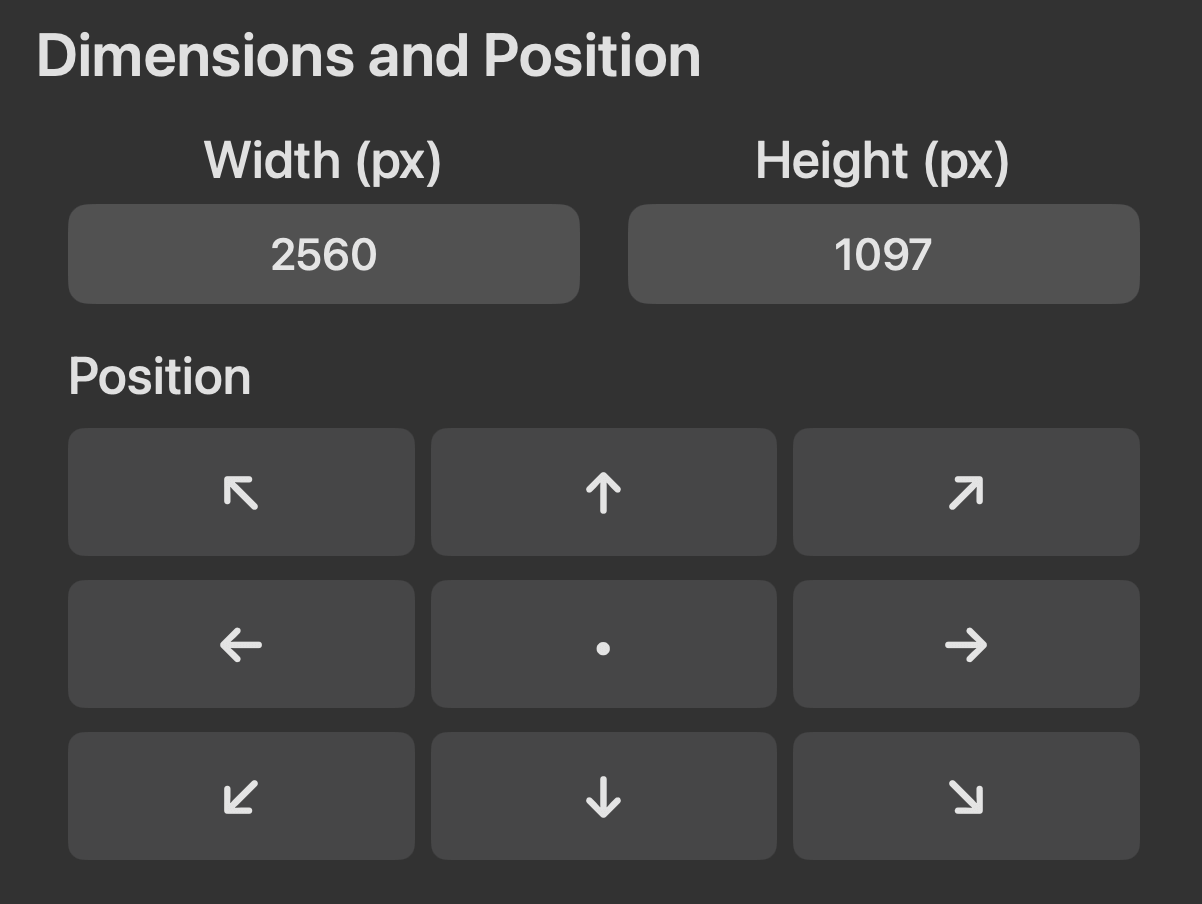
Dimensions & Position
Customize size and position precisely while preserving the selected aspect ratio.
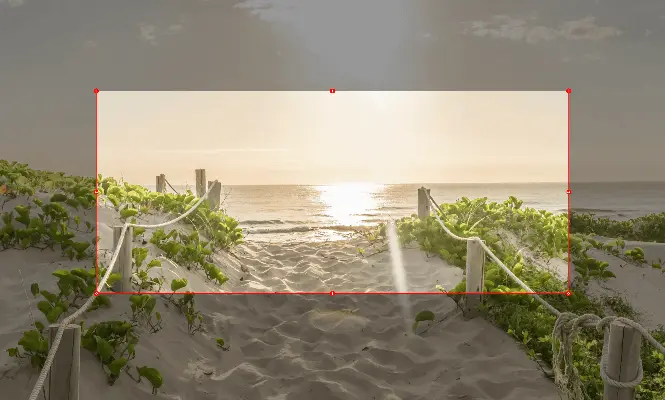
Focus Overlay
Dim everything outside the selected share region to keep focus on what matters.
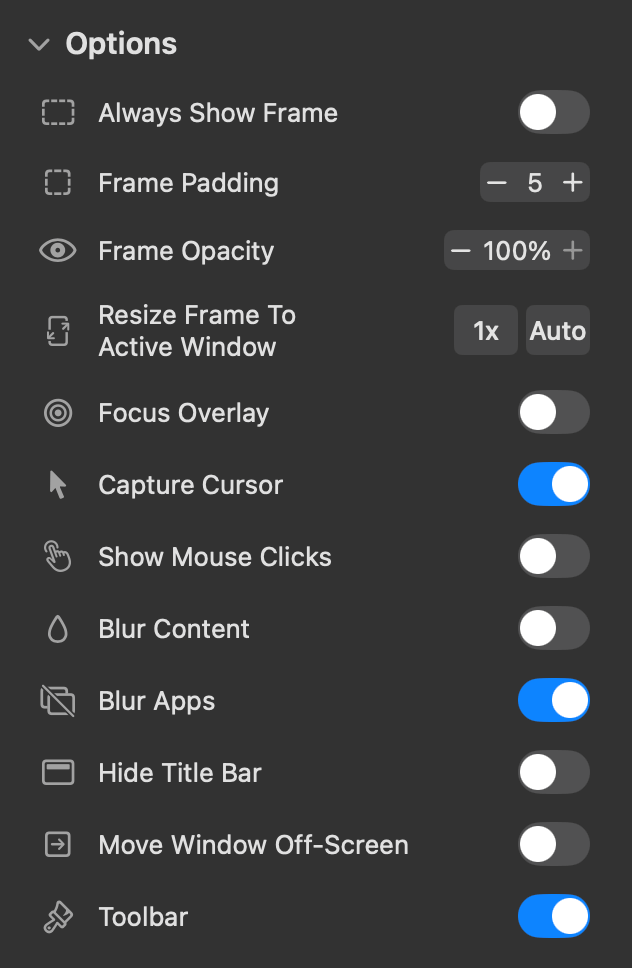
Flexible Sharing Options
Configure ZoneShare directly from the menu bar — presets, blur, and more with a single click.
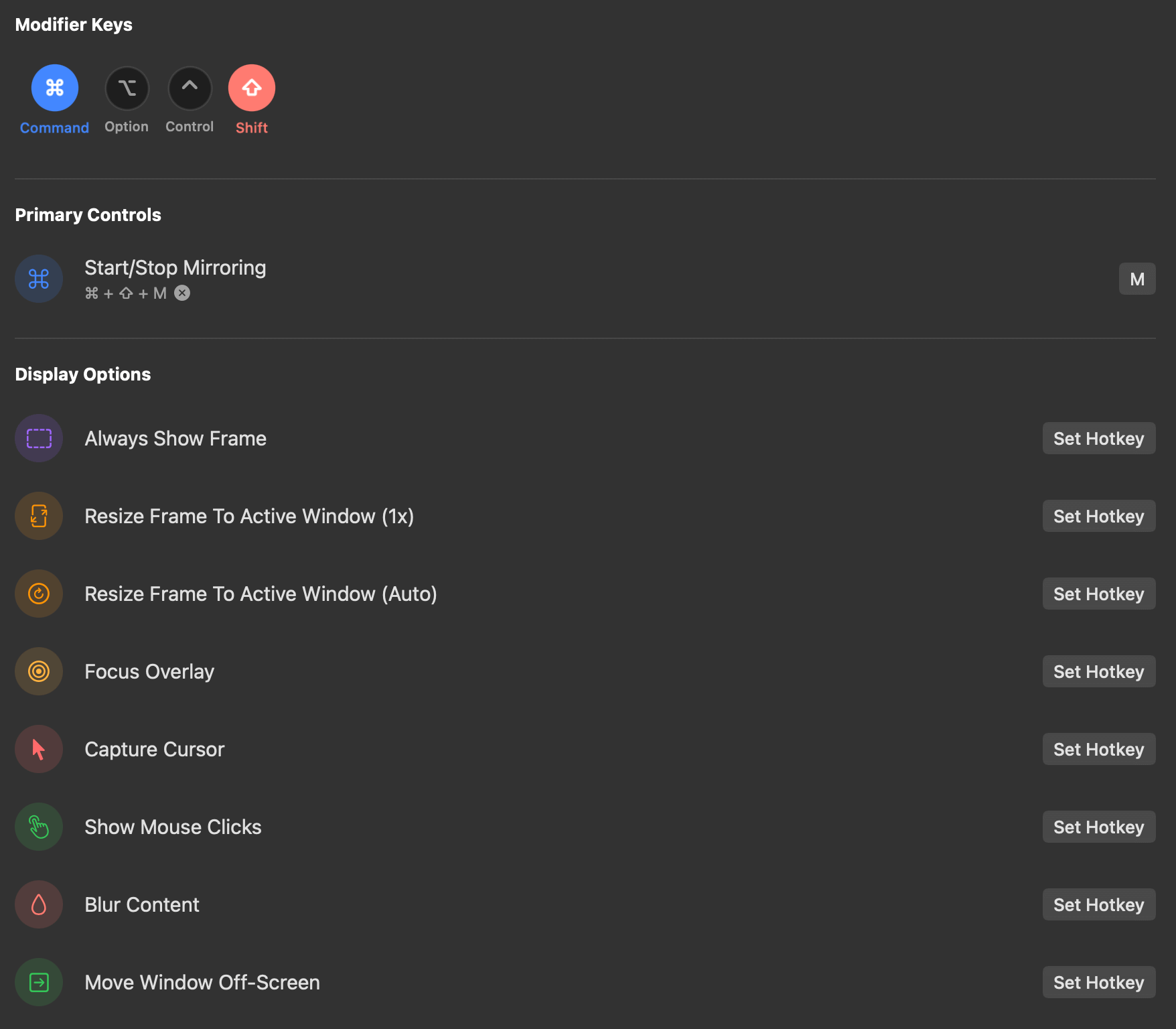
Customizable Hotkeys
Set up keyboard shortcuts to capture and share specific areas of your screen instantly.
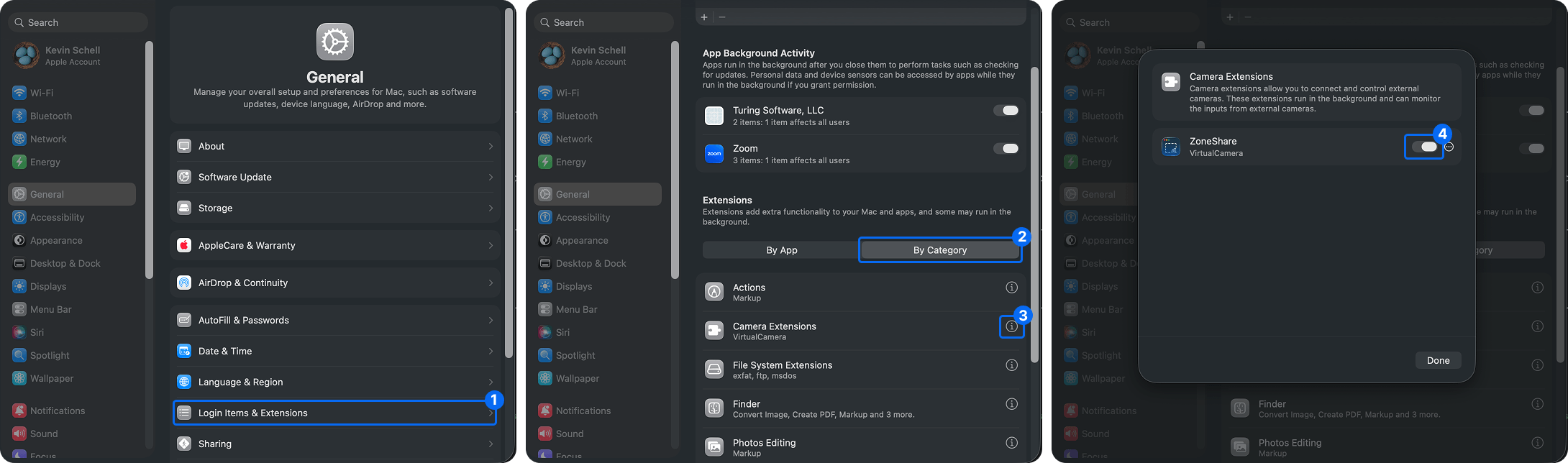
Virtual Camera
Use the Zone Share Camera as a regular webcam in Zoom, Teams, Meet, Discord, and OBS.
Screen Sharing on Mac Questions
Everything you need to know about better screen sharing with ZoneShare
macOS and meeting apps share your entire screen or a single window. ZoneShare lets you mirror any custom region — with precise control over ratio, size, and position — and adds spotlight, drawing, blur, and timer tools on top.
Yes. Share the Zone Share window with any app that supports window sharing, or select the Zone Share Camera as your webcam in Zoom, Teams, Meet, Discord, and more.
Yes. That's the core of ZoneShare. You frame any part of your screen — with presets like 16:9 or a fully custom area — and share only that region.
ZoneShare adds a drawing toolbar, spotlight, zoom controls, keystroke visualization, and a timer — all applied directly to the region you're sharing.
No. ZoneShare only mirrors the selected region locally on your Mac. Nothing is recorded, stored, or sent anywhere.
ZoneShare supports macOS 14 Sonoma and newer versions, including the latest macOS release.
ZoneShare is free to download from the App Store and lets you mirror a portion of your screen. Pro adds custom frame size, blur, hotkeys, and more.
Upgrade Your Screen Sharing on Mac
Download ZoneShare free and present, teach, and collaborate like a professional.