Zoom on an Ultrawide Monitor: How to Share Your Screen Properly
Ultrawide monitors and Zoom can work together well — if you share the right way. Here's what usually goes wrong, and the simple fix.

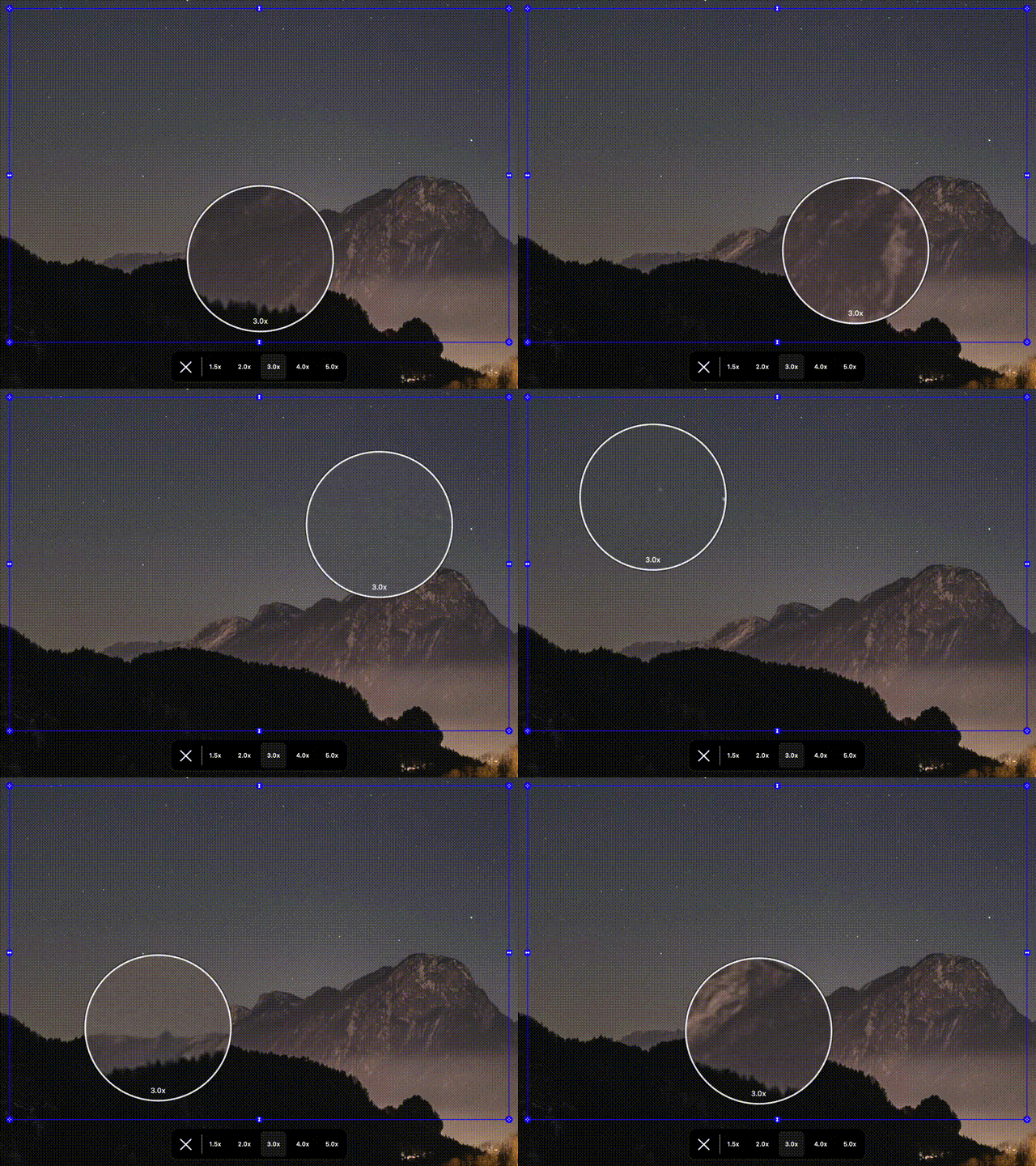
The Most Common Zoom + Ultrawide Problems
If you've hit any of these, you're not alone.
Zoom was designed for standard monitors. On a 21:9 or 32:9 display, screen sharing often produces tiny content, huge empty margins, and an awkward, exposed desktop. It's a mismatch between your hardware and the meeting format — not a fault of your presentation.
Most workarounds, like zooming into the middle of your screen or resizing windows constantly, trade one problem for another. They interrupt the flow of the meeting and rarely produce a clean result.
- Tiny, compressed content. The whole desktop is squeezed into the Zoom frame, making text and details hard to read.
- Letterboxing and dead space. Your content floats in the middle of a wide, empty image.
- Everything on display. Tabs, notifications, and windows are visible to everyone on the call.
- Clunky app switching. Moving between windows on a huge desktop is slow and distracting for viewers.
Share a Focused Region Instead
The simple fix: share only the part of your screen the meeting needs.
- Frame the content. Select a 16:9 or custom region over the window, slide, or app you're presenting.
- Mirror it cleanly. ZoneShare mirrors the region into the Zone Share window or Zone Share Camera.
- Share in Zoom. Share that window or camera in Zoom — your full desktop never enters the call.
ZoneShare is a pragmatic tool for exactly this problem. You keep your ultrawide setup for work, and Zoom only ever sees a clean, focused region at a readable size.
You can reposition the region between slides, apps, or code — even with a keyboard shortcut — without ending the share. For more detail, read our step-by-step guide to sharing an ultrawide screen in Zoom.
Fix Zoom Sharing in 3 Steps
A practical fix you can set up before your next call
Start Mirroring
Open ZoneShare and choose the Zone Share window or the Zone Share Camera.
Frame the Region
Select a 16:9 or custom area over the content you want to present.
Share in Zoom
Share the Zone Share window in Zoom — or select Zone Share Camera as your camera.
Everyday Zoom Situations
Real calls that get noticeably better with focused sharing
Team Meetings
Share updates and dashboards at a readable size instead of a compressed desktop.
Client Presentations
Present slides cleanly while keeping your notes and other apps private.
Technical Demos
Show code or tools at the width that makes sense, without the rest of your setup.
Recordings & Webinars
Record Zoom sessions that look crisp and professional, without ultrawide letterboxing.
Features That Fix Zoom Sharing
The ZoneShare tools that solve the common ultrawide problems
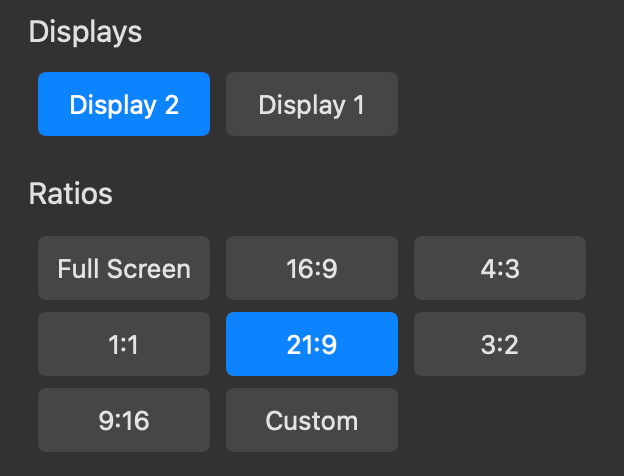
Pre-defined Ratios
Keep your share at 16:9 or another standard ratio so it fits the Zoom frame perfectly.
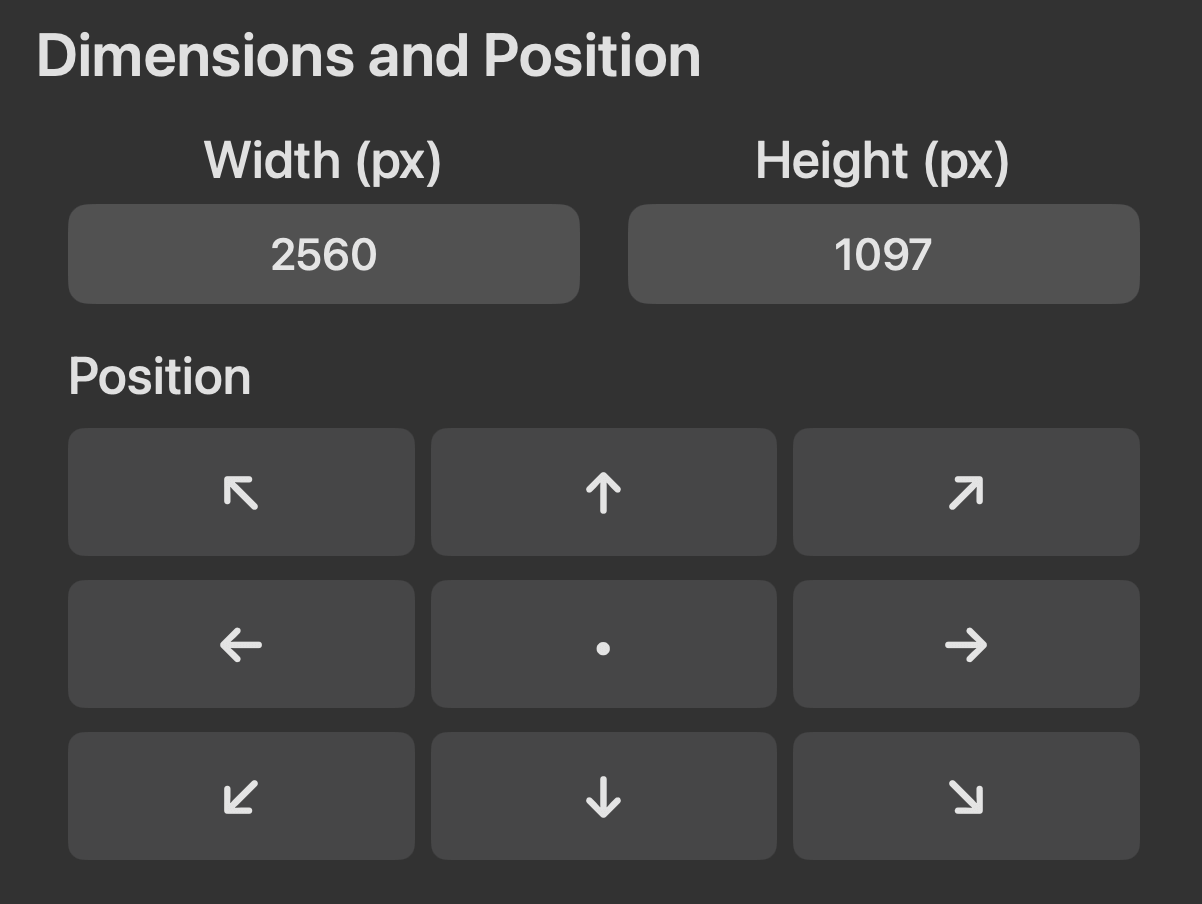
Dimensions & Position
Position the region precisely over your content with drag handles or pixel values.
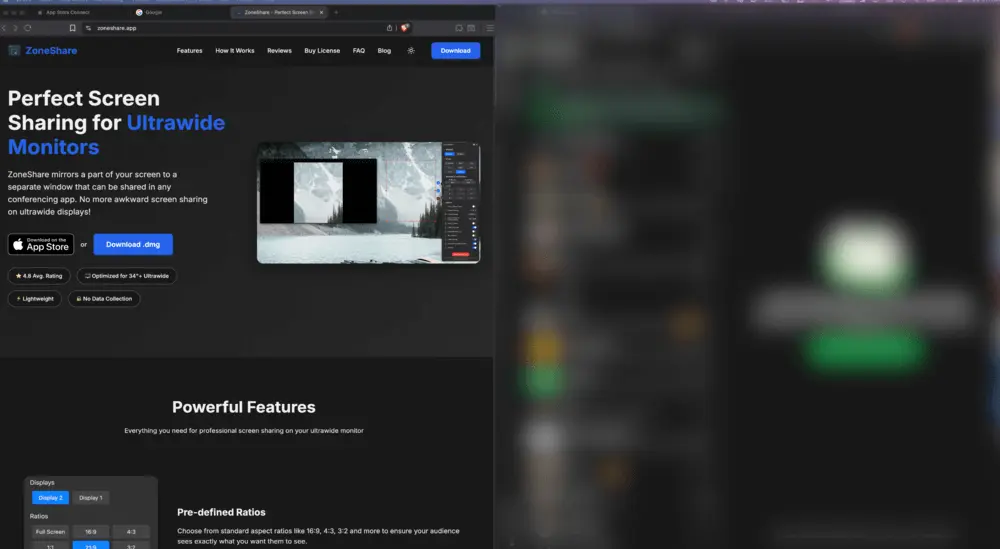
Smart Exclusion & Blur
Blur or exclude apps and tabs inside the shared region to protect sensitive information.
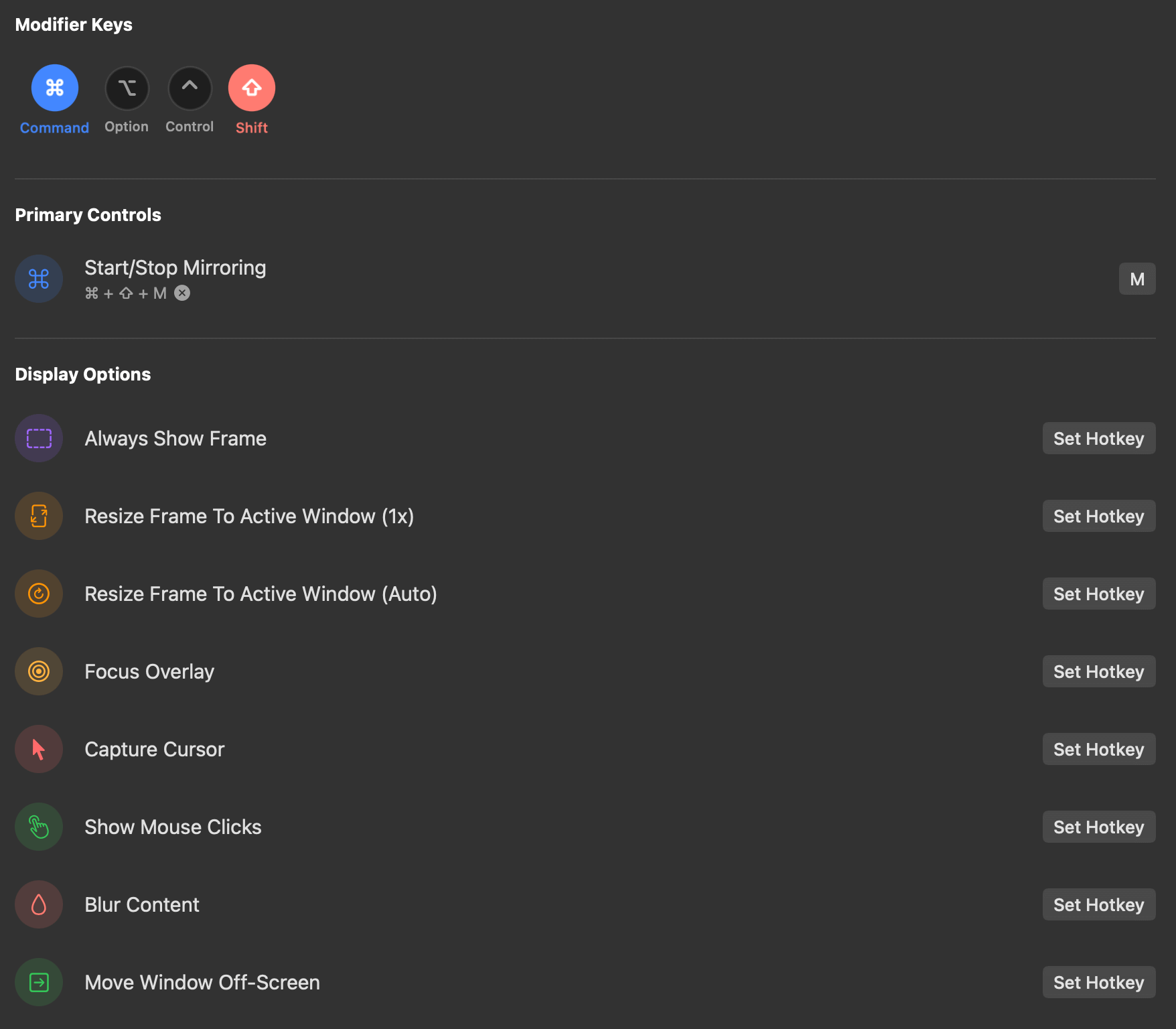
Customizable Hotkeys
Switch between shared regions instantly so you never lose the flow of a meeting.
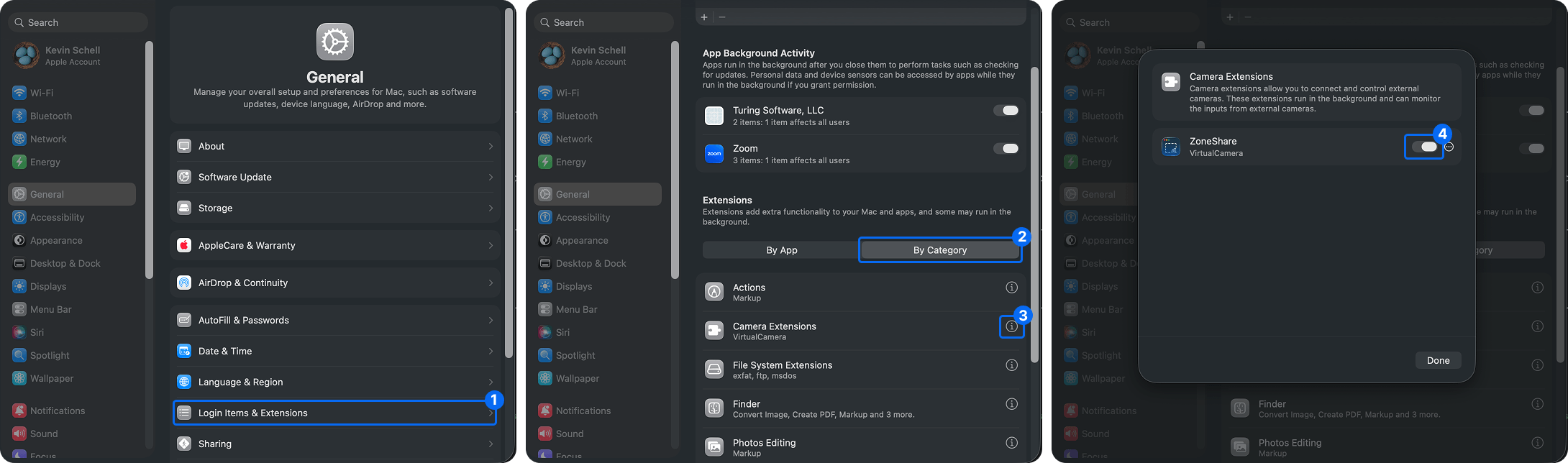
Virtual Camera
Use the Zone Share Camera as your Zoom camera for a clean, always-ready presentation feed.
Zoom + Ultrawide Questions
Practical answers for Zoom users on ultrawide monitors
Zoom scales your shared desktop to fit the meeting frame. An ultrawide image gets compressed into that frame, making everything smaller. Sharing a 16:9 region keeps your content large and readable.
Frame the content you want to present with ZoneShare, mirror it into the Zone Share window, and share that window in Zoom. Your full desktop never appears in the call.
Yes. ZoneShare's Zone Share Camera appears in Zoom's camera list like a normal webcam. Select it to share the region as your camera feed.
You can move the ZoneShare frame at any time, and Pro users can set up hotkeys to jump between saved regions instantly — no need to end the share.
No. ZoneShare is lightweight and mirrors only the selected region locally on your Mac. It doesn't add load to Zoom or to your network.
ZoneShare is free to download from the App Store and lets you mirror a portion of your screen. Pro adds custom frame size, blur, hotkeys, and more.
Make Zoom and Your Ultrawide Monitor Work Together
Download ZoneShare free and share the right way in every Zoom call.