How to Choose the Right Screen Region to Share on Mac
A clear, professional share usually comes down to one thing: the region you pick. Here's how to frame the right part of your Mac screen with ZoneShare — ratio, size, and position included.

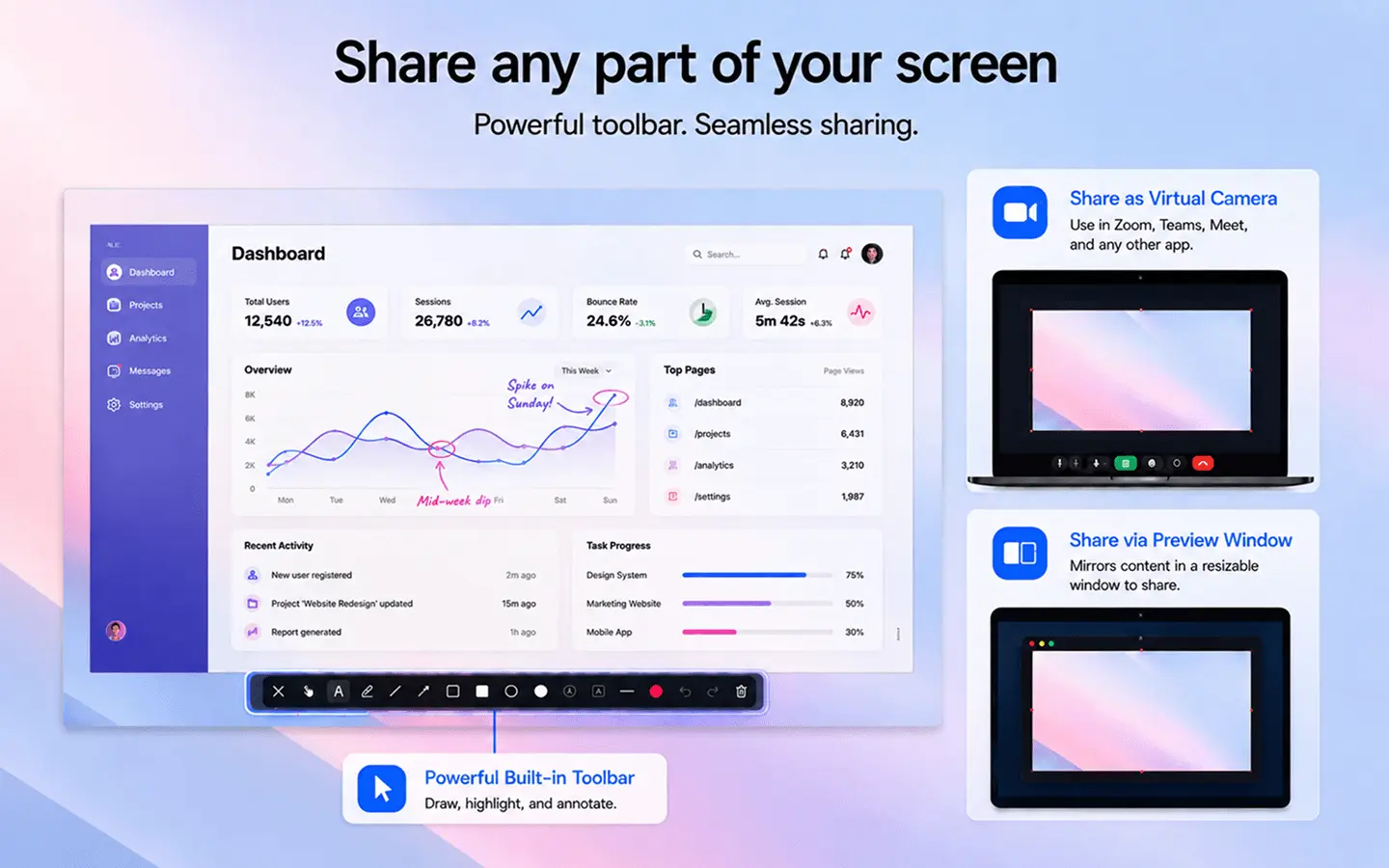
Picking the Wrong Area to Share
Most bad shares start with a bad region — not a bad app.
When you share your whole Mac screen, the content viewers actually need is a small slice of a busy desktop — surrounded by distractions and squeezed into the meeting frame. Sharing a single window helps, but windows aren't always the right shape or size for a presentation.
The fix isn't a different app. It's choosing the exact region you want people to see: the right aspect ratio, large enough to read, positioned where your content lives. Get that right and everything else — readability, privacy, professionalism — follows.
- Wrong shape. Sharing a tall or oddly sized window letterboxes or crops in a 16:9 meeting frame.
- Too small. A wide region makes the real content tiny and hard to follow.
- Wrong place. Content off-center or hidden behind other windows confuses viewers.
- No presets. Reframing by hand every call wastes time and looks inconsistent.
Frame the Region That Fits the Meeting
ZoneShare makes picking the right region a deliberate, repeatable step.
- Start from a ratio. Pick 16:9, 4:3, or another preset so the region fits the meeting frame exactly.
- Size it to your content. Make the region large enough for text and details to stay readable.
- Place it precisely. Drag the frame or enter exact pixel values to put it exactly where your work is.
ZoneShare turns region selection into a first-class step. Choose an aspect ratio, drag the frame over the content you care about, and fine-tune the size and position. The result mirrors into the Zone Share window or the Zone Share Camera — a clean region, not your whole desktop.
Once a region works well, save it and reuse it. For a focused share of just one area, see our guide to sharing only part of your screen, or explore better screen sharing on Mac for the full workflow.
Pick Your Region in 3 Steps
Ratio, size, position — then share
Choose a Ratio
Open ZoneShare and select an aspect ratio preset like 16:9 or 4:3 for the meeting frame.
Frame the Region
Drag the region over your content, or enter exact width, height, and position values.
Share It
Share the Zone Share window in your meeting app — or use Zone Share Camera as your webcam.
Regions for Every Situation
Match the shape and size of your region to what you're showing
Slides & Decks
A 16:9 region frames slides perfectly with no letterboxing or cropping.
Code & Docs
Size the region to a readable column of code or a single document panel.
Spreadsheets & Data
Zoom the region onto the rows and columns that matter instead of the whole sheet.
Designs & Mockups
Frame just the artboard or preview so feedback stays on the right thing.
Teaching & Demos
Keep the region on the one tool or step you're explaining.
Tools for the Perfect Region
Everything ZoneShare gives you to pick, size, and place your share
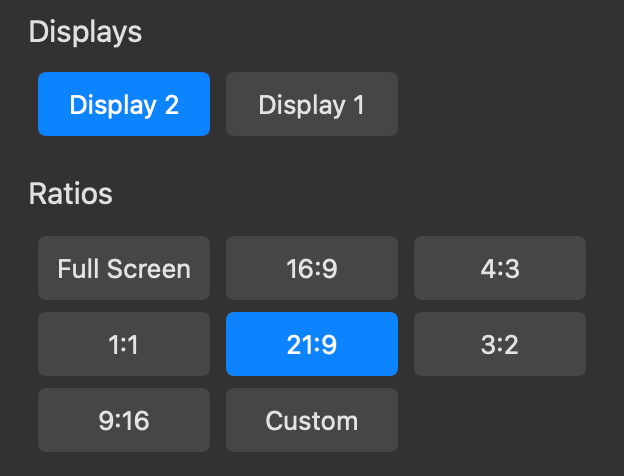
Pre-defined Ratios
Start from 16:9, 4:3, 3:2 and more so the region fits the meeting frame from the start.
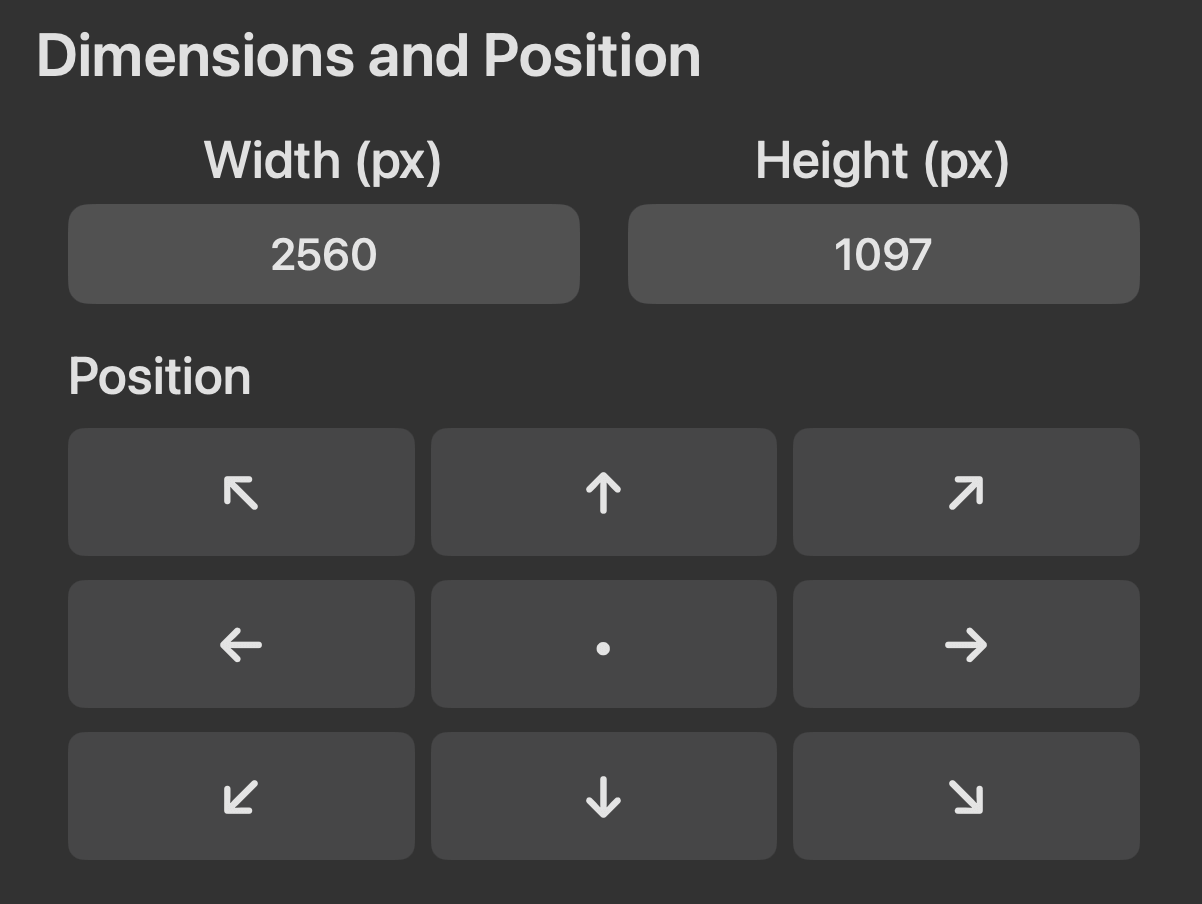
Dimensions & Position
Set exact width, height, and placement with drag handles or pixel values.
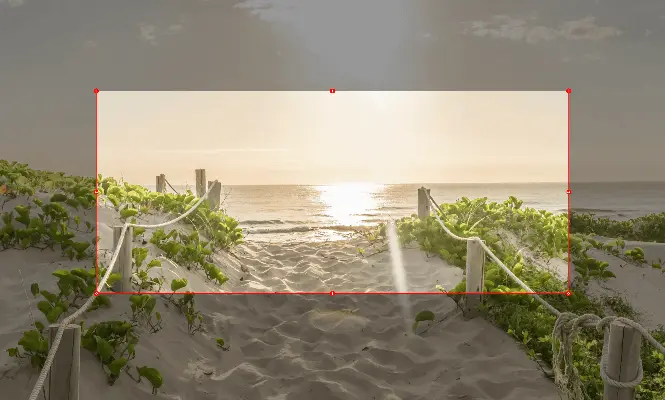
Focus Overlay
Dim everything outside your region so viewers always see what's on screen.
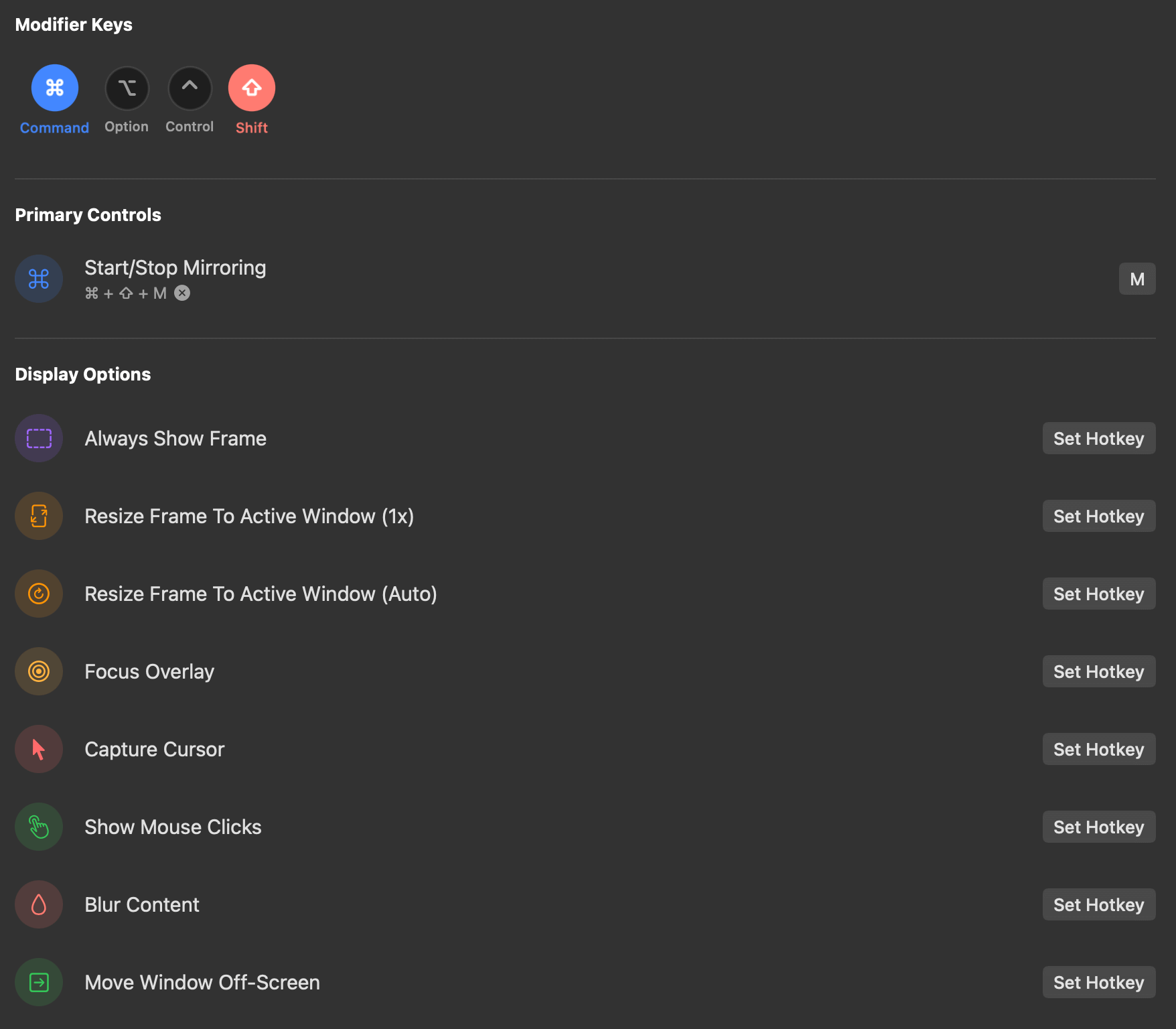
Customizable Hotkeys
Jump between saved regions with one shortcut — no manual reframing mid-call.
Choosing a Share Region Questions
How to pick the right region on your Mac
16:9 fits nearly every meeting and video app frame, so content isn't cropped or letterboxed. ZoneShare also offers 4:3, 3:2, and fully custom ratios.
Yes. Drag the frame, or enter exact pixel values for width, height, and position so the region lands precisely where your content is.
Make it large enough that text and details are clear at typical meeting sizes. A focused region at 16:9 stays bigger and sharper than a whole-desktop share.
Yes. Save positions you like and switch between them with customizable hotkeys, so every call starts with the same clean region.
Yes. Only the framed region is mirrored into the Zone Share window or Zone Share Camera. Anything outside it never appears in the share.
ZoneShare is free to download from the App Store and lets you mirror a portion of your screen. Pro adds custom frame size, blur, hotkeys, and more.
Frame the Right Region Every Time
Download ZoneShare free and share exactly the part of your Mac screen that matters.