Screen Sharing Tools for Mac: Draw, Spotlight, Blur & More
Sharing a window is the easy part. Holding attention is harder. ZoneShare brings a toolkit to your Mac share — annotate, spotlight, blur, zoom, and more — so your audience stays focused.

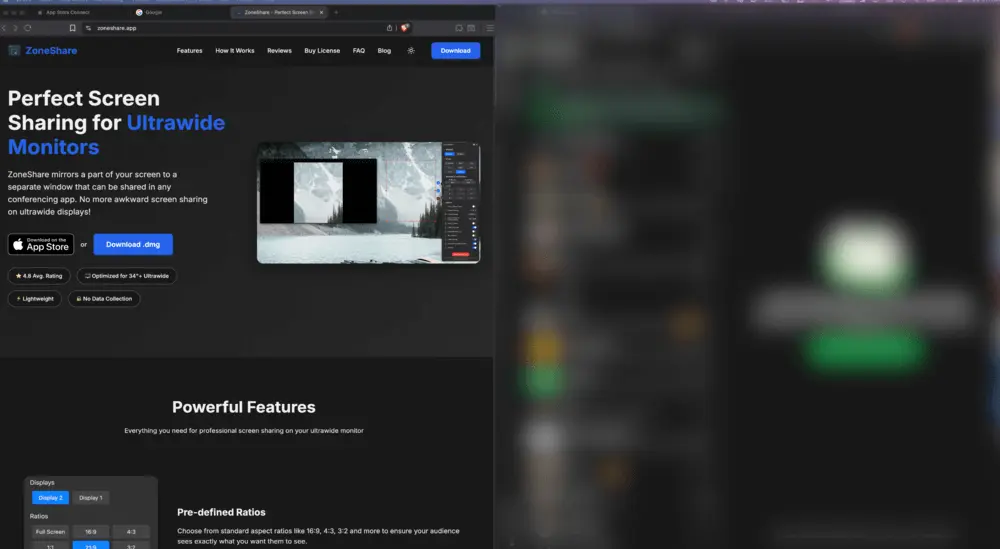
Plain Screen Shares Lose Attention
Showing a window isn't the same as explaining it.
A static share of your Mac screen is easy to ignore. Viewers can't tell what matters, they miss subtleties, and private details sit in full view. The apps built into macOS and your meeting tool stop at 'show the screen' — no way to point, highlight, or protect what's on it.
Better screen sharing needs tools layered on top of the share: a way to draw attention, hide sensitive content, and make details visible. That's the gap ZoneShare fills on macOS.
- No emphasis. Viewers don't know which part of the screen to look at.
- No privacy control. Sensitive tabs and notifications stay fully visible.
- Hard-to-see details. Small text and fine points get lost in a busy share.
- No live cues. People can't see what you're typing or clicking.
A Toolkit on Top of Every Share
ZoneShare adds presentation tools to whatever region you share on Mac.
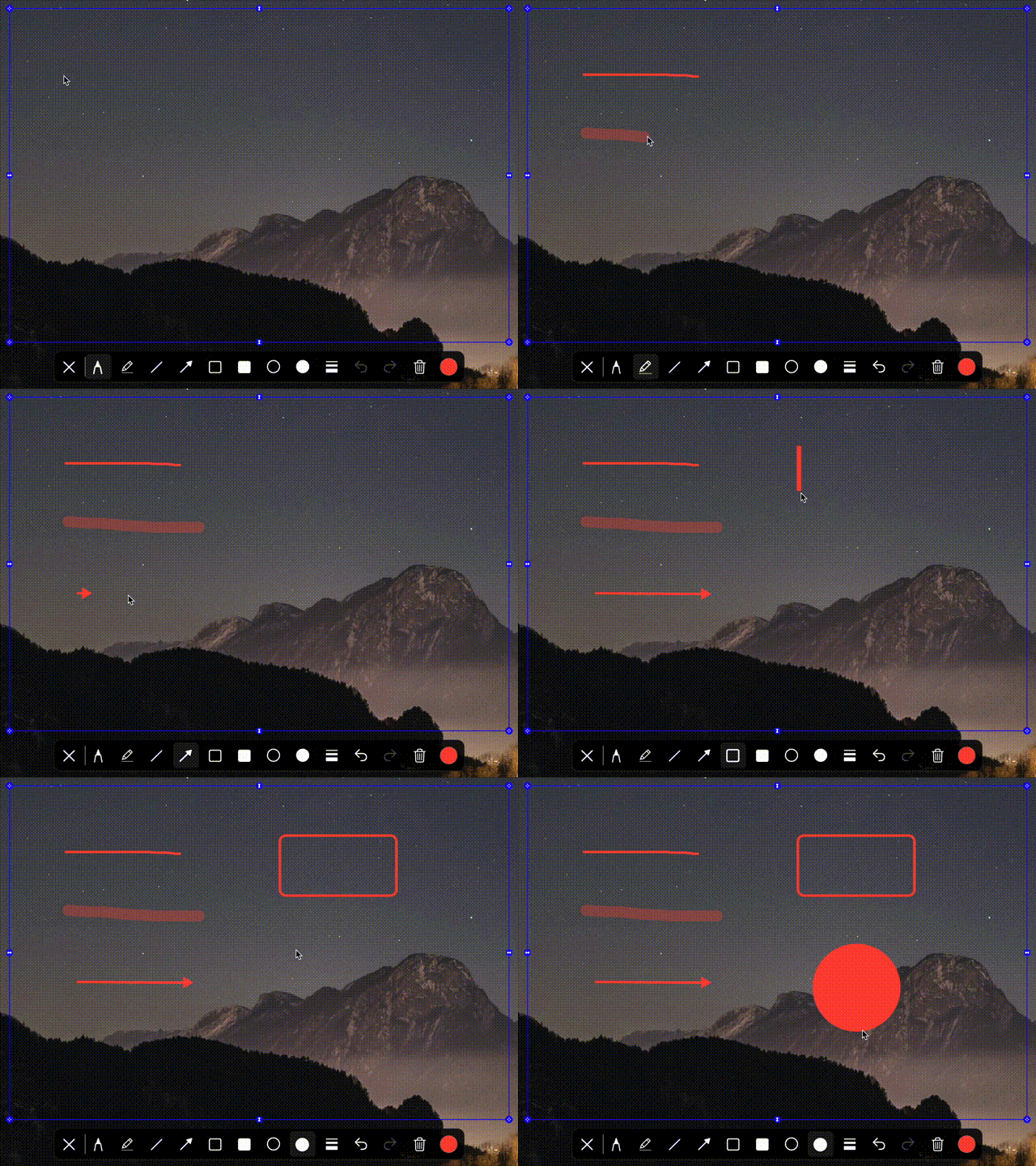
- Annotate live. Draw, highlight, and point directly on the shared region as you talk.
- Direct attention. Spotlight or dim the background so only what matters stands out.
- Protect content. Blur or exclude sensitive apps and tabs inside the region.
- Show the details. Zoom into fine points and display your keystrokes live.
ZoneShare pairs a precise share region with a set of tools that run right on it: a drawing toolbar, spotlight, blur, zoom controls, keystroke visualization, and a built-in timer. They work in Zoom, Teams, Google Meet, and any app that can share a window or use a webcam.
Start with the basics in sharing only part of your screen, frame the area in choosing the right region, then use these tools to make the share land.
Use the Tools in 3 Steps
Share, then layer on the tools
Share Your Region
Open ZoneShare, frame the region, and share the Zone Share window or Zone Share Camera.
Annotate Live
Use the drawing toolbar to highlight, underline, or point at exactly what you're explaining.
Refine as You Go
Spotlight, blur, zoom, or turn on the timer — all without ending the share.
Tools for Every Kind of Call
Which tool helps in which situation
Teaching & Training
Draw and spotlight while you explain so learners follow each step.
Presentations
Zoom into details and use the timer to keep on schedule.
Private Demos
Blur or exclude sensitive apps and tabs that appear in the region.
Code Walkthroughs
Show keystrokes live and draw attention to the exact line you're discussing.
Recordings & Streams
A virtual camera keeps the polished, tooled region ready for any app.
The ZoneShare Toolset
Everything you can do on top of a shared region
Drawing Toolbar
Draw, highlight, and annotate directly on the shared region during any call.
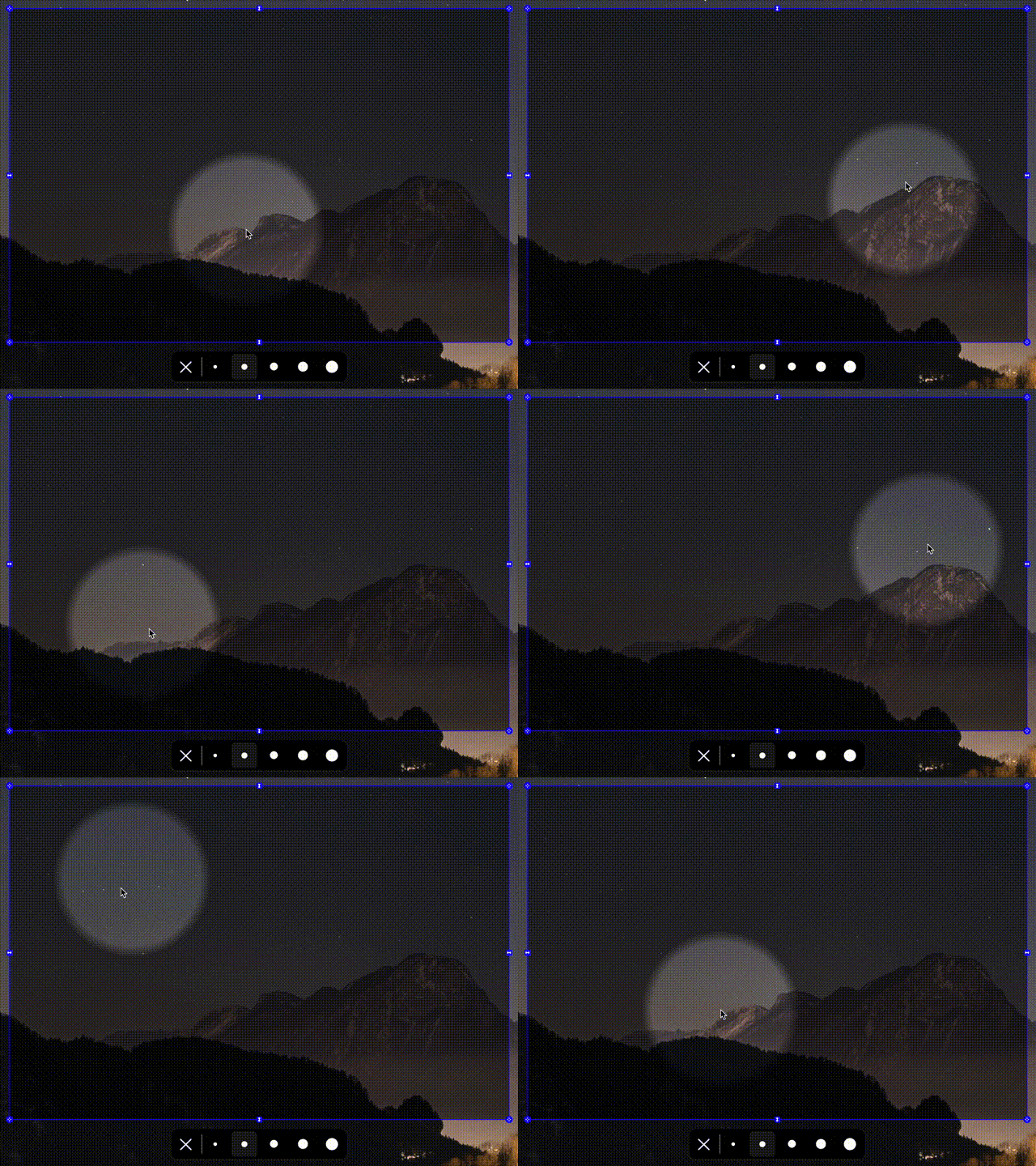
Spotlight
Dim the background and spotlight the part of the screen you want people to see.
Smart Exclusion & Blur
Blur or exclude apps and tabs that appear inside the region to keep content private.
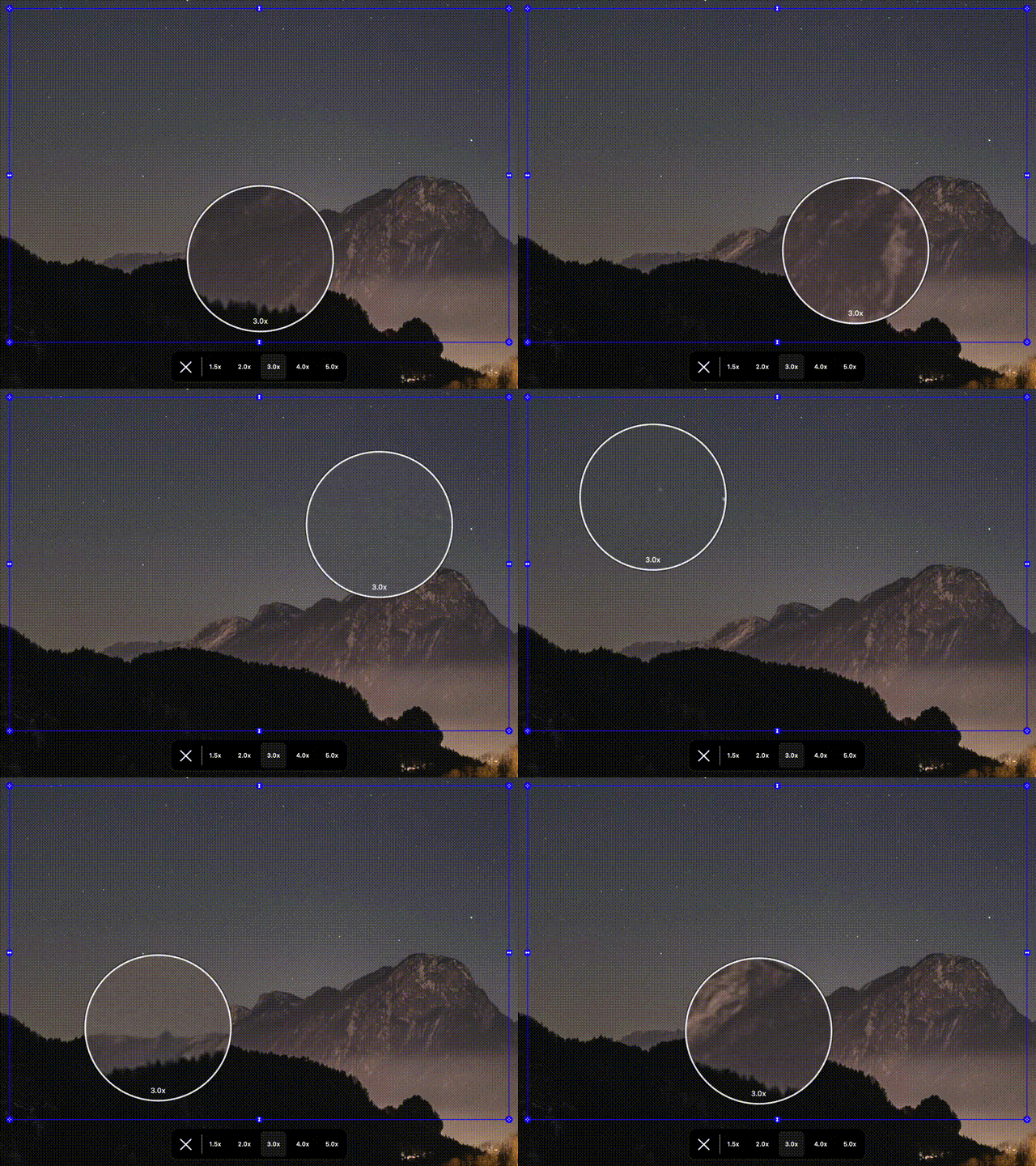
Zoom Controls
Magnify the region to highlight fine details without resizing your whole window.

Keystroke Visualization
Display every key press and shortcut live so viewers can follow along.
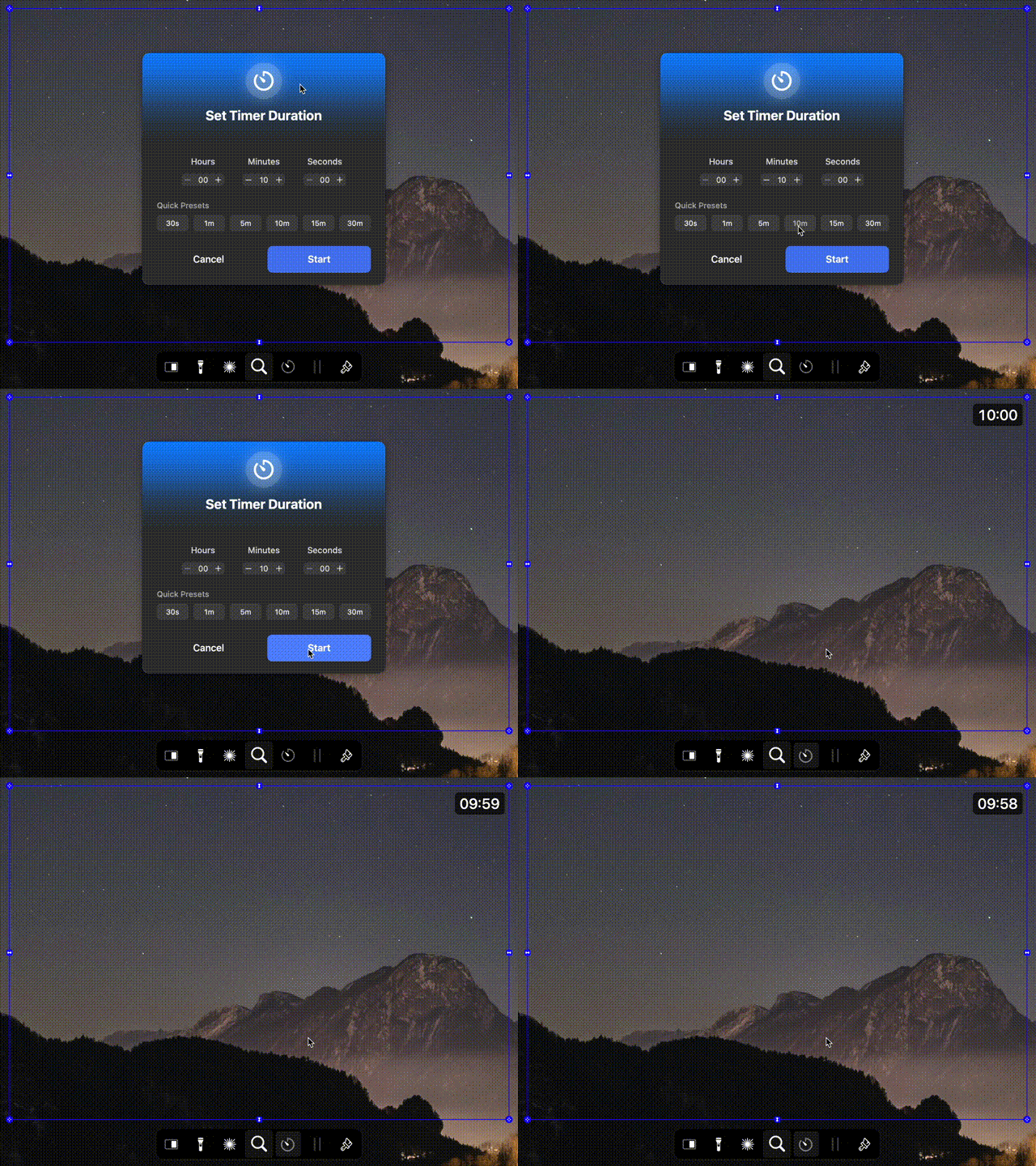
Timer
Keep presentations on track with a timer that displays right in the share.
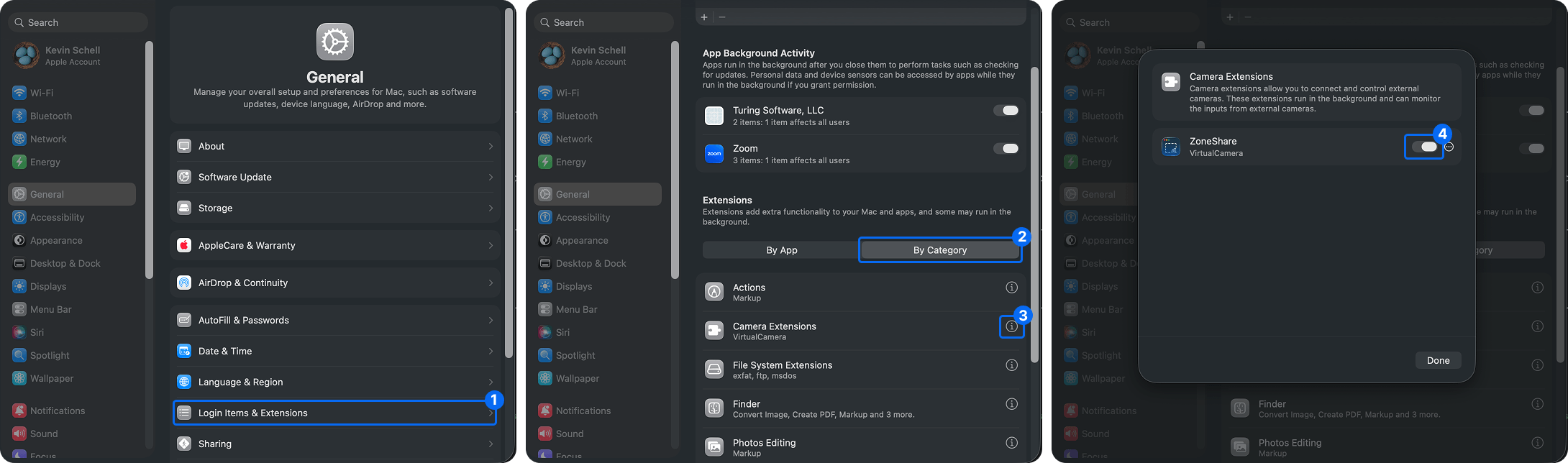
Virtual Camera
Send the tooled region as a webcam in Zoom, Teams, Meet, Discord, and OBS.
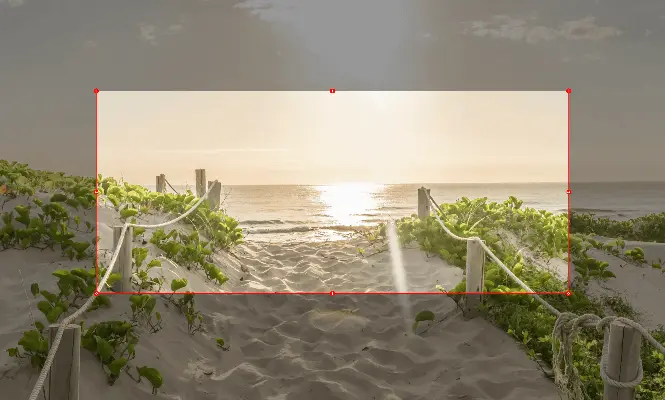
Focus Overlay
Dim everything outside your region so attention stays on what you're sharing.
Mac Screen-Sharing Tools Questions
What you can do on top of a Mac share with ZoneShare
With ZoneShare you can draw and annotate, spotlight or dim the background, blur sensitive apps, zoom into details, show keystrokes live, and run a timer — all on the region you're sharing.
Yes. Because the tools apply to the Zone Share window or Zone Share Camera, they appear in any app that can share a window or use a webcam.
Yes. The drawing toolbar lets you draw, highlight, and point directly on the shared region in real time, without switching apps.
Blur or exclude specific apps and browser tabs that appear inside the region, or use the focus overlay to dim everything outside it.
ZoneShare is free to download from the App Store and lets you mirror a portion of your screen. Pro adds custom frame size, blur, hotkeys, and more.
Make Every Mac Share Land
Download ZoneShare free and turn plain screen shares into clear, focused presentations.